
Every Kepler setting explained
Kepler’s Settings has nine groups, the same on a TV and a phone, and a few settings appear on one of them only. This page goes through every setting in Kepler 1.7, group by group, with what it does, what it is set to at first, and whether it needs Kepler Pro.
 4:57 Watch the whole guide on YouTube About 5 minutes, in 8 chapters. Jump to the step you need. Open on YouTube
 On this page
All of Kepler’s IPTV player settings are in one place, Settings, and every one of them is described below as Kepler 1.7 names and arranges it Coming in Kepler 1.7. An older Kepler has many of the same settings under other headings. Settings marked Kepler Pro are open to everyone during the 30-day trial, and need Kepler Pro after it.
Open Settings
On a TV
-
Press until the menu on the left opens, then to Settings at its foot, and press OK.
-
The nine groups are on the left. Move between them with and : each one opens on the right as you reach it. Press to go into a group, and BACK to come back out.
On a phone or tablet
-
Tap the gear at the top right of Home. Each group shows what it is set to, and opens a page of its own when you tap it.

Playback
How films, series and live channels play.
On a TV

On a phone or tablet

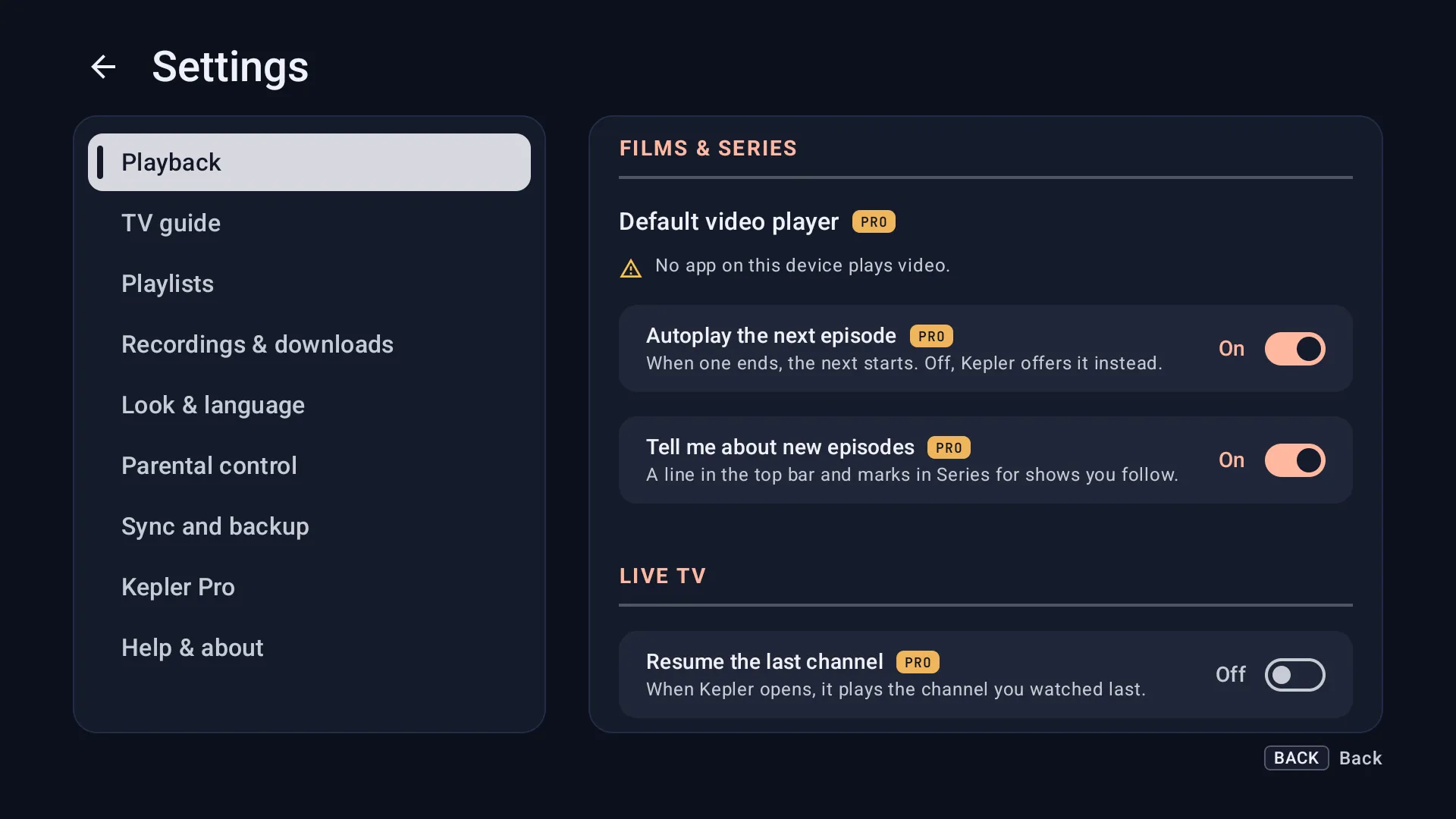
Films & series
- Default video player : Kepler plays everything itself. If another video app is installed, such as VLC, you can choose it here. A switch then appears, Also play films and episodes in that app: Play and Resume open there, from where you left off. Live channels always stay in Kepler. Kepler Pro.
- Autoplay the next episode: when an episode ends, the next one starts. Switch it off and Kepler offers the next one instead. On at first. Kepler Pro.
- Tell me about new episodes: on a TV, a line in the top bar and marks in Series for the shows you follow, on at first Coming in Kepler 1.7. On a phone, a notification, off at first. Kepler Pro.
Live TV
- Resume the last channel: when Kepler opens, it plays the channel you watched last. Off at first. Kepler Pro.
- Channel banner Coming in Kepler 1.7, TV only: Full shows the banner with its row of tiles, Simple shows the channel and its programme alone. Full at first. Free.
- Change channel with the arrows , TV only: for remotes without P+ and P−, such as many Android TV boxes. Up: next channel makes go to the next channel and to the one before; Down: next channel is the other way round. Hold OK for the player’s controls. Off at first. Free.
Audio & subtitles
On a TV

On a phone or tablet

- Audio language: films and channels start in this language when they have it. Kepler Pro.
- Subtitle language: the language Kepler picks once you turn subtitles on in the player. Kepler Pro.
- Once you choose a first language for either, a second choice appears beside it: the language Kepler falls back on when a film or channel does not have the first (Second choice, then Then and its name).
- Size, colour and timing of subtitles are not here: change them in the player, under Subtitles, with the picture in view .
- OpenSubtitles : sign in with your own OpenSubtitles.com account to find subtitles online from the player. Signing in is free; downloading subtitles needs Kepler Pro.
Advanced
On a TV

- Match content frame rate, TV only: the TV switches to the frame rate of what you watch, for smoother motion. The screen may go black for a moment as it switches. On at first. Kepler Pro.
- Buffer size: how much video Kepler tries to keep ready ahead of what you see, from 15 to 120 seconds in steps of 5. A longer buffer rides out short drops in your connection. 50 seconds at first. Kepler Pro.
- Stream diagnostics overlay: the stream’s figures over the picture, such as its codec, bitrate, dropped frames and buffer. Off at first. Free.
TV guide
Where the TV guide (EPG) comes from, and how it looks. To add a guide of your own, or fix one that stays empty, see Add a TV guide you already have.
On a TV

On a phone or tablet

Guide data
At the top, how many programmes Kepler has and for how many of your channels, and when the guide last updated. Kepler refreshes it twice a day on its own.
- Refresh guide now: downloads the guide again at once. Free.
- Clear EPG guide data: deletes the guide Kepler has stored, for a fresh start when listings look wrong. Then choose Refresh guide now, or Kepler loads it again at its next refresh. Free.
- Guide source: From your playlist uses the guide your provider names, or choose Custom address and enter an XMLTV guide link of your own. It applies to every playlist; one playlist’s own guides are in its details in My Playlists . Kepler Pro.
- Extra guide sources, TV only: more XMLTV links, for channels your guide leaves out. When two guides cover a channel, the earlier one wins. Kepler Pro.
Guide display
On a TV

- Guide time span, TV only: how many hours the guide grid shows at once: 1 h, 1½ h, 2 h or 3 h. 1½ h at first. Free.
- Fetch guide as you browse, TV only: asks your provider for the programmes of the channels on screen as you browse, so the guide fills in where you look. On at first. Free.
- Live pictures in the guide, TV and tablet: when a programme has no picture, Kepler opens the channel for a moment to show a still from it. On at first. Free.
Reminders
Your programme reminders, listed here. A reminder comes 5 minutes before the programme starts, while Kepler is open. To set one on a TV, hold OK on a programme in the guide; on a phone, tap the bell beside it.
Playlists
On a TV

On a phone or tablet

- Open My Playlists: add, refresh, edit and switch playlists. A playlist’s own options, such as updating automatically, its films and series, and its guides, are in its details there. See Add your playlist.
- Movies and series in the menu, TV only: for each playlist, switch Movies or Series out of the menu on the left. They stay loaded, so switching them back is instant. Free.
- Default User-Agent: the name Kepler gives itself when it plays a stream, or downloads an M3U link or a guide (not when it signs in with an Xtream Codes login). Leave it on Kepler’s default unless your provider asks for a particular one; then choose Custom. A playlist can have its own, set when you add or edit it. Kepler Pro. See IPTV not working.
Recordings & downloads
On a TV

On a phone or tablet

- Where files go : where new recordings and downloads are saved: this TV or phone, a USB drive while one is connected, or a network folder. Files already saved stay where they are. The free space is shown under it. Free.
- Show files in other apps: other apps, such as a file manager or another video player, can
open your recordings and downloads from
Android/media/com.keplerplayer.app. Off, only Kepler sees them. On at first. Free. - Network folder: when you choose it, the folder’s settings appear. If a TV cannot reach the folder, new files are saved on the TV until it can, and Check again tries the folder once more.
- Start booked recordings on time, TV only: shown when Android has not yet allowed Kepler to use alarms. Choose Allow in Android settings and switch Kepler on under Alarms & reminders, or booked recordings may start late.
- How recording works, TV only: short answers about recording, such as what happens when you change channel and how much space an hour takes.
- Recordings, phone only: your recordings, listed here.
- Download over Wi-Fi only: downloads wait for Wi-Fi, so a film does not use your mobile data. On at first. Free.

Look & language
On a TV

On a phone or tablet

- Language: Kepler’s own language, one of eleven: English, Deutsch, Español, Français, Italiano, Nederlands, Português (Brasil), Suomi Coming in Kepler 1.7, Türkçe, Русский and العربية. Dates and numbers keep the same format in every language. Free.
- Time format : 21:30 or 9:30 PM, everywhere in Kepler. Automatic follows your device’s own setting. Free.
- Appearance, TV only: Kepler’s colours on the TV, from eight themes: Kepler, Neptune, Eclipse (OLED), Venus, Terra, Mercury, Uranus and Jupiter. Kepler at first. Kepler Pro.
- Accent color, phone only: the colour the whole app follows, from five. Mars at first. Kepler Pro.
- Channel list style, phone only: how dense live channel lists are: Comfortable, Compact or Grid. Comfortable at first. Free.
- Hide group prefixes: a group your provider calls “VIP | NEWS” reads “NEWS”. Search still finds the full name. On at first. Free.
- Hide channel prefixes: a channel called “VIP| CHANNEL 1” reads “CHANNEL 1”. On at first. Free.

Parental control
On a TV

On a phone or tablet

- Parental PIN: a 4-digit PIN. Once it is set, you can lock a channel from its menu, a whole group from Edit, and on a phone or tablet a single film or show, and Kepler asks for the PIN before it opens them. Setting the PIN and adding locks need Kepler Pro; locks you have already made, and typing the PIN, stay free. See Parental control.
Sync and backup
On a TV

On a phone or tablet

Sync between devices
Shares your playlists and settings between your TVs and phones at home, over your Wi-Fi.
- Join a household, TV: shows a code for a phone that already syncs to scan.
- Add a device, TV: shows a code for a new phone or tablet to scan.
- Sync between devices, phone: the devices you sync with, and the scanner for a TV’s code.
Joining a household and copying between devices need Kepler Pro.
Backups Coming in Kepler 1.7

- Back up now: saves your playlists with their logins, favourites, groups, locks and settings in one file. Kepler Pro.
- Restore a backup: brings a backup back, on this device or a new one. Free.
- Save to your phone, TV: shows a code; scan it to move a backup to your phone. Save a copy…, phone: sends a backup to Downloads, Google Drive or another app. Kepler Pro.
- Where backups go: this TV or phone, a network folder, or your Google Drive, where Kepler sees only the files it makes. A backup kept on the device is gone if Kepler is uninstalled or the device is reset.
- Back up automatically: Off, Every day or Every week. Kepler keeps the last five automatic backups. Off at first. Kepler Pro.
Kepler Pro
On a TV

On a phone or tablet

- At the top, where your trial or Kepler Pro stands, such as Free trial, 30 days left with the day it ends.
- Get Kepler Pro: the plans, with Google Play’s price in your currency.
- Buy on your phone, TV: shows a code, so you can buy on your phone instead of with the remote.
- Restore purchase: looks for a purchase on the Google account this device uses. Bought on a phone with the same account? Restore finds it on the TV.
Help & about
On a TV

On a phone or tablet

- Version: the Kepler you have, such as Kepler 1.7. Say it when you ask for help.
- Clear artwork, phone only: deletes the posters and logos Kepler has saved, to free space. They download again as you browse.
- Open-source licences: the open-source software Kepler is built with, and its licences.
Settings inside the player
On a TV, some settings are also at hand while a channel plays, so you can try a change without leaving the picture. They are the same settings as in Settings: change one in either place and the other follows.
-
While a channel plays, hold OK to open the control row. Press to Settings at its end, and press OK.

-
The panel opens beside the picture. Under Playback: Audio language, Subtitle language, Buffer size, Match content frame rate, Resume the last channel, Channel banner, Change channel with the arrows and Stream diagnostics overlay. Under TV guide: Fetch guide as you browse, Guide time span and Refresh guide now.

The Info tile beside Settings shows the stream’s figures over the picture for what you are watching now, without changing the setting.
Checked with Kepler 1.7 (version 43) on . Screens show Kepler’s fictional demo catalogue.