
Kepler on several devices, sync and backup
Kepler keeps your TVs, phones and tablets in step over your home Wi-Fi, with no account and no cloud. Pair a device by scanning a code, and your playlists, favourites, groups and settings follow it. A backup keeps the same setup in one file, for a new TV, a reset or a device that is gone. How many devices can watch at once is set by your provider, not by Kepler.
 4:14 Watch the whole guide on YouTube About 4 minutes, in 5 chapters. Jump to the step you need. Open on YouTube
 On this page
Kepler runs on as many of your TVs, phones and tablets as you like. Each one keeps its own copy of your setup, and sync keeps those copies in step, so a favourite you star on the phone is a favourite on the TV. Everything travels over your home Wi-Fi: Kepler has no account and no cloud of its own.
Connections: why a second device can stop the first
Before setting up a second device, know the limit that is not Kepler’s. Your IPTV subscription allows a number of connections, also called concurrent streams: how many devices may play simultaneously. Every device that is watching uses one, whatever app it uses.
- At the limit, the provider refuses the next stream or cuts one of the two. Some providers cut one every few minutes, which looks like buffering.
- Kepler shows your subscription’s limit in the playlist’s details: Connections, such as 0 / 2 (see Your subscription).
- Syncing and backups never use a connection. Only watching, recording and downloading do.
So you can install Kepler on every TV, smartphone and tablet in the house, and sync them all, with a one-connection subscription. You just cannot watch on two of them at once: simultaneous streaming takes a subscription with two connections or more, which your provider sells.
What syncs between devices
Each device chooses what it shares, in What this TV shares (or this phone). Ten of the eleven items are ticked at first:

- Playlists: your playlists with their logins, which travel encrypted, plus My streams and the guides you added.
- Favourites: starred channels, films and shows.
- Your groups: the groups you built, and what is in them.
- Hidden: the groups, channels, films and shows you hid.
- Order and layout: channel and group order, pinned groups, Home and sorting.
- Continue watching: where you stopped in films and episodes.
- Reminders: each device alerts on its own.
- Scheduled recordings: each device that can record records them.
- Parental lock: your PIN and what is locked.
- Preferences: name prefixes, the guide and player options.
- Theme and accent, not ticked at first: the TV’s theme and the phone’s accent, so a TV and a phone can look different.

Never shared: recent channels, downloads, recordings, the app’s language, where files go, and the player each device uses. Untick an item to keep it on that device only.
Set up sync, step by step
Pairing needs a phone or tablet, because one of the two devices scans the other’s code with its camera. Both must be on the same Wi-Fi, with Kepler open.
-
On the TV, open Settings › Sync and backup and choose Add a device. The TV shows a code, which works for one device and for 5 minutes.

-
On the phone, open Settings › Sync and backup , tap Sync between devices, then Join a household, and scan the TV’s code.

-
The phone says Joined your other devices. Give it a name your other devices will show, or pick a room, and tap Continue.

-
The TV says the phone joined. Press OK on Done.

-
Both devices now list each other. From now on they keep in sync on their own.

To add another TV, a phone that already syncs scans that TV’s code (as in A new TV joins). To add another phone, a device that already syncs shows a code with Add a device, and the new phone scans it with Join a household. Two TVs cannot pair with each other directly: a phone does it between them.
When devices sync
- When Kepler opens, and about 5 seconds after you change something.
- Every 15 minutes while Kepler is open, to catch anything missed.
- A few times a day in the background, on Wi-Fi that is not metered.
Changes reach a device when both are on the same Wi-Fi with Kepler open. A phone that was away catches up when it is home again.
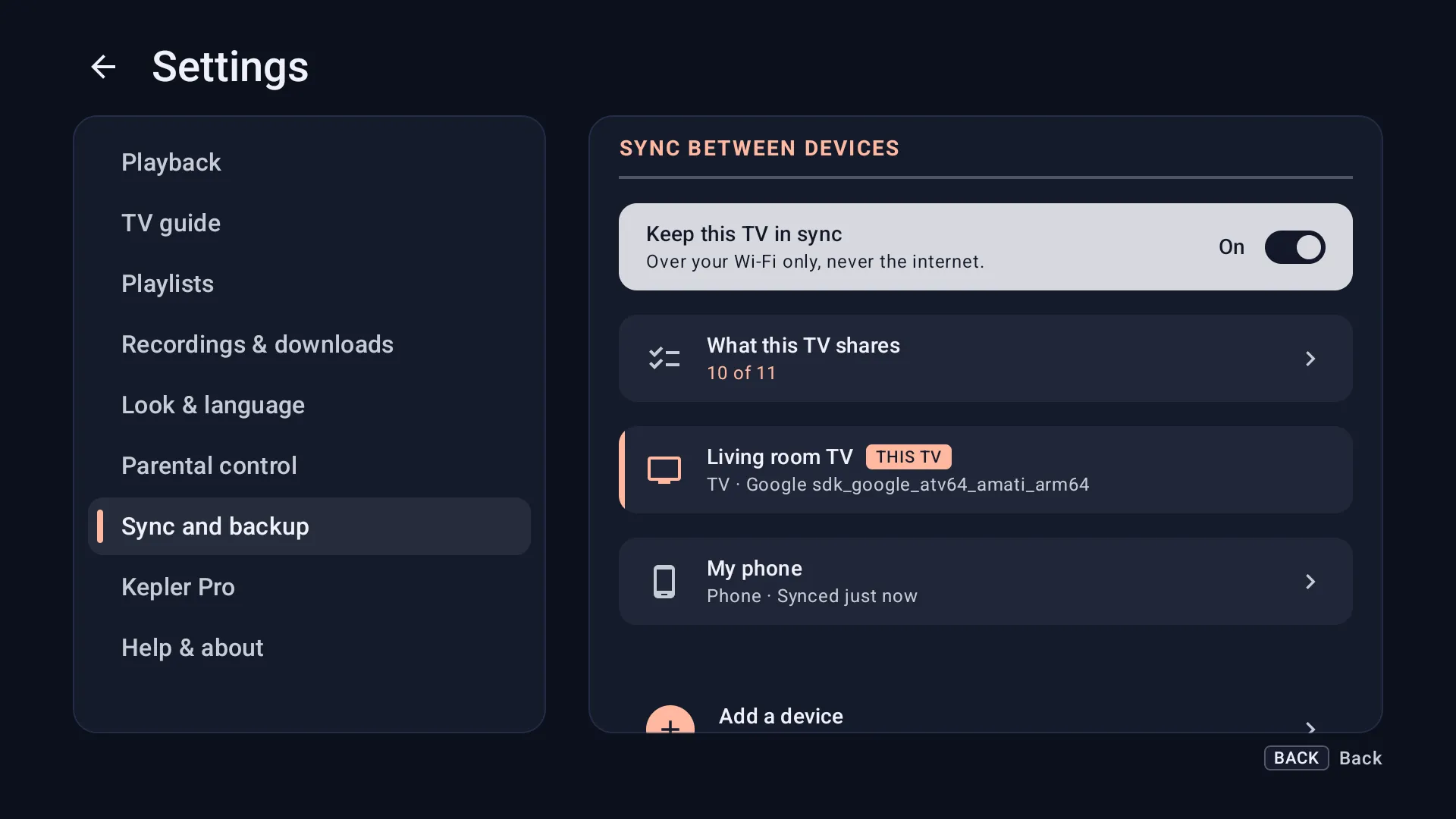
On a TV, press OK on This TV to rename it. Switch Keep this TV in sync off and nothing moves unless you copy; the device stays in the household.
Copy from or send to a device
Sync shares what changes from now on. To make two devices match right away, copy:
-
In Settings › Sync and backup , choose Copy from a device… to bring another device’s setup here, or Send to a device… to send this one’s there. Then choose the device.

-
Add to what’s here keeps everything on the other device and adds what it lacks. Replace what’s here makes it match, and lists what it replaces. Only items both devices share are copied.

-
The other device has the playlists and favourites at once, logins included.

Replacing a parental lock asks for the PIN of the device being replaced.
A new TV joins from its first screen Coming in Kepler 1.7
A new TV, or one that was reset, does not need to be set up by hand when a phone already syncs.
-
Open Kepler on the new TV, choose your language, then I’ve used Kepler before on the first screen, and agree to the terms. Choose From a device near you.

-
The TV shows its code.

-
On the phone, in Sync between devices, tap Add a device, then Scan the TV’s code.

-
Check the TV and tap Add.

-
On the TV, pick a room or type a name, and press OK on Continue.

-
The playlists, favourites and settings arrive, and each playlist loads from your provider.


Leave a household
Leave this household, at the foot of the list, stops this device sharing with the others, and they stop showing it. Everything on it stays as it is.
Back up and restore Coming in Kepler 1.7
A backup keeps your whole setup in one file: playlists with their logins, favourites and groups, what you were watching, reminders, booked recordings, parental locks and settings. It needs no other device, so it is the way back after a reset, or onto a TV that replaces one that broke.
Make a backup
On a TV

On a phone or tablet

- In Settings › Sync and backup , under Where backups go, choose this TV or phone, a network folder, or your Google Drive. A backup kept on the device is gone if Kepler is uninstalled or the device is reset, so choose a network folder or Google Drive for the one that matters.
- Choose Back up now. Kepler says when, what it holds and its size.
- Or choose Back up automatically: Every day or Every week. Kepler keeps the last five.
Backups need Kepler Pro. Restoring one never does.
Keep a copy on your phone
A TV’s backup can go to your phone, and from there wherever you keep files.

On the TV, choose Save to your phone and scan the code with your phone’s camera: the backup downloads on the phone. On a phone, Save a copy… sends one to Downloads, Google Drive or another app.
Restore a backup
-
Choose Restore a backup in Settings › Sync and backup , or on a new TV, I’ve used Kepler before › From a backup. Pick the backup, or look in a network folder, on your phone or in Google Drive. On a TV, a backup on a USB stick opens with Open with Kepler from the TV’s file manager.

-
Untick anything you do not want back, then choose Restore.

-
If the device already has a setup, choose Add to what’s here to keep it, or Replace what’s here to make it match the backup.

-
Your setup is back, with what came back. Each playlist then loads from your provider, a few minutes for a large one.

Devices in sync with this one receive what you restore. Changed your mind? Put back what was here appears in Backups for 7 days after a restore that changed something, and undoes it.
Moving to a new TV or phone
- The old device still works: pair the new one with a phone that syncs, as in A new TV joins from its first screen.
- The old device is gone or reset: restore a backup from a network folder, Google Drive or your phone.
- Kepler Pro: on a new Android device with the same Google account, Restore purchase in Settings › Kepler Pro finds it.
Xtream Codes passwords are kept encrypted on each device. Sync and backups bring them along; you do not type them again.
Checked with Kepler 1.7 (version 43) on . Screens show Kepler’s fictional demo catalogue.