
Add a TV guide (EPG) to your IPTV playlist
An EPG (electronic program guide) is the TV guide, what is on now and next on each channel. Kepler takes it from your playlist by itself. An Xtream Codes login brings your provider’s guide, and an M3U link does when it names one. When yours has none, or leaves channels out, add the XMLTV link you have to the playlist’s Guide data.
 5:10 Watch the whole guide on YouTube About 5 minutes, in 5 chapters. Jump to the step you need. Open on YouTube
 On this page
- What an EPG is
- Your provider’s guide comes in by itself
- Find your way around the TV guide on a TV
- The guide on a phone or tablet
- Get a reminder before a programme starts
- Add a TV guide you already have
- Keep the guide up to date
- Pictures in the guide
- TV guide empty or showing “No information”?
- Wrong times in the guide
- What is free and what needs Kepler Pro
The TV guide tells you what is on now, what comes next and what is on later tonight, for every channel in your playlist. Most of the time you do nothing. Kepler finds the guide your provider publishes and keeps it up to date, and this guide shows where it comes from, how to add one of your own when there is none, and how to use it on a TV and on a phone.
What an EPG is
EPG stands for electronic program guide. An EPG for IPTV is a schedule your provider publishes beside the channels, usually as an XMLTV file: for each channel, the programmes with their start and end times, a description and often a picture. The channels and the guide are separate. That is why a playlist can play perfectly and still show no programmes.
Kepler downloads the guide, matches it to your channels and shows it everywhere: what is on now in the channel list and the player, the full guide, programme details, reminders, and catch-up for channels that keep past programmes.
Your provider’s guide comes in by itself
Usually you add nothing. When your provider has a guide:
- An Xtream Codes login always points to the provider’s guide, on the same server. Kepler finds it with your login.
- An M3U link brings a guide when the playlist names one in its first line. If it names several, Kepler uses the first; add the others yourself, as shown in Add a TV guide you already have.
On a TV, the setup’s TV guide step says whether it found one.
-
Leave Use your provider’s guide on and choose Continue. The guide downloads in the background after the setup, usually within a minute.

-
When the playlist has none, the step says so. Choose Add another guide to add the one you have, or Skip for now and add it later.

On a phone or tablet there is no step: Home shows a tick beside Guide once it is in.
Where your provider’s EPG URL is
You rarely need it, but if a guide stays empty or another app asks for it:
- For an Xtream Codes login, it is the server address followed by
/xmltv.php?username=…&password=…, with your own username and password. - For an M3U playlist, it is the address after
url-tvg=in the playlist’s first line, or in your provider’s welcome message.
Kepler shows the address it uses, without your password, in the playlist’s Guide data. Keep the full address to yourself: it carries your password.
Find your way around the TV guide on a TV
Open Guide from the menu on the left: it is there once your playlist has a guide. The guide opens on what is on now, with the programme you are on described at the top.
-
and move through channels, and through time. The top of the screen shows the programme you are on: its time, how long is left, what it is about and what comes next.
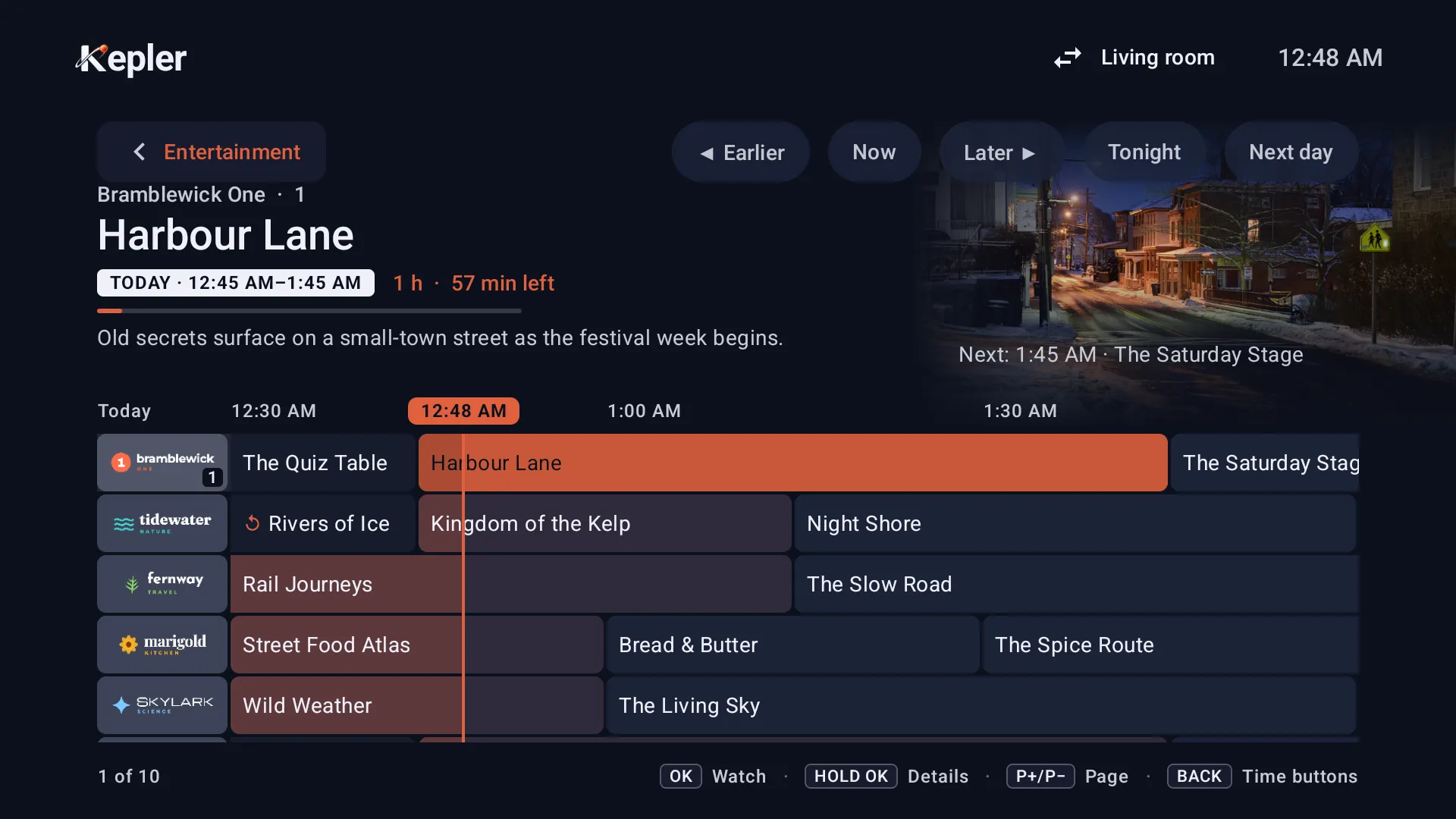
-
Press OK. What it does depends on the programme. On one that is on now, it plays the channel. On one that has not started, it opens its details, with Watch channel, Record and Remind me. On one that has ended, it replays it from catch-up when the channel keeps past programmes (the guide says OK Replay), or plays the channel live. Hold OK to see any programme’s details.

-
Press BACK to reach the time buttons: Earlier, Now, Later and Next day, and Tonight while 8 PM is still ahead. Now always brings you back.
-
Type a channel’s number with the remote to jump to it, and use P+ and P− to move a whole screen of channels at a time.
-
Press BACK twice to open the groups: Catch-up, Favorites and Recent when they have channels, your own groups, then your provider’s. The guide shows the group you choose.

How much time the guide shows at once is Guide time span in Settings › TV guide : 1 hour to 3 hours, 1½ hours to start with.
The guide on a phone or tablet
On a phone or tablet the guide is the Guide tab. It lists your channels with what is on now and next, rather than a grid.
-
Choose a group with the bar at the top, and a time with the chips: Now, two or four hours back or ahead, Tonight and Tomorrow.

-
Tap a channel to open its schedule. Tap a programme that has ended to watch it from catch-up, when the channel keeps it; tap anything else to watch the channel live. The bell beside a programme that has not started sets a reminder.

Get a reminder before a programme starts
On a TV
-
In the guide, press OK on a programme that has not started, or hold OK on any, and choose Remind me. A bell marks it in the guide.

-
About 5 minutes before it starts, Kepler shows a card at the top right: Starts in 5 min, with the programme and the channel. While you are watching, press OK on the card to switch to that channel. The card stays 20 seconds, and shows only while Kepler is open: a TV shows no notifications.
On a phone or tablet
-
In the Guide tab, open a channel and tap the bell beside the programme. The first time, Kepler asks to send notifications; your reminder is saved either way.
-
About 5 minutes before it starts, a notification says Starting soon on the channel. Tap it to watch.
Reminders aren’t to the minute. Android delivers them when the device is ready, so one can come a few minutes late. Your reminders are listed in Settings › TV guide , under Reminders, each with Cancel reminder. They sync between your devices, and backups keep them Coming in Kepler 1.7.

Add a TV guide you already have
Add a guide when your playlist has none, which is common with M3U playlists, or when your
provider’s guide leaves some channels empty. You need its XMLTV address, often ending in
.xml or .xml.gz. Kepler doesn’t suggest guides. Use one your provider gives you, or one you
already have.
On a TV
-
A playlist with no guide shows no programmes beside its channels, and the menu has no Guide: it appears once the playlist has one.

-
Open My Playlists, press the playlist’s i button and choose Guide data . Press OK on Guide address (XMLTV), type the address, then choose Add.

-
Kepler downloads it at once and says how many channels it covers. Guide is back in the menu.

On a phone or tablet
-
With no guide at all, the Guide tab says No guide for this playlist yet. Tap Add guide.

-
At any other time, tap the Guide data button at the top of the Guide tab. Type the address in Guide address (XMLTV) and tap Add.

Guide data shows how many channels have listings, the playlist’s own guide and the ones you added. A guide that failed says why, such as Download failed (HTTP 404): check the address. Removing a guide you added is free; its programmes stay until they end.
When there are several guides, which one wins
Kepler never mixes two guides on one channel. The first guide that describes a channel keeps it, in this order:
- The playlist’s own guide, from your provider.
- The guides you added to the playlist.
- The Extra guide sources in Settings.
So a guide you add fills the channels your provider’s guide leaves empty, without touching the others. To use your guide for every channel instead, switch off Use the playlist’s own guide in the playlist’s Guide data on a TV. It is free, and it applies on your other devices too.
One guide for every playlist
Settings › TV guide holds the guides that apply to all your playlists:
- Guide source: From your playlist, or Custom address, one XMLTV address that replaces every playlist’s own guide.
- Extra guide sources (on a TV): guides for the channels yours leave out, numbered in the order they count.

Both need Kepler Pro.
Keep the guide up to date
Kepler downloads the guide again twice a day. A TV also checks when you open Kepler, and downloads it when it is running out. To do it now:

- Refresh guide now, in Settings › TV guide , downloads every playlist’s guide. The line above it says how many programmes and channels it holds, and when it last updated.
- Download again, in a playlist’s Guide data, does it for that playlist.
- Clear EPG guide data deletes every listing. Use it when the guide looks stuck, then press Refresh guide now: the guide stays empty until the next download.
The guide keeps the last 6 hours, for catch-up, and shows up to 48 hours ahead, as far as your provider publishes. Many publish about a day.
On a TV, Fetch guide as you browse, on from the start, asks your provider for the channels on screen that the guide leaves empty. It works with Xtream Codes logins.
Pictures in the guide
The top of the TV guide pictures the programme you are on. Kepler uses the guide’s own picture when it has one, then the film or series of the same name from your playlist, and otherwise a live picture: it opens the channel for a moment and takes a still.

A live picture is small, about 260 KB. It does open a second connection for a second or two, though. If your subscription allows only one connection and someone else is watching, it can stop their stream: switch off Live pictures in the guide in Settings › TV guide . Live pictures are taken on a TV and a tablet, never on a phone.
TV guide empty or showing “No information”?
“No information” in the player, or No guide data in the guide, means Kepler has no programme for that channel at that time. Settings › TV guide and the playlist’s Guide data say why:
| What Kepler says | What to do |
|---|---|
| No guide for this playlist yet (phone); no Guide in the menu and no programmes beside the channels (TV) | The playlist names no guide. Add one. |
| … programmes downloaded, but none of them match your channels | The guide is made for other channels. Use the one your provider gives with this playlist. |
| Guide expired: every cached programme has ended | Press Refresh guide now. |
| Guide download failed or Download failed (HTTP 404) | Check the address, or try again later: the server may be down. |
| Last refresh stored nothing | Your provider’s guide is empty, or every programme in it had ended. Try again later, or add another guide. |
| Some channels have listings, others don’t | The guide doesn’t cover them. Add a guide that does, or switch on Fetch guide as you browse on a TV. |
How Kepler matches channels to the guide
Each channel in your playlist carries a guide id (in an M3U playlist, its tvg-id). Kepler
looks for that id in the guide, upper or lower case alike. When there is none, it compares the
channel’s name with the guide’s, exactly, leaving out a country label such as UK |. Kepler
doesn’t guess. A guide made for another provider’s channels, with its own ids and its own way of
writing names, may match very few of yours.
Wrong times in the guide
Programmes an hour off? Now and next empty while later ones show? Check these, in order:
- Check the device’s clock. On a TV, when its clock is 10 minutes or more out, Kepler shows the clock at the top in red, such as 2h behind, and Settings › TV guide says so. Set the TV’s date and time to automatic in its own settings.
- Check the time zone. Kepler shows times in the device’s time zone, and reads each guide’s times with the offset written in it. A guide whose times carry no offset is read as UTC, and Kepler has no setting to shift it: ask your provider, or use a guide with the right times.
- 12-hour or 24-hour times: Time format in Settings › Look & language .
What is free and what needs Kepler Pro
| Free | Kepler Pro |
|---|---|
| Your provider’s guide, on every playlist | Adding a guide to a playlist |
| The guide on a TV, a phone and a tablet | Guide source: a custom address |
| Refresh, clear, and the guide’s pictures | Extra guide sources |
| Typing channel numbers, the time buttons | Reminders |
| Catch-up and recording from the guide |
The 30-day trial includes everything, with no card.
Checked with Kepler 1.7 (version 43) on . Screens show Kepler’s fictional demo catalogue.