
Fix IPTV buffering and freezing
IPTV buffers when video arrives slower than it plays, and the cause is your provider’s server, your home network or the device. Kepler’s stream diagnostics show which one it is. A cable instead of Wi-Fi, a buffer suited to your connection, and one stream at a time fix most of it; a server that cannot keep up is your provider’s to fix.
 1:53 Watch the whole guide on YouTube About 2 minutes, in 3 chapters. Jump to the step you need. Open on YouTube
 On this page
- Why IPTV keeps buffering
- See where it comes from: stream diagnostics
- Use a cable, or better Wi-Fi
- Change Kepler’s buffer size
- One stream at a time
- What Kepler does when a stream stops
- A picture that stutters but does not stop
- Does a VPN help with IPTV buffering?
- Buffering on a Fire TV Stick or an Android TV box
- When it is the provider
A channel that stops to load, a wheel that spins, a picture that freezes: IPTV buffering means the video is arriving more slowly than it plays. Kepler keeps a few seconds of video ready, and when that runs out, it has to wait. Before changing anything, find out where the slowness is, because the fix depends on it.
Why IPTV keeps buffering
Video comes from your provider’s server, travels through the internet and your home network, and is played by your TV or phone. Buffering starts in one of the three:
- Your provider’s server. It is busy, far away, or sends less than the channel needs. This is the most common cause on live TV, especially in the evening, and only your provider can fix it.
- Your home network. Wi-Fi through walls, a router far from the TV, or other devices downloading at the same time.
- The device. A box short of memory or storage, or a stream your TV struggles to decode.
A useful first test: does every channel buffer, or a few? A few channels point to the server behind them. Everything at once points to your network or your connection.
See where it comes from: stream diagnostics
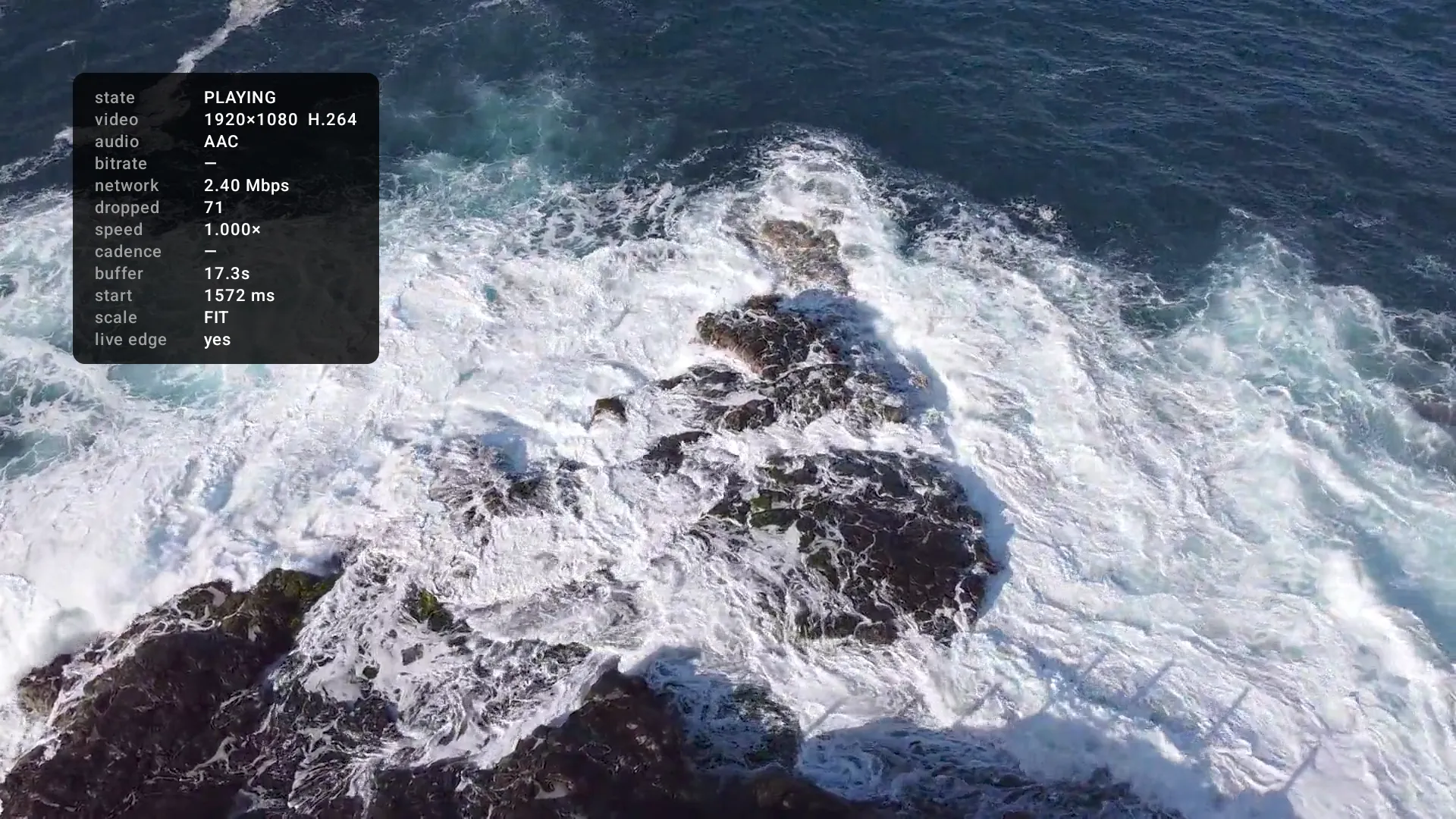
Kepler can show the stream’s figures over the picture while it plays, so you can see what the video needs and what your connection delivers. Stream diagnostics is free.
On a TV
-
While the channel plays, hold OK to open the control row, press to Info, and press OK. The figures stay for what you are watching now.

-
Press BACK to close the row. To show the figures every time, switch on Stream diagnostics overlay in Settings › Playback , under Advanced.
On a phone or tablet
-
Open Settings › Playback and switch on Stream diagnostics overlay, under Advanced.

-
Play the channel or film. The figures show over the picture Coming in Kepler 1.7.
What the figures mean
| Figure | What it tells you |
|---|---|
| state | What the player is doing: PLAYING, or BUFFERING while it waits for video. |
| video, audio | The picture’s size and format, and the sound’s format. |
| bitrate | How much data a second the video needs, when the stream says so. |
| network | How fast video is arriving, as Kepler measures it. |
| buffer | How many seconds of video are ready ahead of what you see. This is the one that predicts a stop: when it falls to 0, the picture waits. |
| dropped | Frames the device could not show in time. A number that keeps climbing means the device is struggling, not the network. |
| speed | 1.000× is normal speed. |
| cadence | The video’s frame rate beside the screen’s, such as 25 fps / 50 Hz. |
| start | How long the channel took to start, in milliseconds. |
| live edge | yes when you are watching live; behind when you have fallen behind it. |
How to read them:
- network well above bitrate, but buffer keeps falling to 0: the server sends in bursts with gaps. That is the provider’s side.
- network close to or below bitrate: your connection cannot carry this channel. Try the network fixes below, or a lower-quality version of the channel if your provider has one.
- buffer steady and dropped climbing: the device cannot keep up with the picture. See A picture that stutters.
Use a cable, or better Wi-Fi
Your home network is the part you can fix yourself.
- Connect the TV or box with a network cable if it has a port. A cable gives a steady speed that Wi-Fi through walls cannot.
- On Wi-Fi, use the router’s 5 GHz network when the TV is in the same room or the next one.
- Move the router, or the box, so fewer walls sit between them.
- Pause big downloads on other devices while you watch: game updates, cloud backups, another stream in 4K.
- Restart the router and the TV once. It clears a stuck connection more often than it should.
Change Kepler’s buffer size
Kepler keeps video ready ahead of what you see. Buffer size sets how much it aims for.
On a TV

In Settings › Playback , under Advanced, move to − or + beside Buffer size and press OK: each press is 5 seconds. You can also change it while a channel plays: hold OK and choose Settings at the end of the row.
On a phone or tablet
In Settings › Playback , under Advanced, drag the Buffer size slider.
- It goes from 15 to 120 seconds and starts at 50 seconds.
- A longer buffer rides out short drops in your connection, because there is more video to play while the connection catches up.
- On films and series the buffer fills up quickly, so a longer one helps most there.
- On live channels Kepler can only keep what the server has already sent, and many servers send live TV at the speed you watch. A longer buffer cannot hold more than that, so if live channels buffer and films do not, the server is the limit, not the setting.
- Kepler starts playing once about 2 seconds are ready, or 3 on a slow connection, whatever the setting, so a longer buffer does not make channels slower to start.
Changing the buffer size needs Kepler Pro, and the 30-day trial includes it.
One stream at a time
Your subscription allows a number of connections, often one or two: each device watching uses one. Kepler shows yours as Connections in the playlist’s details (see Your subscription).
- Watching on two devices with one connection makes many providers cut one of the streams every few minutes. To the viewer, that looks just like buffering.
- Recording one channel while you watch another uses a second connection too.
- Downloads stop while something plays in Kepler, so a film downloading in the background never takes your stream’s connection. They carry on afterwards.
What Kepler does when a stream stops
You do not have to restart a channel that stalls. Kepler watches every live stream:
- If a channel has been loading for 8 seconds, Kepler reconnects to it and shows Reconnecting… 1/3 beside the channel’s name. It tries up to three times.
- If the picture freezes for 5 seconds while the stream says it is playing, Kepler reconnects the same way.
- After three tries it stops and says The stream connected but could not stay playing. Try again or switch to another channel. That channel’s server is not keeping up: try another channel, or try again later.


Kepler reconnects without being asked, but it does not jump back on its own after every short stop: a stop of a few seconds usually clears up by itself, and a reconnect costs a moment of picture too.
A picture that stutters but does not stop
Motion that jerks while the sound plays smoothly is not buffering. It is the TV showing video at a frame rate that does not divide into its own, such as 25 frames a second on a 60 Hz screen.
- On a TV, switch on Match content frame rate in Settings › Playback , under Advanced. The TV then switches to the video’s rate: the screen may go black for a moment as it does. It is on at first, and needs Kepler Pro.
- In the diagnostics, cadence shows both rates. 25 fps / 50 Hz means it matched; 25 fps / 60 Hz means it did not.
If dropped keeps climbing and nothing else is wrong, the device is short of power for this picture. Close other apps, restart the device, or try the channel in a lower quality.
Does a VPN help with IPTV buffering?
Sometimes, and only for one cause. Some internet providers slow down video streaming at busy hours. A VPN hides what kind of traffic it is, so if your connection is being slowed that way, a VPN can bring the speed back.
In every other case a VPN adds a detour and can make buffering worse, because your video now travels through one more server. Kepler has no VPN of its own and no VPN setting: a VPN runs on the device or the router, for every app at once. Try it as a test, and keep it only if the diagnostics’ network figure improves.
Buffering on a Fire TV Stick or an Android TV box
Small streaming sticks and boxes buffer more than a TV with a cable, for reasons of their own:
- Most have Wi-Fi only. An Ethernet adapter for the stick, where one exists for it, is the biggest single improvement.
- They have little storage. Leave some free space: a box with a full disk slows everything down.
- Restart it now and then. Sticks are rarely switched off, and a restart frees their memory.
Kepler for Fire TV is coming to the Amazon Appstore Coming in Kepler 1.7. Everything on this page applies to it.
When it is the provider
If every check above is fine and the IPTV stream still keeps buffering, the server cannot keep up. Your provider can:
- give you another server address, closer to you or less busy;
- tell you whether the channel has a lower-quality version that needs less;
- check whether your account is being cut for too many connections.
When the player shows a message instead of buffering, such as The server denied access to this channel or This channel was not found on the server, the stream is refused rather than slow. IPTV not working lists every message and what to do.
Checked with Kepler 1.7 (version 43) on . Screens show Kepler’s fictional demo catalogue.