
Add your Xtream Codes or M3U playlist to Kepler
Kepler is a free IPTV player for Android TV, Google TV, phones and tablets, and it plays the playlist your provider gave you, an Xtream Codes login, an M3U link or an M3U file. On a TV, choose Use my phone and scan the code, so you never type a password with the remote. Kepler checks the playlist with your provider before it saves anything.
 4:45 Watch the whole guide on YouTube About 5 minutes, in 7 chapters. Jump to the step you need. Open on YouTube
 On this page
Kepler is an Xtream IPTV player and an M3U player in one. It ships with no channels, films or series, and it never sells a subscription. Adding your playlist takes a minute or two, and Kepler walks you through it the first time it opens.
What you need from your provider
Your provider sent you one of these when you subscribed. Their welcome message usually says which.
- An Xtream Codes login: a server address, a username and a password. It is the most common kind, and the fullest in Kepler, because it also brings your provider’s films and series with their artwork, and your subscription’s expiry date.
- An M3U link: one long web address, often ending in
.m3uor containingget.php. - An M3U file: the same list saved as a
.m3uor.m3u8file.
Got one long link with username= and password= in it? It works either way. Paste it where
Kepler asks for the server address, and Kepler fills in the server, the username and the password
for you.
Install Kepler
Kepler runs on Android TV and Google TV, and on Android phones and tablets with Android 7 or later. On a TV, open Google Play from the TV’s home screen and search for Kepler, or open Kepler on Google Play in a browser and install it from there onto your TV. Kepler for Fire TV is coming to the Amazon Appstore Coming in Kepler 1.7.
Add your playlist
Kepler opens on its setup the first time. The steps differ on a TV and on a phone, so pick yours.
On a TV
-
Open Kepler, choose your language and press OK.
-
Press OK on Get started. Moving from another device or a backup? Choose I’ve used Kepler before instead Coming in Kepler 1.7.

-
Read the terms, then press OK on I agree and continue. Press to read the full text first.

-
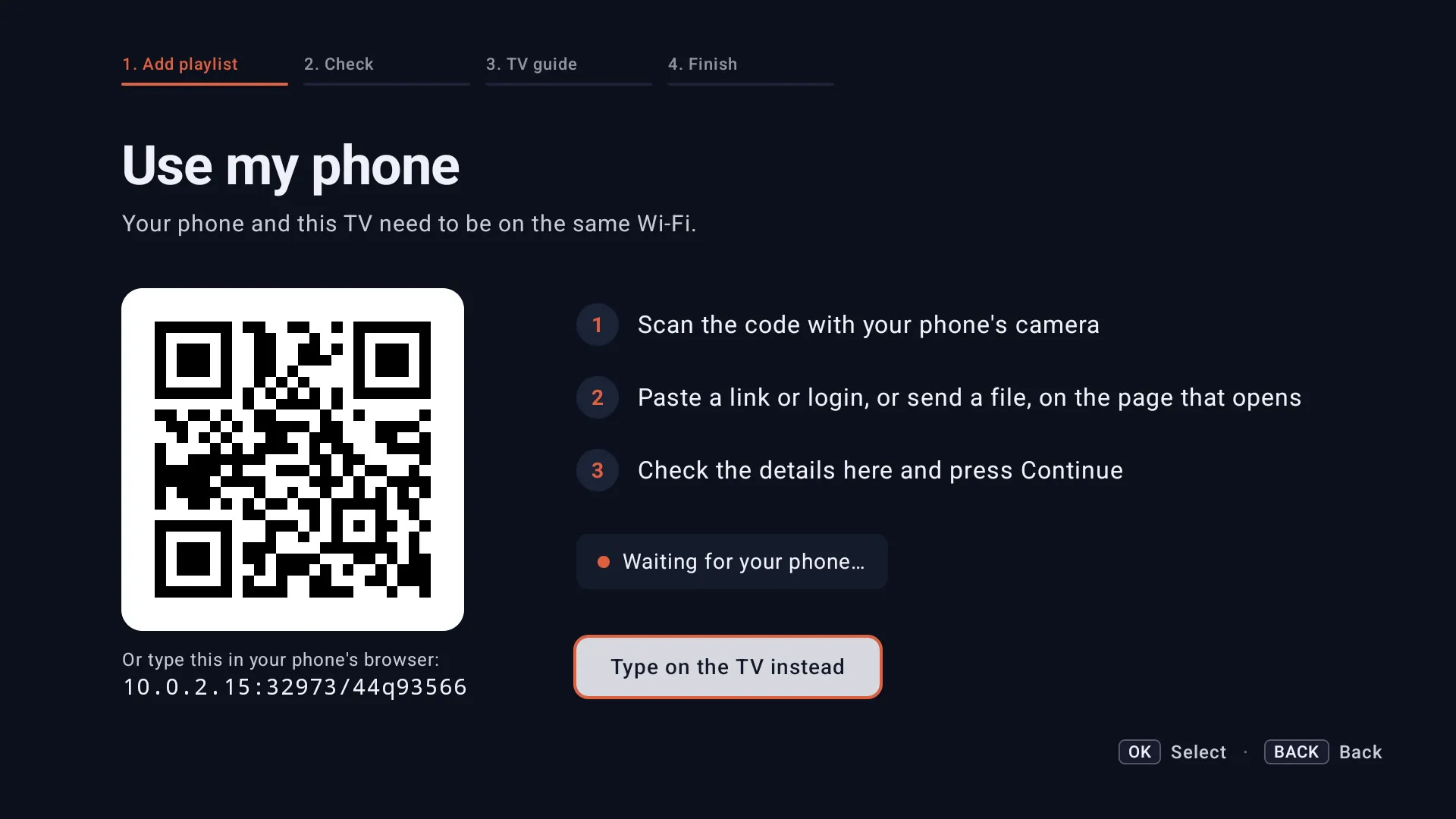
Choose Use my phone. It saves you typing a password with the remote.

-
Scan the code with your phone’s camera. Your phone and the TV need to be on the same Wi-Fi. No camera app at hand? Type the address under the code into your phone’s browser.
-
On the page that opens on your phone, pick M3U link, Xtream login or File. Paste or type what your provider sent you, give it a name if you like, and tap Send to TV. Your phone says Sent to your TV, and you can close the page.

-
The TV shows what you sent, under Received from your phone. Check it and press OK on Continue.

-
Kepler checks your playlist with your provider. Nothing is saved until your provider answers. You see whether the server answered, until when your account runs, how many devices may watch at once, and how many channels, films and series it found. Press OK on Continue.

-
Keep Use your provider’s guide on, so the TV guide shows what is on now and next. It downloads in the background once you finish. Press OK on Continue. No guide in your playlist? See Add a TV guide you already have.

-
Check the playlist’s name, choose how it stays current (see Keep it up to date), and press OK on Start watching.

-
Live TV opens with You’re all set. Pick a group, then press OK on a channel.

On a phone or tablet
- Open Kepler, choose your language, and tap I agree and continue under the terms.
-
Tap Add your playlist. Moving from another device or a backup? Tap I’ve used Kepler before instead Coming in Kepler 1.7.

-
For an Xtream Codes login, tap Xtream Codes and fill in Server URL, Username and Password. Display name is how the playlist is listed.

-
For an M3U link, stay on M3U / M3U8 and paste it into M3U URL. For a file, tap Choose a file (more in Add a playlist file).

-
Tap Save playlist. Home shows Your playlist is in once your channels, groups and TV guide have loaded. Tap Start watching.

The phone’s third chip, Stream, is for a link to one single stream rather than a playlist. Kepler keeps those under My streams on Home.
Type it with the remote
No phone at hand? On the TV, choose Xtream login or M3U link instead of Use my phone, or Type on the TV instead under the code.
-
Press OK on a field to open the keyboard and type. The keyboard’s action key moves to the next field, and does the same with the keyboard closed.

-
For an M3U link, type the address and press OK on Continue. The check, the TV guide and the last step follow as above.

You can leave out http:// or https://: Kepler tries both.
Add a playlist file
A playlist you have as a .m3u or .m3u8 file works like a link, but Kepler keeps its own copy
of it.
On a TV
-
In the setup, choose Use my phone and pick File on the page that opens. Or choose M3U link, then Send it from my phone.
- Choose the file on your phone and send it. The TV checks it and loads its channels.
On a USB stick, open the file from your TV’s file manager and choose Open with Kepler. Most TVs have no file picker of their own, so the phone and Open with are the ways in.
On a phone or tablet
- On Add playlist, stay on M3U / M3U8 and tap Choose a file.
- Pick the file, then tap Save playlist.
You can also open an M3U file with Kepler from your file manager or an email, or share it to Kepler from another app.
A file never updates by itself, because it has no address to ask. When your provider sends a new one, use Replace file where Refresh would be, in My Playlists or the playlist’s details.
Live TV only: leave films or series out
Only watch live TV? Untick Movies or Series under Also load on the Xtream login form (on a phone, switch them off). What you leave out never takes space on your device.
To change it later, open the playlist’s details in My Playlists and switch Load movies or Load series. Switching one off frees its space at once, and live TV stays. Each device keeps its own choice.
On a TV you can also keep them loaded but out of the menu on the left. In Settings › Playlists , under Movies and series in the menu, switch off Movies or Series for a playlist. They stay loaded, so switching them back is instant.

Keep it up to date
Providers add and remove channels, films and series all the time. Kepler can pick up the changes on its own, or wait for you.
On a TV
- Automatically (recommended): once a day, when Kepler opens, it checks for new channels, films and series. It takes about 30 seconds and waits until you stop watching. Needs Kepler Pro.
- Only when I ask: nothing changes until you refresh it. New channels and films do not appear until you do.
You choose on the last step of the setup. To change it, open My Playlists, move right to the playlist’s i button and press OK, then switch Update automatically. The round arrow beside it refreshes the playlist now, which is free.

On a phone or tablet
On a phone or tablet, refresh it yourself: tap the round arrow on the Playlist card at the top of Home. The card shows the refresh as it runs . Refreshing is free.
Several playlists
Have more than one provider, or a second line for the bedroom? Kepler keeps several playlists side by side, each with its own channels and TV guide.
On a TV
-
Press into the top bar and press OK on the playlist’s name. Switch playlist lists them all: press OK on one to switch.

-
Choose Manage playlists to open My Playlists. Add playlist starts the same setup as the first time, and Manage edits, reorders or deletes them.

On a phone or tablet
-
Tap the Playlist card on Home . Its sheet lists your other playlists, so tap one to switch to it. It also has Refresh, Edit, Playlist info, Add playlist and My Playlists.

- All playlists, beside the card, opens My Playlists too.
Your subscription: expiry and connections
An Xtream Codes login tells Kepler about your subscription, and Kepler shows it to you.

- Expiry: the day your subscription ends, as your provider reports it.
- Connections: how many streams play right now, out of how many your subscription allows. Every device watching uses one, so a second device can stop the first when you are at the limit.
- Trial account: whether your provider marked it as a trial.
On a TV the details are under the playlist’s i button in My Playlists; on a phone, under Playlist info. In the last seven days, the TV’s top bar counts down: Expires in 3 days, then Expires tomorrow, then Subscription expired.

Renewing is between you and your provider. Kepler asks for the date each time it opens, so once they have extended it, the warning goes the next time you open Kepler.
A new provider: bring your setup along
Changing provider no longer means starting again. Kepler can bring your setup from the playlist you had to the new one: your favourite channels, My list, your own groups, the groups and channels you hid or locked, and your order. It finds each of them by name on the new playlist, and shows you what it found before anything changes.
Kepler offers it when you add a playlist while another one has a setup of yours:
On a TV
The setup adds a step before the last one, Your setup. Choose Bring it here, or Start fresh to leave the new playlist as it is. Missed it? In My Playlists, open the new playlist’s i button and choose Bring a setup from another playlist.
On a phone or tablet
Home asks Bring your setup from…? Tap See what comes over, or Not now. Later, in My Playlists, open the new playlist’s menu and tap Bring a setup from another playlist.

Untick anything you would rather leave behind, then choose Bring it here. The playlist you came from stays as it is. Bringing a setup along needs Kepler Pro.
When a playlist won’t load
Kepler saves nothing until your provider answers, so a failed check costs you nothing: on a TV it says Kepler could not add this playlist, and you can correct the details and try again. These are the answers you may see on the check.
| Kepler says | What to do |
|---|---|
| Login not accepted: The provider did not accept this username and password. | Check the username and password with your provider, letter by letter. |
| Login not accepted: The provider says this account is… | Your provider has marked the account, for example as expired. Renew it, or ask them why. |
| Server unreachable or Playlist unavailable: Could not reach the server. | The address is wrong or the server is down. Check the address, then your internet connection. |
| That link opens a web page, not a playlist. | The link leads to a web page, such as a sign-in page. Ask your provider for the M3U link itself. |
| That link returned nothing. | Check the link is complete. Long links are easy to cut short when you copy them. |
On a phone there is no check: when a new playlist cannot load, Home says Your playlist did not load. with Try again. Every message Kepler can show, and what to do, is in IPTV not working.
To correct a playlist you already saved, choose Edit (Kepler Pro), or delete it and add it again, which is free.
Some providers’ servers only play streams for certain apps. Under Advanced: User-Agent on the form, you can send the app name their instructions give, for this one playlist. It is sent when Kepler plays a stream or downloads the playlist’s M3U link or guide, not when it signs in with an Xtream Codes login, so it can’t fix a refused login.
Checked with Kepler 1.7 (version 43) on . Screens show Kepler’s fictional demo catalogue.