
Parental control: set a PIN and lock channels
Kepler has no default parental PIN, so there is nothing to guess. You choose your own 4 digits in Settings › Parental control, or the first time you lock something. Then lock a channel from its menu, a whole group from Edit, and on a phone or tablet a single film or show. Anything locked asks for the PIN before it plays.
 3:28 Watch the whole guide on YouTube About 3 minutes, in 6 chapters. Jump to the step you need. Open on YouTube
 On this page
Kepler’s parental control is a 4-digit PIN you choose, and locks you put on what children should not open: a channel, a whole group of channels, films or series, and on a phone or tablet a single film or show. This guide shows how to set the PIN, lock and unlock, what a lock covers, and what to do if the PIN is forgotten.
Is there a default parental PIN?
No. Kepler starts with no PIN and nothing locked, so there is no code to look up: no 0000, no 1234. Kepler never asks for a PIN you did not choose yourself.
Nothing is locked for you either. Kepler does not lock adult groups by itself, because it cannot know what your provider puts in each group. You decide what to lock.
Set your parental PIN
On a TV
-
Open Settings › Parental control and press .

-
Press OK on New PIN, type 4 digits with the remote, and press BACK to close the keyboard. Type the same digits in New PIN again.
-
Choose Save PIN. Kepler says Parental PIN saved.

On a phone or tablet
-
Open Settings › Parental control and tap Set a PIN.
-
Type 4 digits in New PIN and again in New PIN again, then tap Save PIN.
You can also skip this step: the first time you lock something with no PIN set, Kepler asks you to Choose a parental PIN first, typed twice, then makes the lock.
If the two PINs differ, nothing is saved and Kepler asks you to type it again in both fields. One PIN covers every playlist on the device.
Lock a channel
On a TV
-
In Live TV, hold OK on the channel (or press MENU). The same menu opens on a channel in Search.

-
Choose Lock channel (PIN). The channel locks at once: no PIN is asked to add a lock.
On a phone or tablet
-
In Live, touch and hold the channel.
-
Tap Lock behind PIN.
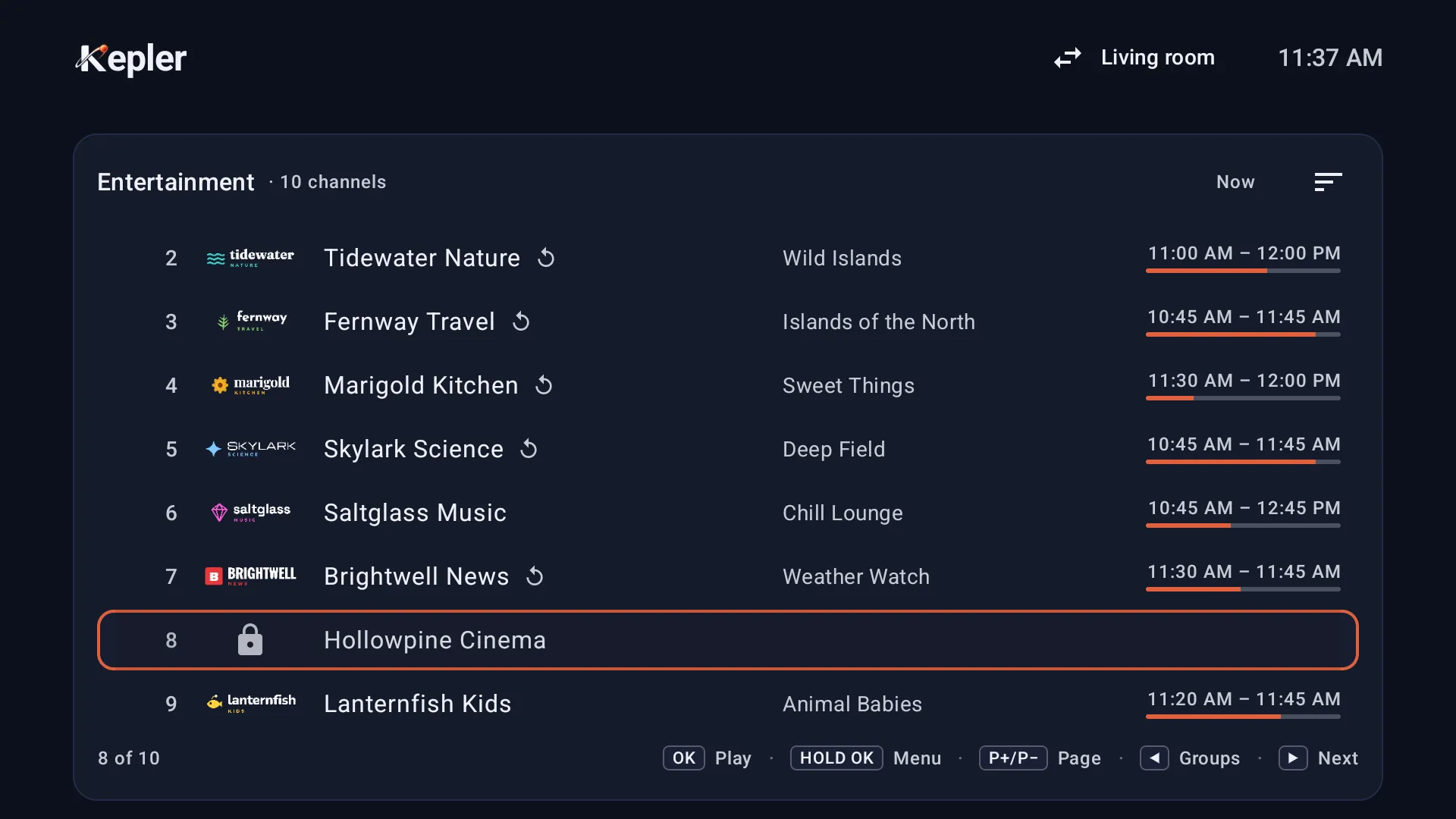
A locked channel keeps its name, so you can find it, but shows a padlock instead of its logo and nothing about what is on.
Lock a whole group
Locking a group locks everything in it, including channels, films or shows your provider adds to it later.
On a TV
-
Open Live TV, Movies or Series, then choose Edit in the menu on the left.
-
Press OK on each group to tick it. Press to reach the actions, choose Lock, then press BACK when you are done.

-
The group keeps its name, with a padlock beside it, and its films read Locked, with nothing about them at the top of the screen.

On a phone or tablet
-
In Live, Movies or Series, open the list of groups and tap the checklist icon beside its search field (Select groups).
-
Tick the groups, then tap the padlock icon at the top. Tap Done when you are finished.

Lock a film or a show
On a phone or tablet, you can lock a single film or show. Locking a show locks every season and episode of it. Seasons and episodes cannot be locked on their own.
-
In Movies or Series, touch and hold the poster, then tap Lock behind PIN.

-
With no PIN yet, Kepler asks you to Choose a parental PIN and to enter it again.

-
The film now reads Locked, with no poster.

On a TV, single films and shows have no Lock in their menu: lock their group instead, as above. A film or show locked on a phone is locked on the TV too when the two are in sync (see On several devices).
Open something locked
-
Open the locked channel, film or show. On a TV, Kepler shows Enter parental PIN: choose the digits on the keypad, or type them with the remote’s number keys.

-
A wrong PIN says Incorrect PIN. Try again. There is no limit on tries.

-
On a phone or tablet, it is Enter PIN, with Kepler’s own keypad.

How long it stays unlocked
The right PIN unlocks everything that is locked, on every screen, until Kepler is closed. Going to the home screen, or leaving Kepler with BACK, does not close it: open Kepler again and it is still unlocked. Restarting the TV or phone closes Kepler, and so does Force stop in Android’s settings for the app. Then everything is locked again.
So after a child has watched something you unlocked for them, restart the device, or force stop Kepler, to lock everything again.
What a lock covers, and what it doesn’t
A lock follows the channel, film or show wherever it appears:
- Lists and rows: a locked channel shows a padlock and no programme; a locked film or show reads Locked, with no poster, rating or progress.
- The TV guide: a locked channel’s row stays empty. Its programmes are never shown.
- Search: locked channels are sealed, and their programmes are left out of the results.
- Continue watching, Home and new episodes: locked titles are sealed or left out.
- Changing channel: P+ and P− stop on a locked channel and ask for the PIN. Press BACK, and the channel you were watching keeps playing.
- Catch-up, multiview and another player app ask for the PIN too.
The PIN does not protect:
- Settings. Anyone can open Settings. Only changing or removing the PIN asks for it.
- Hidden groups and channels. Hiding is separate from locking: Show brings them back without a PIN.
- Recordings. A recording plays without the PIN, even one of a locked channel.
- Adding, editing or deleting playlists, and links played from My streams.
- Buying Kepler Pro. Purchases go through Google Play and its own settings.
Kepler’s PIN keeps children out of what you lock. It is not a safe: anyone who can open Android’s settings can clear Kepler’s data, as below.
Remove a lock, or the PIN
Removing a lock asks for the PIN, unless you typed it since Kepler opened.
- A channel on a TV: hold OK on it and choose Remove channel lock.
- A group on a TV: in Edit, tick the locked groups and choose Unlock.
- On a phone or tablet: touch and hold the channel, film or show and tap Remove PIN lock. A locked channel’s menu opens once the PIN is typed: tap the channel first. For groups, tick them in Select groups and tap the open padlock.

A channel, film or show inside a locked group stays locked as long as its group is: unlock the group.
Change or remove the PIN
In Settings › Parental control :
- Change the PIN: type the Current PIN, then the new one twice, and choose Save PIN (on a phone, tap Change PIN first). Your locks stay. Everything locks again at once.
- Remove the PIN: type the Current PIN and choose Remove PIN. Every lock goes with it, in every playlist, so Kepler asks first.

Choose Remove PIN and locks to go on, or Keep PIN. Kepler then says Parental PIN removed.

Forgot your parental PIN?
There is no reset code and no recovery question. Kepler keeps the PIN only in a scrambled form on the device itself, with no account, so nobody can look it up, our team included.
The only way back is to clear Kepler’s data in Android’s settings for the app. That removes the PIN and every lock, and with them everything else Kepler holds on the device:
- your playlists, favourites, history, groups and settings;
- the list of your recordings and downloads.
You then add your playlist again. Kepler Pro comes back by itself from the Google account that bought it, or with Restore purchase in Settings › Kepler Pro .
On several devices
- Device sync carries Parental lock (your PIN and what is locked) to your other devices, and it is ticked by default. One PIN then opens every device, and a lock set on one device applies on all of them. See Kepler on several devices.
- Copy from a device or Send to a device with Replace what’s here asks for the PIN of the device being replaced. Add to what’s here never changes a PIN that is already set.
- Backups Coming in Kepler 1.7 hold the PIN and your locks. Restoring them needs no Kepler Pro.
What is free and what needs Kepler Pro
| Free | Kepler Pro |
|---|---|
| Typing the PIN to open something locked | Setting the PIN |
| Locks you set, which keep working without Pro | Changing the PIN |
| Removing a lock | Adding a lock |
| Removing the PIN | Syncing locks between devices |
The 30-day trial includes everything, with no card.
Checked with Kepler 1.7 (version 43) on . Screens show Kepler’s fictional demo catalogue.