
IPTV not working: a playlist that won’t load, a channel that won’t play
When IPTV stops working, Kepler says why. Find the message you see below, from a login your provider refused to a channel the server denies or a format your device can’t play, with what it means and what to do. Most of them come from your provider’s side, so try another channel and check your subscription before changing anything in Kepler.
 2:54 Watch the whole guide on YouTube About 3 minutes, in 6 chapters. Jump to the step you need. Open on YouTube
 On this page
- First, find where the problem is
- When a playlist won’t load
- When a playlist stops loading
- Your subscription expired
- When a channel won’t play
- Films and series that won’t play without Kepler Pro
- Kepler tries again before it says anything
- Default User-Agent
- Other things that look like “not working”
- Before you clear Kepler’s data
- Still not working?
IPTV not working on one channel, or on all of them? Kepler tells you why. It is a player: the channels, films and series come from your provider’s server, and Kepler says in words when that server refuses, fails or sends something your device can’t play. This guide lists every message, where you meet it, and what to do.
First, find where the problem is
A few checks, in this order, tell you most of the time whose problem it is:
- Try another channel. If others play, the problem is that one channel on your provider’s server, not your device or Kepler.
- Try another device. If your playlist fails on every device, it is your provider or your subscription.
- Check your subscription. On a TV, Kepler warns you in the top bar a week before it ends (see Your subscription expired).
- Check your internet connection. On a phone, Kepler says so when the phone itself is offline.
- Restart the device. It clears a stuck video decoder, and a few other things that only a restart clears.
Then find your message below.
When a playlist won’t load
On a TV, Kepler checks a new playlist with your provider before saving anything. When the check fails, it says Kepler could not add this playlist, shows what went wrong, and Back to the details takes you back to correct it. Nothing was saved.

| Kepler says | What it means, and what to do |
|---|---|
| Login not accepted: The provider did not accept this username and password. | The username or password is wrong. Copy them again from your provider’s message, letter by letter: they are case-sensitive. |
| Login not accepted: The provider says this account is Expired. (or another word, such as Banned or Disabled) | Your provider has marked the account. Renew it, or ask them why. |
| Server unreachable: Could not reach the server. Check your internet connection. | No answer from that address. Check the server address and your connection. The server may be down. |
| Server unreachable: Access denied (HTTP 401) or (HTTP 403) | The server refused the request. Check the username and password with your provider. |
| Server unreachable: Server endpoint not found (HTTP 404). Check the server URL. | The address is not your provider’s server, or is missing its port. Check it against your provider’s message. |
| Server unreachable: Server error (HTTP 500 and above) | The server is having a problem. Try again later. |
| Server unreachable: Unexpected server response. The server may not be compatible. | The address leads to something that is not an Xtream Codes server, such as a website. |
| Playlist unavailable: The server answered with error 404 (or another number). | The M3U link is wrong or has expired. Ask your provider for the current link. |
| Playlist unavailable: That link opens a web page, not a playlist. | The link leads to a web page, such as a sign-in page. Ask your provider for the M3U link itself. |
| Playlist unavailable: That link returned nothing. | Check the link is complete: long links are easy to cut short when you copy them. |

The address you type
- You can leave out
http://orhttps://on a TV: Kepler tries both. - If your provider sent one long link with
username=andpassword=in it, paste it whole into the server field: Kepler splits it into the server, the username and the password. - On a phone, the address needs its
http://orhttps://. The phone doesn’t check an Xtream Codes login before saving it: if it is wrong, the first load fails and Home says Your playlist did not load. with Try again.

A playlist file
| Kepler says | What to do |
|---|---|
| That file is too big to be a playlist. | A playlist file can be up to 1 GB. Check you chose the right file. |
| That file isn’t a playlist. It looks like a web page or another kind of file. | Choose the .m3u or .m3u8 file your provider sent. |
| That file has no channel links in it, so it isn’t a playlist. | The file holds no channels. Ask your provider for it again. |
| That file is empty. | The file has nothing in it. Download it again. |
| Kepler couldn’t read that file. Try choosing it again. | The file is no longer there, for example a USB stick was taken out. |
| There isn’t enough free space on this device to keep a copy of that file. | Kepler keeps a copy of the file. Free some space first. |
When a playlist stops loading
A playlist that loaded before can fail when Kepler refreshes it. Nothing is lost: Kepler keeps everything from the last refresh that worked, and you keep watching.
On a TV

In My Playlists, the reason replaces the line saying when the playlist last updated.
On a phone or tablet

In My Playlists, a red card says last sync failed, with the reason, when it last worked, Retry and Edit.
| Kepler says | What to do |
|---|---|
| The provider did not accept this username and password. Edit the playlist to check them. | Your provider changed or stopped your login. Check it with them, then correct it with Edit. |
| Kepler can’t read the saved password for this playlist. Edit the playlist and enter it again. | Android’s key for the saved password is gone, for example after Kepler’s data was cleared and brought back. Type the password again with Edit. |
| Could not reach the server. Check your internet connection. | Check your connection. If others reach the server, it may be down. |
| Server error (HTTP 500 and above). The server may be temporarily down. | Your provider’s server is struggling. Try again later. |
| Access denied (HTTP 401 or 403) | Your provider refused the login. Check your subscription with them. |
| Server endpoint not found (HTTP 404) or Playlist URL not found (HTTP 404) | The address no longer works. Ask your provider for the current one. |
| That link returned a web page, not a playlist. | The M3U link now leads to a web page. Ask your provider for a new link. |
| The playlist loaded but contains no channels. | The playlist is empty. Ask your provider. |
| The playlist file is missing. Replace it from the playlist’s details. | Choose the file again with Replace file. |
Edit is part of Kepler Pro. Without Pro, delete the playlist and add it again with the right details, which is free.
Your subscription expired
When your subscription runs out, your provider’s server stops playing channels. Kepler tells you in three places:
-
On a TV, the top bar counts down the last week (Expires in 3 days, Expires tomorrow), then says Subscription expired.

-
A channel that won’t play says This subscription expired. Renew it with your provider to keep watching.

-
Adding the playlist again says Login not accepted: The provider says this account is Expired.
Renewing is between you and your provider. Once they have extended it, the warning goes the next time you open Kepler. On a phone, the expiry date is in the playlist’s Playlist info. See Your subscription: expiry and connections.
When a channel won’t play
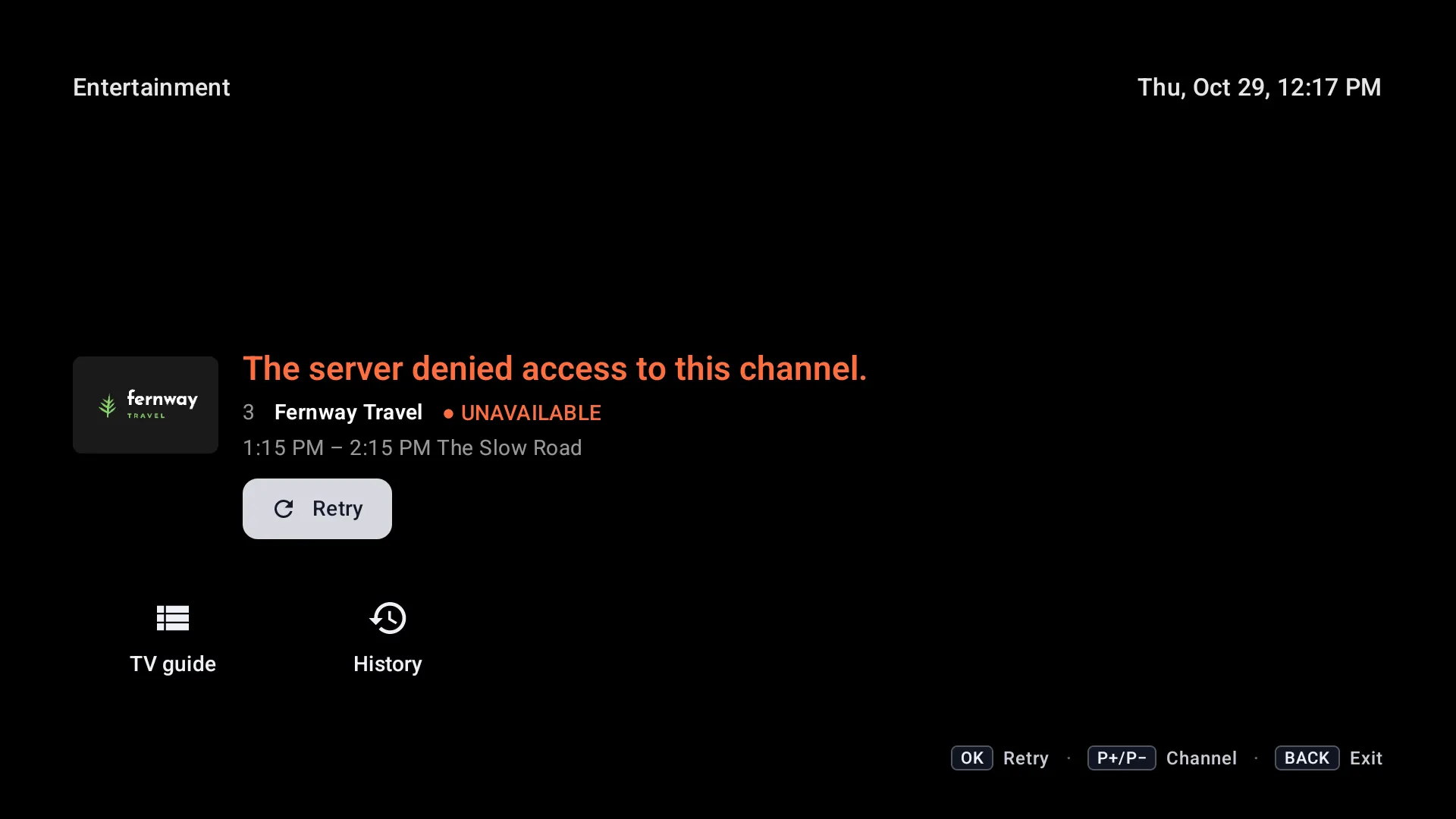
When a stream fails, Kepler stops trying and says why. On a TV, the channel’s banner stays up with UNAVAILABLE and the reason, and Retry: press OK to try again, or P+ and P− to change channel. On a phone or tablet, the player shows the same, with a retry button in the middle.
-
The server denied access to this channel. Your provider’s server refused this one stream. Try another channel. If they all say it, check your subscription. If only some do, they may not be in your package, or your provider may be limiting how many play at once: ask them.
-
This channel was not found on the server. Your provider has removed or moved the channel. Refresh the playlist; if it is still listed, tell your provider.

-
Playback failed. Try again or switch to another channel. The server answered with an error. Kepler tried twice first (Reconnecting… 1/2, 2/2). Try again in a moment.


Every message, and what to do
| Kepler says | What to do |
|---|---|
| The server denied access to this channel. (or …to this video.) | Try another channel. All of them: check your subscription. Some: ask your provider. |
| This subscription expired. Renew it with your provider to keep watching. | Renew your subscription. |
| This channel was not found on the server. (or This video…) | Refresh the playlist. Still there: tell your provider. |
| This programme is not in the channel’s archive. | Your provider lists catch-up for this channel but doesn’t keep this programme. Pick another, or ask them. |
| The server rejected the request for this channel. Other channels should still work. | The server refused Kepler, even after Kepler tried four other player names. Ask your provider which app or User-Agent they allow. |
| Cloudflare is blocking the video from your provider’s server. | See below. |
| This channel uses a format your device can’t play. (or This video…) | See below. |
| Your TV’s video decoder stopped responding. Restart the TV, then try again. | See below. |
| The stream connected but could not stay playing. | The stream keeps stopping. See Fix IPTV buffering. |
| Could not reach the server. Try again later. | No answer from the stream’s server. Check your connection, or wait. |
| You’re offline. Connect to the internet and try again. | Phone or tablet only: the device itself has no connection. |
| The server took too long to respond. Try again later. | The server is too slow. Try again later. |
| Playback failed. Try again or switch to another channel. | The server answered with an error. Try again in a moment, or another channel. |
| This content is no longer available. | Your provider no longer lists it, for example a film saved in My list. |
A format your device can’t play
This video uses a format your device can’t play means the picture is in a format your TV or phone has no decoder for. It is often a 4K film in HEVC with 10-bit colour on a device made for HD. Kepler has no setting that changes it.

- Ask your provider whether the film or channel has an HD version, and play that one.
- Or open it in another player app, which may have its own decoder: hold OK in the player and choose External on a TV, or Open in another app on a phone (Kepler Pro).
No sound? When a film or channel has sound in a format the device can’t play, Kepler says This audio format can’t be played on this device. Kepler plays most sound formats itself, including AC-3, E-AC-3, DTS and TrueHD. Pick another audio track in the player, if there is one.
Cloudflare is blocking the video
Cloudflare is blocking the video from your provider’s server. Ask your provider for another server address. Your provider’s server sits behind Cloudflare, which refuses to pass video on. Kepler works around it for live channels when it can, but not for films and episodes. Only your provider can fix it: ask them for another server address, then change it with Edit.

The video decoder stopped responding
Your TV’s video decoder stopped responding. Restart the TV, then try again. The TV’s own video decoder froze, which happens on some TVs after a long time switched on. Only restarting the TV brings it back: unplug it for a few seconds, or restart it from its settings. Closing Kepler doesn’t help.

When Kepler can use a slower decoder instead, it plays on and says so once: the picture may be less smooth until you restart the TV.
Films and series that won’t play without Kepler Pro
After the 30-day trial, films and episodes, catch-up and recordings open the Kepler Pro plans instead of playing: Films and series are part of Kepler Pro. That isn’t an error. Live TV, the TV guide and search stay free. See Kepler Pro.
The same goes for a playlist that reads PRO in My Playlists: without Kepler Pro, only your first playlist is used, and the others wait, with everything in them, until you have Pro.
Kepler tries again before it says anything
You don’t always need to press Retry:
- A live channel that doesn’t start, or stops for a few seconds, reconnects by itself up to three times, and the banner says Reconnecting… 1/3.
- A server error is tried twice more (Reconnecting… 1/2, 2/2) before the message.
- When a server refuses Kepler’s name for itself, Kepler tries four other player names, saying Switching player…, and keeps the one that works for that playlist.
Default User-Agent
Some providers’ servers only play streams for certain apps. Kepler sends a player name that most servers accept, and tries others by itself when a server refuses it.
If your provider asks you to use a particular one, set it in Settings › Playlists › Advanced › Default User-Agent : choose Custom, type it, and choose Save User-Agent (Kepler Pro). A playlist can have its own, under Advanced: User-Agent when you add it.
It is sent when Kepler plays a stream, downloads an M3U link or a TV guide, and hands a stream to another app. It doesn’t change how Kepler signs in with an Xtream Codes login, so it can’t fix a refused login.
Other things that look like “not working”
- The TV guide is empty: see TV guide empty or showing “No information”.
- The clock in the top bar is red (TV): the TV’s clock is wrong, which empties now and next in the guide. See Wrong times in the guide.
- Buffering or freezing: see Fix IPTV buffering and freezing.
- A channel stops when another device starts: your subscription allows fewer streams at once than you are using. See One stream at a time.
- Update required: Kepler asks you to update when your version is too old to keep working. Choose Open Google Play.
Before you clear Kepler’s data
Clearing Kepler’s data, or uninstalling it, rarely fixes a playlist: the playlist comes from your provider, and it comes back the same. It does remove everything Kepler holds on the device:
- your playlists, and the passwords saved with them;
- favourites, history, your groups, what you hid or locked, and the parental PIN;
- reminders, and the list of your recordings and downloads;
- your settings.
Still not working?
Ask in our Telegram group. Tell us:
- the exact message Kepler shows, or a photo of the screen;
- whether it is one channel, every channel, or the whole playlist;
- your device, and the Kepler version in Settings › Help & about .
Never post your username, password or the full playlist link: they let anyone use your subscription.
Checked with Kepler 1.7 (version 43) on . Screens show Kepler’s fictional demo catalogue.