
Watch live TV: change channels, the banner, multiview and search
In Kepler, Live TV lists your provider’s groups and channels with what is on now. Press OK to watch, then P+ and P− or a channel number to change channel, and hold OK for the control row. On a TV, multiview shows up to four channels at once, and Search finds channels, films and programmes.
 5:24 Watch the whole guide on YouTube About 5 minutes, in 7 chapters. Jump to the step you need. Open on YouTube
 On this page
Kepler plays the live channels of your IPTV playlist on a TV, a Fire TV Stick, a phone and a tablet. This guide shows how to find a channel, every way to change channel, what the banner and the control row hold, how to watch up to four channels at once with IPTV multiview, and how to search.
The channel list
On a TV
-
Choose Live TV in the menu. It opens on the groups: Favorites and Recent once you have them, your own groups, then your provider’s.

-
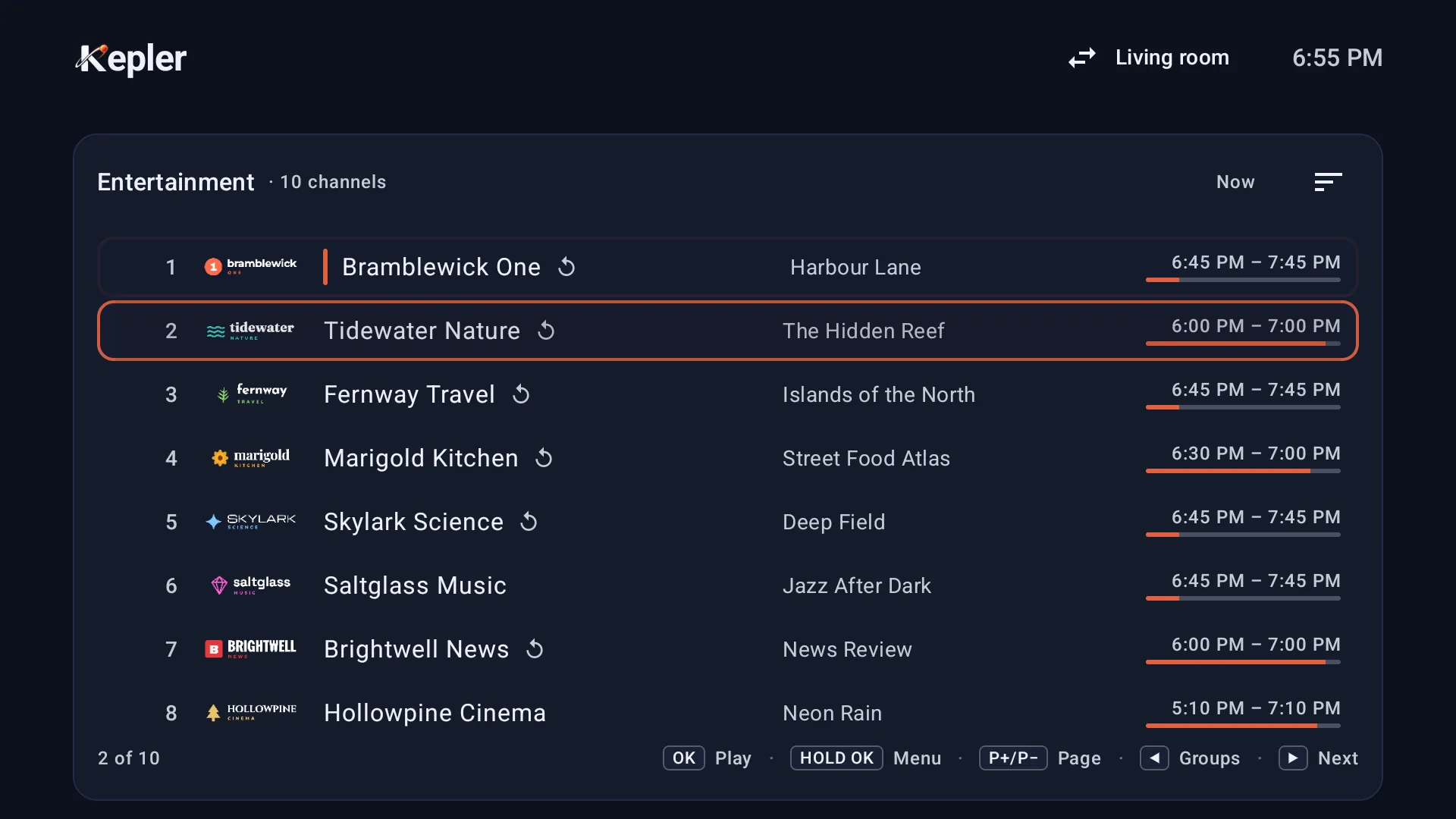
Press to go into a group. Each channel shows what is on now, with its times.
-
Press again for what is next, and again for later. goes back, and from now, back to the groups.

OK plays the channel. Hold OK (or press the Menu key) for its menu: add it to your favourites, open the TV guide on it, add it to a group, hide it or lock it. Typing a number moves the selector to that channel.
On a phone or tablet

Tap Live. The chips at the top switch between all channels, ★ Favorites, Recent and My groups, and the group bar picks a group. Tap a channel to play it; touch and hold it for its menu.
Change channel
On a TV

| Key | What it does |
|---|---|
| P+ P− | The next or previous channel of the list you are watching from. A banner says what is on. |
| Numbers | The channel with that number, anywhere in the playlist. |
| LAST | Back to the channel before. Press again to flip between the two. |
| OK or | The channel list over the picture, on the channel playing. OK on another plays it. |
| or | The banner, with your recent channels on it. |
On a phone or tablet

Swipe left or right across the picture for the next or previous channel, or tap another channel in the list under the picture. The list has its own search and a button for the groups.
The next channel is always the next one in the list you picked the channel from, whether that is a group, your favourites or one of your own groups. At the end it wraps around.

Change channel with the arrows
Many remotes have no P+ and P− keys: those of most Google TV boxes, the Chromecast with Google TV, the Shield and the Fire TV Stick. On a TV, Kepler can change channel with and instead.

- Go to Settings › Playback , Change channel with the arrows.
- Choose Up: next channel or Down: next channel. Off is the default.
Then and change channel while a channel plays, and a hold of OK is the way to the control row. The same choice is in the player’s own settings on a live channel. P+ and P− keep working.
The banner and the control row

On a TV, the banner shows the channel, the programme on now with its times, and what is next. Its tiles open the TV guide for this channel, History, and the channels you watched last, one press each.
Channel banner in Settings › Playback chooses Full, the banner with its tiles, or Simple, the channel and its programme alone with two lines about it Coming in Kepler 1.7.

Hold OK for the control row: Search, Live (back to live after a pause), Audio, Subtitles, Multiview, Record, Picture (the picture size), External (another player app), Favourite, Info (the stream’s details) and Settings, the player’s own settings. A tile the channel can’t offer is dimmed.
Multiview: up to four channels at once
On a TV, Kepler’s IPTV multiview plays up to four live channels on one screen. Two steps.
-
While a channel plays, hold OK and choose Multiview. It opens on the channel you were watching. Press OK on it and choose a Layout: 2, 3 or 4 tiles.

-
Press OK on an empty tile, Add channel, and pick a channel from the list.

- The sound follows the selector: the tile you are on plays its sound, the others are muted.
- OK on a tile: Play fullscreen, Change channel, Reload, Remove or Layout.
- BACK once hides the selector, with every channel still playing. BACK again plays the selected tile full screen and closes multiview.
Each tile is a stream of its own. Your provider may limit how many play at once, and Kepler marks a layout with more tiles than the TV says it can decode.
Search

Search, at the top of the menu on a TV and the magnifier on a phone, finds channels, films, series and programmes in the TV guide. A channel plays, a film or series opens, and a programme plays its channel. On a TV, hold OK on a channel for its menu.
- See all opens every result of a kind, with your provider’s tags (such as DE or FR) as chips, and the tags you watch most come first Coming in Kepler 1.7.
- On a TV, Speak beside the field, or a remote’s microphone button where the TV passes it to Kepler, searches by voice: say a channel, a film or a show, a channel number to tune it, or a section to open it. Fire TV has no voice search in Kepler.
Live TV settings
In Settings › Playback , under Live TV:
| Setting | What it does |
|---|---|
| Resume the last channel | When Kepler opens, it plays the channel you watched last. Off by default. Kepler Pro. |
| Channel banner (TV) | Full or Simple. |
| Change channel with the arrows (TV) | Off, Up: next channel or Down: next channel. |

On a phone
Held upright, the picture sits on top, with the channel and its programme, a row of tiles, and the channel list under it. Turn the phone on its side for full screen.

- Tiles under the picture: Favourite, Guide, Audio, Subtitles, Cast to TV, PiP, Record, Sleep and External, depending on the channel and the phone.
- Gestures on the picture: swipe left or right to change channel; drag up or down on the left half for brightness and on the right half for volume; pinch to fill the screen or fit the picture.
- Picture-in-picture: the PiP tile puts the channel in a small window. On Android 12 and later, it goes there by itself when you go to the home screen.
- Sleep: stops the channel after 15 to 90 minutes, or at the end of the programme.
- Lock controls, among the buttons over the picture, ignores every touch until you unlock it.
Cast to a TV with Chromecast
On a phone, Cast to TV sends the channel to a Chromecast or a TV with Google Cast on the same Wi-Fi. The phone lets go of its own stream while the TV plays, so it fits a plan of one connection.
- Xtream Codes channels cast, and channels in HLS (.m3u8) or DASH. A channel of an M3U link that is a plain .ts stream can’t be cast, nor can films in MKV or AVI.
- Fire TV and Fire tablets have no Cast.
- Starting a cast is part of Kepler Pro; stopping it is free.
What is free and what needs Kepler Pro
Watching every channel is free, and so is every way of changing channel, the banner, the player’s guide, Search, audio and subtitles, the sleep timer and picture-in-picture. Multiview, Cast, recording, catch-up, favourites, your own groups and hiding, sorting, locks and Resume the last channel are part of Kepler Pro. The 30-day trial on Google Play includes them. See Kepler Pro.
Checked with Kepler 1.7 (version 43) on . Screens show Kepler’s fictional demo catalogue.