
Record live TV with Kepler
Kepler records live channels in two ways. While you watch, the Record button records the channel for the length you choose. In the TV guide, Record books a programme, which records even if Kepler is closed, as long as the TV is on. Recordings go to Library, saved on the TV, a USB drive or a network folder.
 3:19 Watch the whole guide on YouTube About 3 minutes, in 5 chapters. Jump to the step you need. Open on YouTube
 On this page
Kepler records live channels from your IPTV playlist, on a TV and on a phone. This guide shows how to record IPTV with Kepler: what you are watching, or a programme booked from the TV guide, where your recordings go, and what to do when one stops early.
Two ways to record
| The Record button | Record in the TV guide | |
|---|---|---|
| What it records | The channel you are watching, for the length you choose | One programme: the one on now, or one later |
| Where | On a TV and a phone, while watching | On a TV, in the TV guide |
| Change channel or leave the player | It stops, and keeps what it has | It keeps going |
| Kepler closed | It stops | It records, as long as the TV is on |
Only live channels record. Films and series can’t be recorded, but you can download them from their page.
Record what you’re watching
On a TV
-
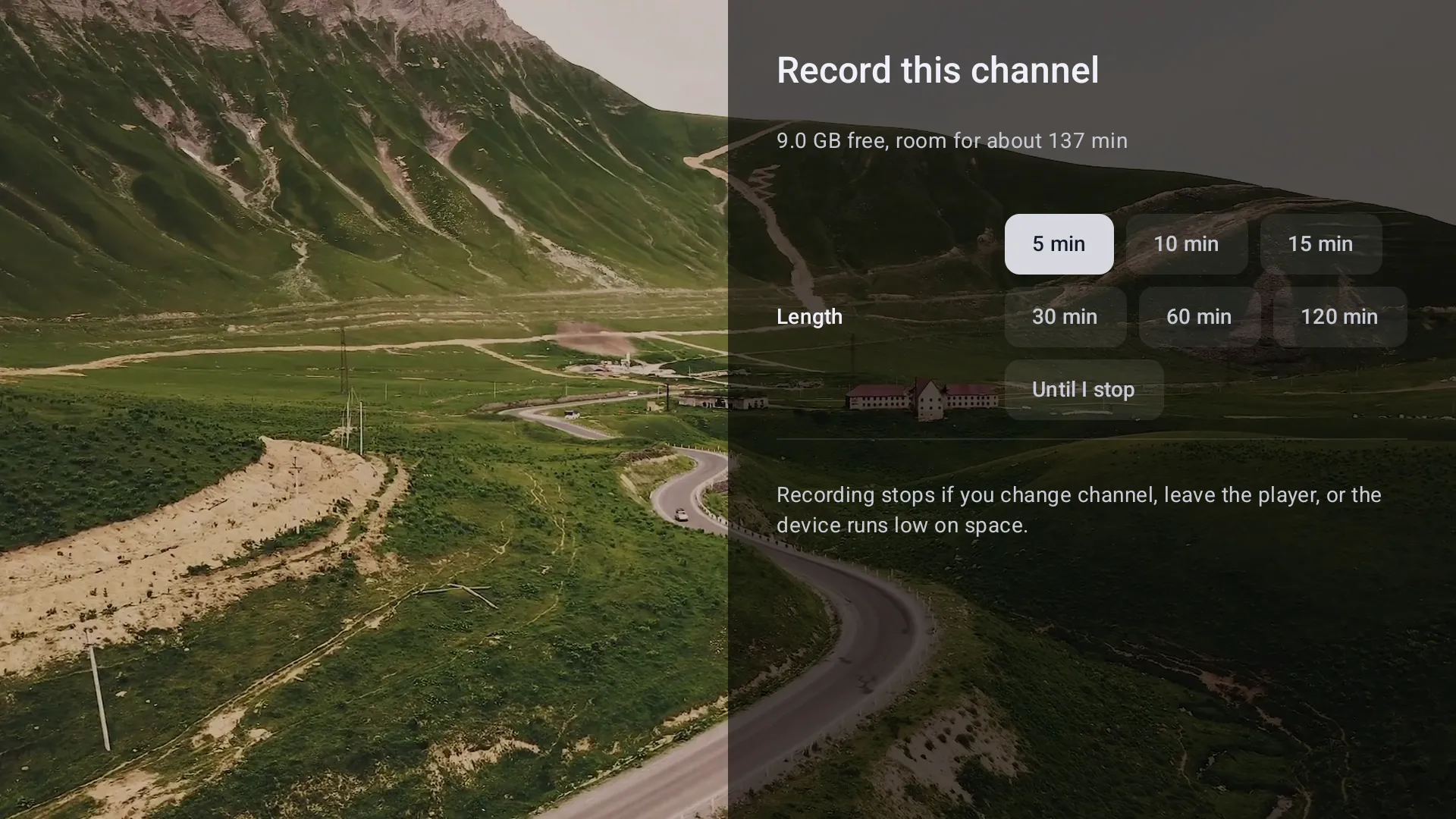
While a channel plays, hold OK and choose Record. Record this channel says how much room is left.
-
Choose a length: 5 to 120 min, or Until I stop. A length that would not fit is greyed out. REC and the time left show at the top.

-
To stop early, choose Record again, then Stop recording.

-
Kepler says Saved and the size. The recording is in Library.

On a phone or tablet
-
While a channel plays, tap Record in the row under the picture. Choose a length, or type your own under Custom length (up to 12 hours).

-
REC shows on the picture, and the button counts down. Tap it to stop.

-
Kepler says Saved and the size.

The Record button is in the row under the picture: turn the phone upright if the picture fills the screen.
A recording starts with what is on screen when you press Record, give or take two seconds, and ends with what is on screen when you stop. Changing channel or leaving the player stops it, and keeps what it has recorded (Playback ended. Kept …).
Book a recording from the TV guide
On a TV, the TV guide records a whole programme: one that is on now (you get the rest of it), or one later.
-
In Guide, go to the programme and press OK (on one that is on now, hold OK). Choose Record: it says about how much space it takes.

-
Kepler says Recording booked. It records while the TV is on, even if you have left Kepler. The button now reads Cancel recording.

-
A dot marks the programme in the guide.

While you watch a channel, the guide in the player books too: hold OK on a programme there.
- Kepler starts a minute early and stops three minutes after the listed end. Back-to-back programmes meet at the listed time.
- Two booked programmes can’t overlap. Kepler says Overlaps the recording of … Press Record again to record this one instead.
- Each booking is one programme: there are no series or repeat bookings.
- Booking a programme recorded before records it again; the earlier one stays.
Recording with Kepler closed
A booked recording wakes Kepler at its time, records, and stops by itself. The TV must stay switched on: turning it off, or force stopping Kepler in Android’s settings, ends a recording, and keeps what it has.

On a TV with Android 14 or later, Settings › Recordings & downloads may say Start booked recordings on time. Choose Allow in Android settings and allow Kepler in Alarms & reminders. Without it, a booking can start late or stop early. On older TVs and on Fire TV nothing is needed.
Watch your recordings
On a TV
-
Open Library in the menu on the left: it appears once there is something in it. Recordings lists them, newest first. Press OK to play one, hold OK to delete it.

-
Scheduled lists what is booked, and how each recording went. Press OK on a booking to cancel it.

On a phone or tablet
-
Your recordings are in the Recordings row on Home. Tap one to play it; All lists them with Open in another app and Delete.

A recording plays in Kepler’s player: you can skip back and forth and change the speed.
Where recordings go
Choose in Settings › Recordings & downloads , under Where files go. New recordings go there; recordings already saved stay where they are.
- This TV (or this phone). Show files in other apps, on by default, lets other apps
open them from
Android/media/com.keplerplayer.app. Off, only Kepler sees them. - A USB drive, when the TV shows it as storage. On a drive formatted FAT32, a recording longer than 4 GB continues in a second file, Part 2.
- A network folder: a shared folder on a NAS, a router or a computer. Kepler makes a Kepler folder inside it, with Recordings and Downloads.

For a network folder, choose a server Kepler found or type its name or address, enter the user name and password set up on it (empty for a folder open to everyone) and the shared folder, then Check and save: Kepler saves a small test file to be sure it can write there.
If the drive is unplugged or the network folder doesn’t answer, Kepler records to the device instead of refusing, and Settings says so.
How much space a recording takes
About 4 GB an hour for an HD channel. Kepler checks the room before it starts, greys out lengths that would not fit, and stops a recording before the device, drive or folder runs out, keeping what it has. A Fire TV Stick has little space of its own: a network folder suits it best.
When a recording stopped early or failed
| Kepler says | What happened, and what to do |
|---|---|
| Playback ended. Kept … | You changed channel or left the player while the Record button was recording. Use the TV guide to record while you watch something else. |
| Kept …. The device ran low on space. | Room ran out. Free some space, or choose a drive or a network folder. |
| Recording failed. | Nothing could be recorded: the stream can’t be recorded, or saving failed. Try another channel, or check the drive. |
| Recorded … · the stream ended early | Your provider stopped sending the channel. Kepler tries again ten times before it stops. |
| Recorded … · Android stopped it early | Android closed Kepler. On a TV with Android 14, allow Kepler in Alarms & reminders (above). |
| Recorded … · missed the first … min | Kepler started late. Allow alarms, as above. |
| Not recorded · the device was off | The TV was off at the booked time. |
| Not recorded · not enough space | There was no room when it was due to start. |
| Not recorded · the channel has left the playlist | Your provider removed the channel. |
Press Record again on a programme cut short to record the rest of it.
What is free and what needs Kepler Pro
| Free | Kepler Pro |
|---|---|
| Stopping a recording, cancelling a booking | Recording with the Record button |
| Deleting recordings | Booking from the TV guide |
| Choosing where recordings go | Playing recordings in Kepler |
| On a phone, opening one in another app or sharing it |
When Kepler Pro ends, your recordings stay listed and can be deleted, and bookings wait: Suspended · records again with Kepler Pro. On Google Play, the 30-day trial includes everything; on Fire TV, recording needs Kepler Pro from the start. See Kepler Pro.
Checked with Kepler 1.7 (version 43) on . Screens show Kepler’s fictional demo catalogue.