
Kepler Pro: trial, buying, restoring and your 10 devices
Kepler is free with one playlist, live TV, the TV guide and search. Kepler Pro adds films and series, recording, favourites, more playlists and more. Your first playlist starts 30 days of everything, with no card and no account. After that, Kepler Pro is a yearly plan or a one-time lifetime purchase through Google Play, and one purchase covers up to 10 devices on your Google account.
 2:41 Watch the whole guide on YouTube About 3 minutes, in 5 chapters. Jump to the step you need. Open on YouTube
 On this page
Kepler is free to use with one playlist. Kepler Pro adds everything else Kepler does, from films and series to recording, and it is the only thing Kepler sells: there are no ads and no account. This guide explains what is free, how the free trial works, how to buy, restore and share Kepler Pro, and what happens when it ends. For a summary, see Kepler Pro.
What is free and what needs Kepler Pro
Features that need Kepler Pro wear a PRO badge in the app, so you know before you press them.
| Free | Kepler Pro |
|---|---|
| One playlist, plus links in My streams | More playlists, editing and reordering them |
| Live TV, the TV guide and programme details | Films and episodes, and Continue watching |
| Browsing films and series | Recording, and playing recordings |
| Search and recent channels | Downloads |
| Audio and subtitle tracks, picture size, the sleep timer | Catch-up, multiview (TV), casting (phone) |
| Refreshing a playlist and its guide by hand | Favourites, My list and reminders |
| Restoring a backup Coming in Kepler 1.7 | Hiding, your own groups and your own order |
| Typing the parental PIN, and locks you set | Setting the parental PIN and adding locks |
| Signing in to OpenSubtitles.com | Downloading subtitles from it |
| Automatic updates (TV), extra TV guides | |
| Playback settings: buffer, User-Agent, languages, frame rate | |
| Themes and accent colours, the Home layout | |
| Device sync, and making backups Coming in Kepler 1.7 |
The 30-day free trial
Your first playlist starts 30 days of Kepler Pro: everything is on, with no card, no account and nothing to cancel.
- It starts when your first playlist has finished loading, not when you install Kepler. Links in My streams don’t start it.
- The days are counted by Kepler’s servers, not by the device’s clock, so changing the clock changes nothing.
- There is one trial per device. Reinstalling Kepler or clearing its data doesn’t start a new one.
On a TV
-
Settings › Kepler Pro shows how many days are left, and the date it ends.

-
In the last five days, the top bar counts down: Trial · 4 days left.

On a phone or tablet
-
Settings › Kepler Pro shows how many days are left, and the date it ends.

-
In the last five days, Home shows a card with See plans.

The trial needs Google Play on the device, and the internet once to be dated. A device that can’t reach Kepler’s servers for its first three days says Kepler could not confirm your free trial. Connect this device to the internet to carry on with it.
When the trial ends
When the 30 days are over, Kepler says so once, the next time you are browsing (never over what you are watching).
-
Your 30 days of Kepler Pro are over lists what is waiting for Kepler Pro and what stays free. Choose Continue free, or a plan. On a phone, close it with the X.

-
From then on, a feature marked PRO opens Kepler Pro’s plans instead. Press BACK to close them.

Nothing is deleted. What you made with Kepler Pro waits, and comes back the moment you have it:
- Your favourites, own groups, order and Continue watching don’t show; groups you hid show again.
- Settings that need Kepler Pro work as their defaults, and keep what you chose.
- Reminders pause. Recordings stay listed, but need Kepler Pro to play; booked recordings say Suspended · records again with Kepler Pro.
- Only your first playlist in My Playlists is used. The others show PRO and wait, with everything in them.
- Parental locks keep working.
To keep a different playlist than the first, delete the ones above it in My Playlists, which is free. Reordering playlists needs Kepler Pro.
Buy Kepler Pro
There are two plans:
- Yearly renews every year until you cancel it in Google Play.
- Lifetime is paid once and is yours for good. Kepler marks it Recommended Coming in Kepler 1.7.
On a TV
-
Open Settings › Kepler Pro and choose Get Kepler Pro.

-
Choose a plan with and and press OK. Google Play’s own purchase screen opens.

-
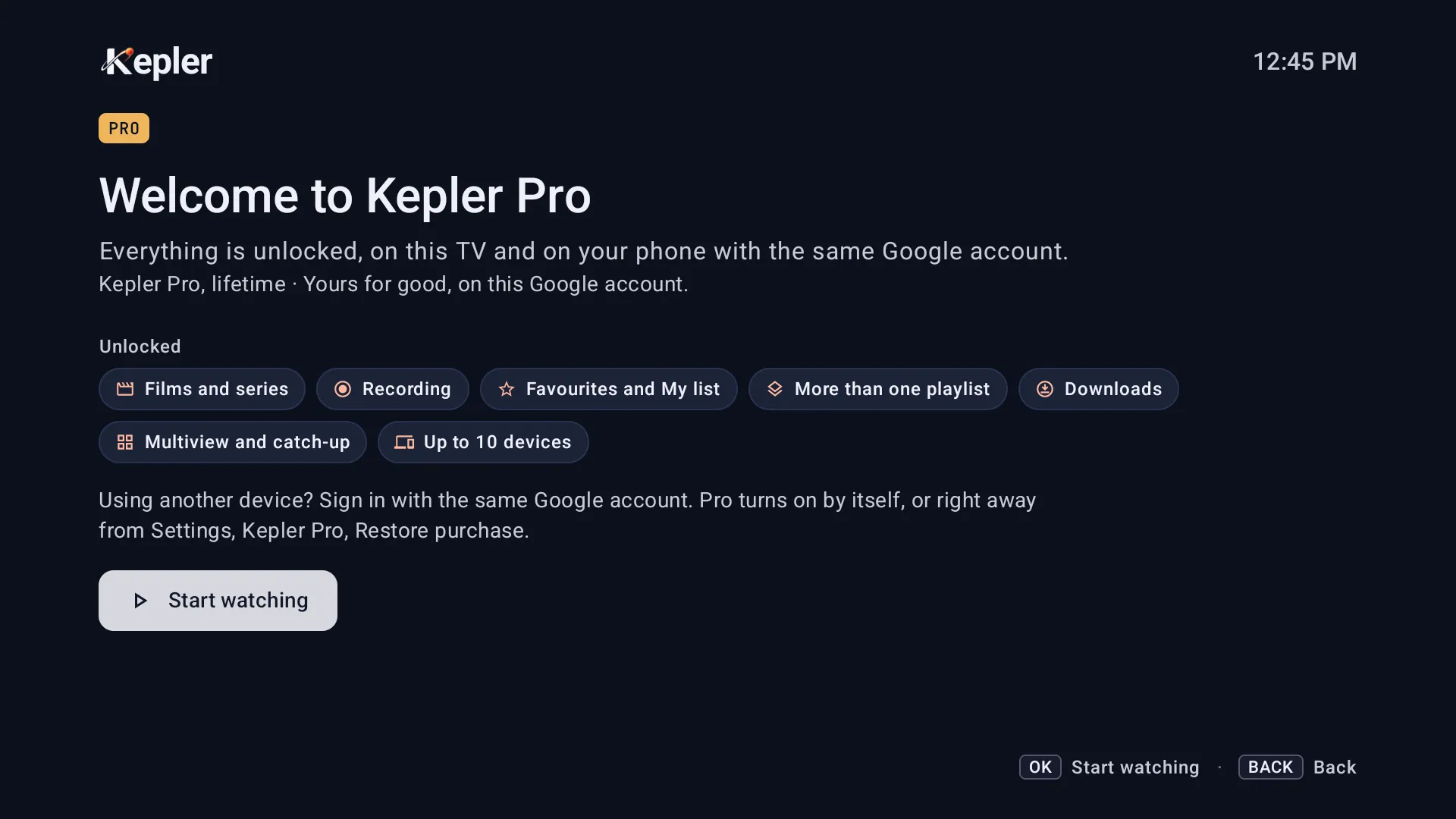
Once you’ve paid, Welcome to Kepler Pro says everything is unlocked. Choose Start watching.
Or buy on your phone: scan the code beside the plans, or choose Buy on your phone in Settings, and buy on keplerplayer.com/pro with the same Google account as the TV. It is handy when your bank asks you to confirm a payment in its app, which a TV can’t do.
On a phone or tablet
-
Open Settings › Kepler Pro and tap Get Kepler Pro, or See plans on Home’s card.
-
Tap a plan, then Continue with Google Play, and pay in Google Play’s screen.

Your other devices on the same Google account get Kepler Pro by themselves the next time Kepler opens, or at once with Restore purchase.
If Google Play asks you to wait for a payment, Kepler says Your payment is waiting for Google Play. Kepler Pro turns on as soon as it is confirmed.
Restore a purchase
A purchase belongs to the Google account Google Play used to buy it. To get Kepler Pro back, on a new device or after reinstalling Kepler:
- Open Settings › Kepler Pro .
- Choose Restore purchase. Kepler says Kepler Pro is on again on this device.
If nothing is found:
- On a TV, Kepler says This Google account has not bought Kepler Pro yet. Check which Google account the TV uses, in the TV’s own settings.
- On a phone, Kepler says Google Play found no Kepler Pro. Google Play looks only with the account Kepler was installed with on that phone, and switching accounts in Google Play is not enough. Find the account that bought it (Google emailed the receipt to it), add it to the phone, switch to it in Google Play, reinstall Kepler from there, then restore. Reinstalling clears the playlists Kepler keeps on the phone.
Your 10 devices
One Kepler Pro covers up to 10 devices on the Google account that bought it, the one you bought on included.
-
In Settings › Kepler Pro , Devices using Kepler Pro says how many are in use.

-
Open it to see them: each device’s name, and when it last used Kepler.

- To make room, choose a device and Remove: there is room at once for another. Any of your devices can remove any other. A removed device stops using Kepler Pro within a week.
- An 11th device gets the list instead of the plans: Kepler Pro is in use on 10 devices. Remove one you no longer use, and it takes its place.
- A removed device never takes a place back by itself: on it, choose Use Kepler Pro on this device when there is room.
- Reinstalling Kepler keeps a device’s place. A device reset to its factory settings counts as a new one.
- The name shown is the device’s name in Android’s own settings. Kepler has no rename of its own.
Share Kepler Pro with a device you add Coming in Kepler 1.7
A device on another Google account, such as a TV signed in with someone else’s account, can share your Kepler Pro when you add it from your phone:
- On the new TV, choose I’ve used Kepler before › From a device near you on its first screen, or Join a household in Settings › Sync and backup .
- On your phone with Kepler Pro, open Settings › Sync and backup , choose Add a device and scan the code on the TV. The sheet Add this TV? says Shares your Kepler Pro and that This TV will use 1 of your 10 devices.
- Choose Add. The TV’s Settings › Kepler Pro then reads Kepler Pro, shared.
A free trial can’t be shared: only a purchase can. If your Kepler Pro ends, or you remove the TV, the shared Kepler Pro on it ends too. See Kepler on several devices.
Cancel, refunds, and when Kepler Pro ends
- Cancel a yearly plan in Google Play, under your subscriptions. Kepler has no cancel button of its own. Kepler Pro stays on until the end of the year you paid for, and Settings says when it ends.
- Refunds are Google Play’s, under its own terms.
- When Kepler Pro ends, Kepler goes back to the free version exactly as at the trial’s end: nothing is deleted, and it all comes back when you buy again.
Kepler Pro on Fire TV
On a Fire TV, Kepler comes from the Amazon Appstore, and Kepler Pro is bought through Amazon’s own payments. There is no free trial there. A Fire TV can also share your Kepler Pro when you add it from your phone, as above Coming in Kepler 1.7.
Checked with Kepler 1.7 (version 43) on . Screens show Kepler’s fictional demo catalogue.