
Subtitles and audio in Kepler
In Kepler you choose subtitles and the audio track in the player. While a film plays, press OK and choose Subtitles or Audio, and pick from the tracks the film carries. Sync and style changes their timing, size and colour. A film without subtitles can get them from OpenSubtitles.com.
 6:02 Watch the whole guide on YouTube About 6 minutes, in 7 chapters. Jump to the step you need. Open on YouTube
 On this page
Kepler shows the subtitles and sound tracks your provider sends with each film, episode and channel. This guide shows how to turn on IPTV subtitles in Kepler on a TV, a Fire TV Stick and a phone, choose the audio, change how subtitles look and fix their timing, and find subtitles online when a film has none.
Turn subtitles on
On a TV
-
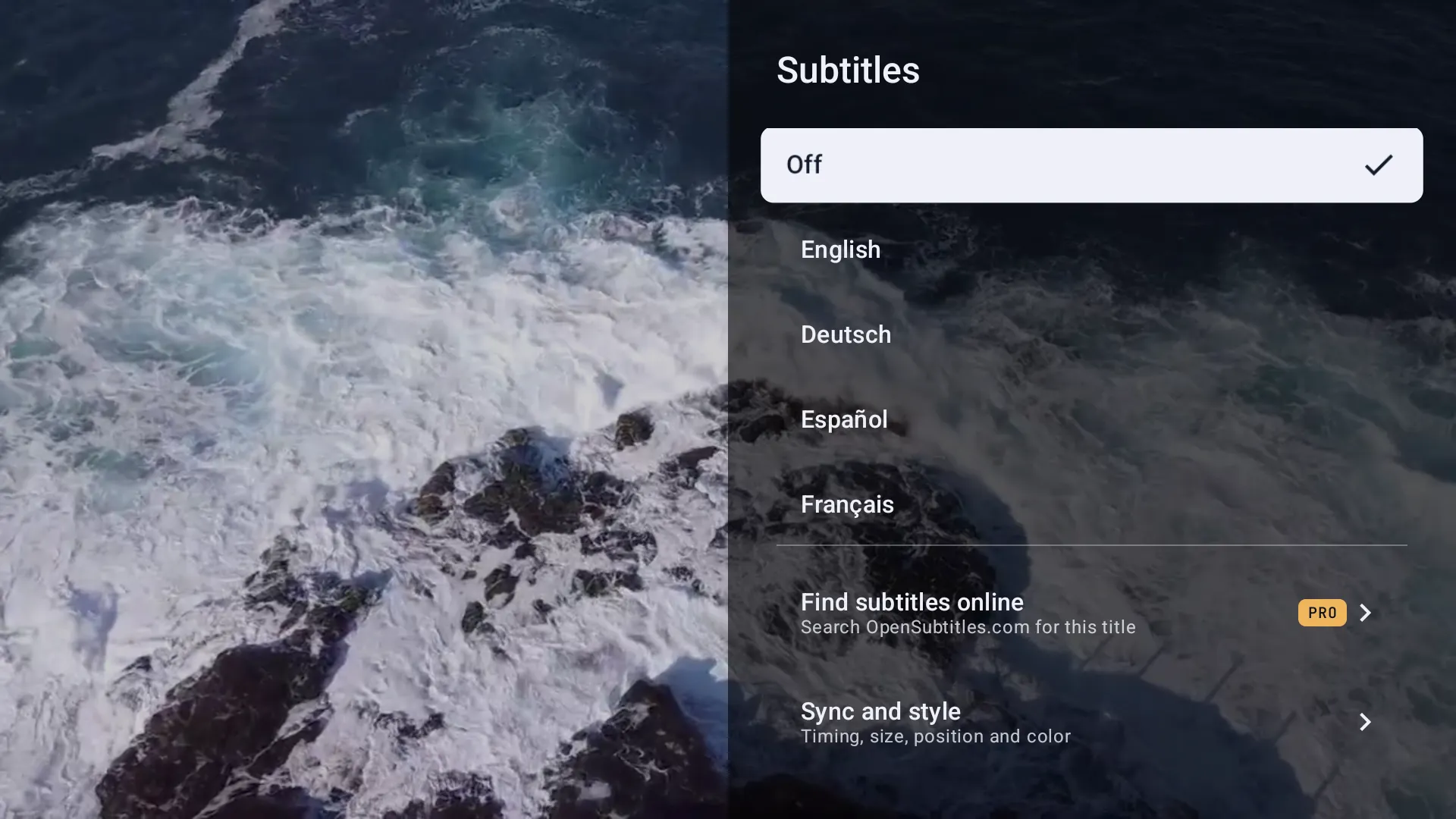
While a film or an episode plays, press OK and choose Subtitles in the row of buttons. The list shows Off, then the film’s own subtitles.
-
Choose one. The list closes and the subtitles show.

A remote with a subtitles key (CC) opens the same list from the picture. On a live channel, hold OK and choose Subtitles in the row of tiles.
On a phone or tablet
-
Tap the picture, then Subtitles at the top.

-
Tap one. On a live channel held upright, Subtitles is in the row under the picture.

On a Fire TV Stick
Kepler works the same way on a Fire TV Stick as on any TV: while a film plays, press the round button in the middle of the remote, then choose Subtitles.
How tracks are named
Kepler shows each track as the film names it: English, Deutsch, or English 5.1 when the file says so. A track with no name shows its language, and one with neither shows Track 2. Kepler adds nothing of its own, so two tracks of the same language can look alike: try the other one if the first stays blank.
Your choice is remembered. Open the film again and it starts with the same subtitles, and the next film starts with subtitles on in the same language, or off if you turned them off.
Choose the audio track
On a TV

While a film plays, press OK and choose Audio. It is there when the film has more than one sound track. Choose one: the sound switches where you are.
On a phone or tablet

Tap the picture, then Audio at the top, and tap a track.
Like subtitles, your choice is kept for the film, and the next film starts in the same language when it has it.
Change how subtitles look
Open Subtitles, then Sync and style. The card sits at the top so you see each change on the film at once. When no line is on screen, a sample shows: Subtitles look like this.
On a TV

Press and to choose a row, and to change it.
On a phone or tablet

Tap − and +, a colour, or a chip. Hold − or + to keep going.
| Row | What it changes | Default |
|---|---|---|
| Text size | 50% to 200% | 100% |
| Position | How high the lines sit, up to 30% higher | Bottom |
| Text color | White, light gray, yellow, amber, green, cyan, blue or pink | White |
| Edges | None, outline, drop shadow, raised or depressed | Outline |
| Background | A black box behind each line, from none to 100% | None |
| Font | Standard, condensed, serif or monospace | Standard |
| Bold | Thicker letters | Off |
| Formatting from the file | Italics, colours and lines placed at the top, as the subtitle file has them. Off, every line takes your style and sits at the bottom | On |
Reset to default puts the look back. It doesn’t change the sync.
The look is one for everything on this device, live channels included. It isn’t shared with your other devices, since a phone and a TV want different sizes, but it is in your backups. Settings has no page for it: Settings › Playback says to change it in the player.
Picture subtitles are different. Found on some copies of Blu-ray discs, they are drawn as they are, and only Position changes them.
Fix subtitles out of sync
When the lines come before or after the voices, open Subtitles, Sync and style, and change Sync, the first row.

- Right (or + on a phone) shows the lines later, Left (or −) earlier.
- Each press is 0.1 seconds. On a TV, hold the key to go faster: half a second a step after a second, then a whole second.
- It changes every subtitle of the film at once, downloaded ones included.
Kepler remembers the sync for that film or episode and brings it back next time. On a live channel, a replay or a recording it starts at 0.0 s each time. To undo it, go back to 0.0 s: Reset to default leaves the sync as it is.
Start every film in your language

In Settings › Playback , under Audio & subtitles:
- Audio language: films and channels start in it when they have it. Default keeps each film’s own track.
- Subtitle language: the subtitles that come on when you turn subtitles on. No preference lets you choose each time.
- Second choice, under each, for films without your first.
Subtitles still start off. Turn them on once in the player and they come on for the next films too, in your language. Choosing a subtitle language turns them off, so you choose when they come on.
A film you have already watched keeps the tracks you chose for it. On a TV, the player’s own settings (hold OK, then Settings) have the same two rows, and a change there applies to what is playing at once. Your languages are shared with the devices you sync.
Find subtitles online
When a film or an episode has no subtitles, or none in your language, Kepler can find them on OpenSubtitles.com.
-
Open Subtitles and choose Find subtitles online. A film without subtitles says This video has no subtitles of its own.

-
Kepler searches for this film in your language. The chips at the top change the language; More languages has the rest.

-
Choose a result. The first time, sign in with your OpenSubtitles.com account: it is free.

-
Kepler downloads the subtitles and turns them on. The film carries on where it was.

- The best matches come first: Made for this file, then your languages, Trusted uploader, people before Machine translated or AI translated, then the most downloaded. Hearing impaired files are marked, never hidden.
- OpenSubtitles limits downloads a day; Kepler shows how many you have left. A free account has a small number a day.
- Searching needs no account. Downloading does.
- Kepler keeps the file for that film: opening it again costs no download.
- You can also sign in, or out, in Settings › Playback , under OpenSubtitles. The account stays on this device and isn’t in your backups.
Kepler can’t load a subtitle file of your own. Only OpenSubtitles.com.
Subtitles on live channels Coming in Kepler 1.7
Most channels send no subtitles at all. When one does, hold OK while it plays and choose Subtitles. The tile reads None when the channel has none.
- Kepler reads teletext subtitles, in each language’s own letters, and DVB subtitles.
- Your choice carries over: the next channel starts with subtitles on in the same language, and the same goes for the audio. Your languages in Settings come first.
- Kepler has no teletext page viewer: only subtitle pages are shown.
Surround sound
Kepler sends Dolby Digital (AC3), Dolby Digital Plus (E-AC3, Atmos included), DTS and TrueHD sound to your TV, soundbar or receiver as it is, when they say they accept it. There is no setting for it. When they don’t, Kepler plays the sound itself, so AC3, E-AC3, DTS and TrueHD films play with sound even on a TV without a decoder for them. AC-4 sound is the exception: it needs the TV’s own decoder.
Kepler has no setting for an audio delay.
IPTV subtitles not showing
| What you see | What to do |
|---|---|
| None on the Subtitles tile, or This video has no subtitles of its own. | The stream has no subtitles. On a film or an episode, use Find subtitles online. |
| A track is ticked, but nothing shows | Some channels list subtitles they don’t send, or send them only some days. Try another track. |
| Subtitles were on, and the next film starts without them | You chose Off on the last one, or you just chose a subtitle language in Settings. Turn them on once in the player. |
| The lines come too early or too late | Check Sync in Sync and style: Kepler may have kept an old setting for this film. |
| The size or colour won’t change | The film has picture subtitles: only Position changes them. |
| No subtitles at all on a film | Check Settings › Playback , Default video player: a film played in another app uses that app’s subtitles. |
| Find subtitles online is missing | It is for films and episodes, not live channels, replays or recordings. |
| This audio format can’t be played on this device. | Neither the device nor Kepler can play any of the film’s sound tracks. Ask your provider for another version. |
What is free and what needs Kepler Pro
Choosing subtitles and the audio track, their look and their sync are free. Playing films and episodes is part of Kepler Pro, and so are your audio and subtitle languages and finding subtitles online. The 30-day trial on Google Play includes them. See Kepler Pro.
Checked with Kepler 1.7 (version 43) on . Screens show Kepler’s fictional demo catalogue.