
Use Kepler Pro on your Fire TV Stick and other devices
A purchase from one store isn’t restored on the other: a Fire TV buys through Amazon, a phone through Google Play. Share it instead, over your Wi-Fi. Bought on a phone: Join a household on the Fire TV, then Add a device on the phone. Bought on a Fire TV: Add a device on the TV, then Join a household on the phone or tablet. Scan the code, and the new device has Kepler Pro, as 1 of your 10.
 2:50 Watch the whole guide on YouTube About 3 minutes, in 4 chapters. Jump to the step you need. Open on YouTube
On this page
You bought Kepler Pro on your phone, and your Fire TV Stick still says Free. That is expected: the Fire TV gets Kepler from the Amazon Appstore, so a purchase made on Google Play isn’t found there by Restore purchase. Your phone can share its Kepler Pro with the Fire TV instead, in about a minute. This guide shows how, and what to do when it doesn’t work.
Bought Kepler Pro on a Fire TV? It works the other way round too: see share it with your phone or tablet.
Before you start
- Both devices on the same Wi-Fi, with Kepler open on both. The two talk over your Wi-Fi, never the internet.
- Kepler 1.7 or later on both devices. Update it in Google Play or the Amazon Appstore if you’re not sure.
- A purchase, not the free trial. A trial stays on the device it started on; only a bought Kepler Pro can be shared.
- One Kepler Pro covers 10 devices. Each device you share it with takes one of them.
Share Kepler Pro from your phone
-
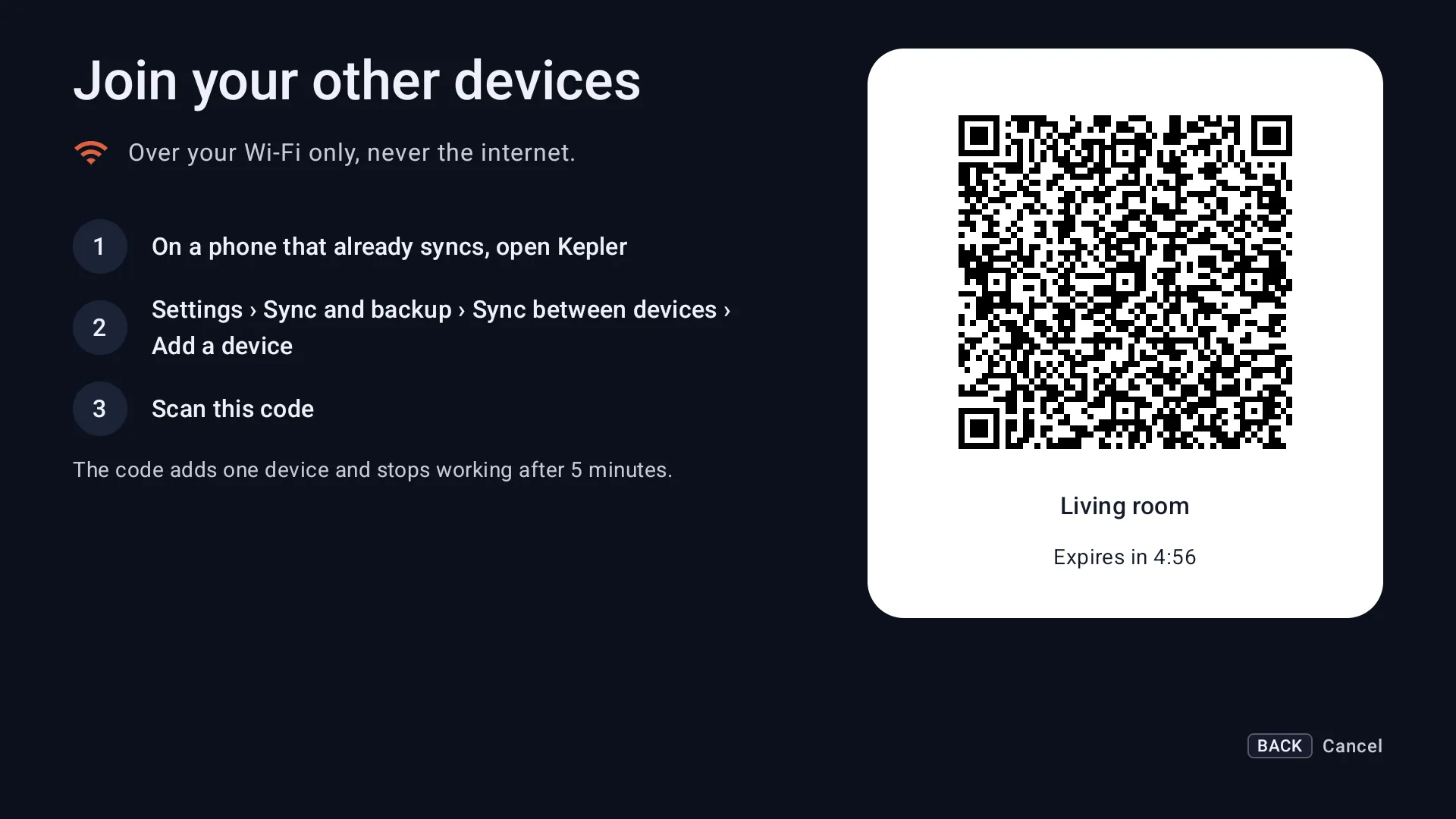
On the Fire TV, open Settings › Sync and backup and choose Join a household. The TV shows a code, good for 5 minutes.
-
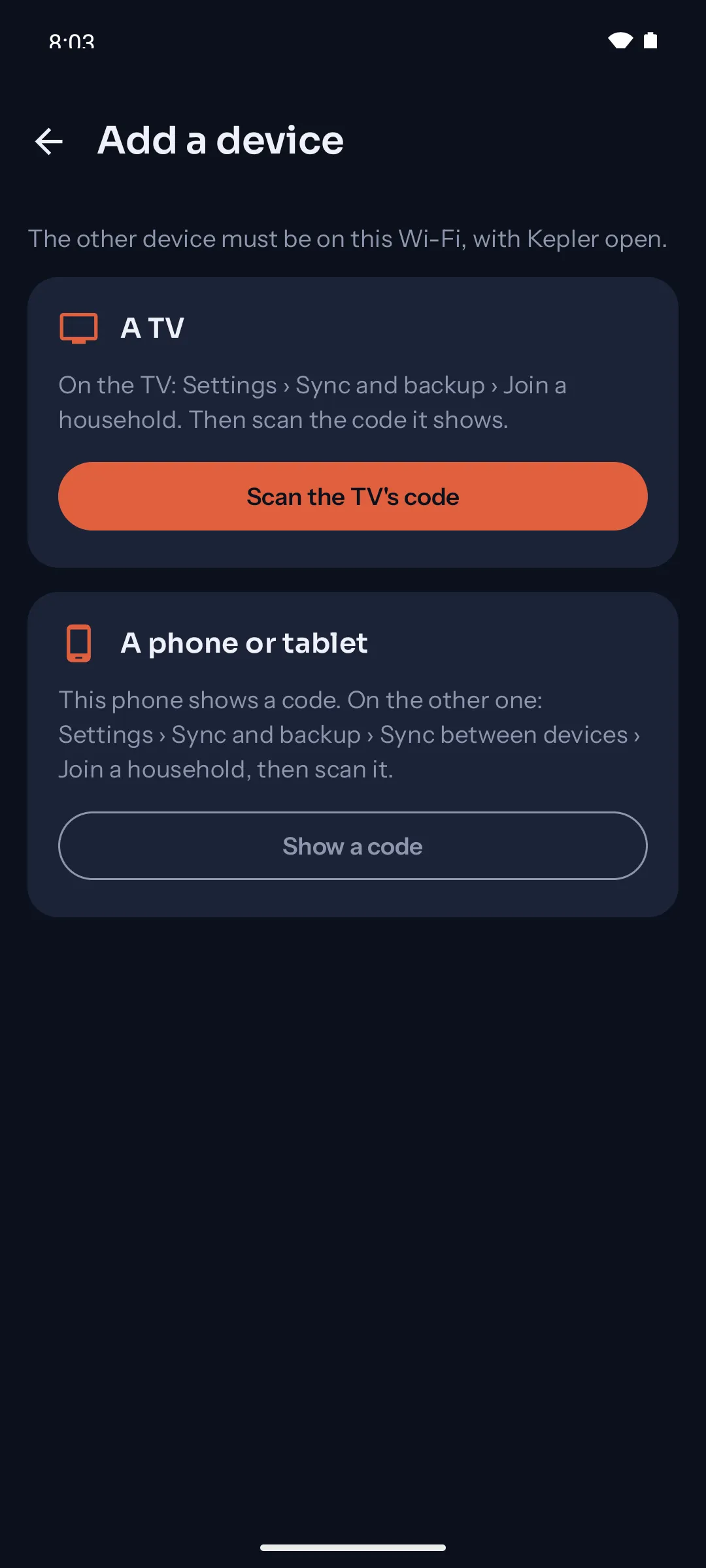
On the phone with Kepler Pro, open Settings › Sync and backup, then Sync between devices and Add a device. Under A TV, tap Scan the TV’s code and point the camera at the TV.
-
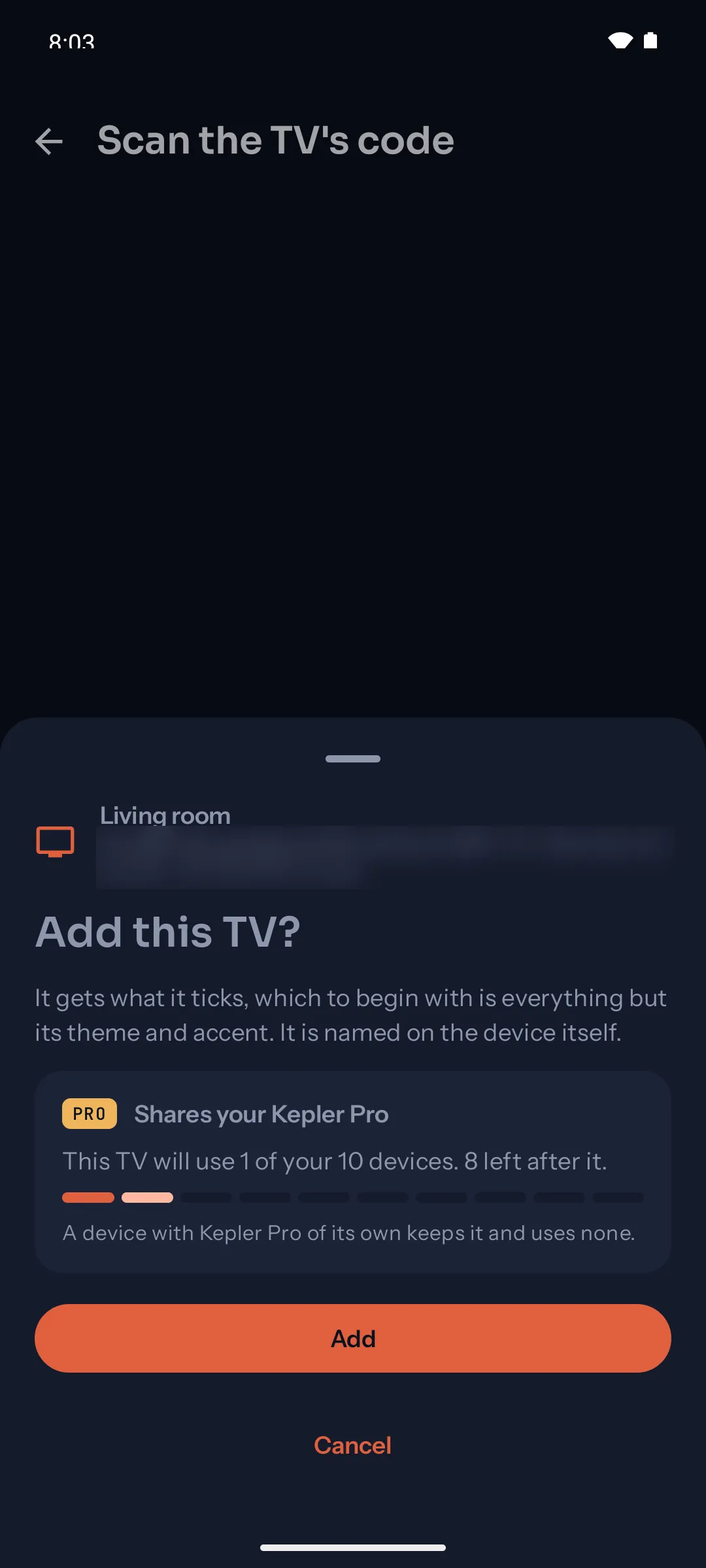
The phone asks Add this TV? and says it Shares your Kepler Pro: the TV will use 1 of your 10 devices. Tap Add.
-
On the TV, pick a name and choose Continue. It says Kepler Pro is on, shared by your phone. Press OK on Done.
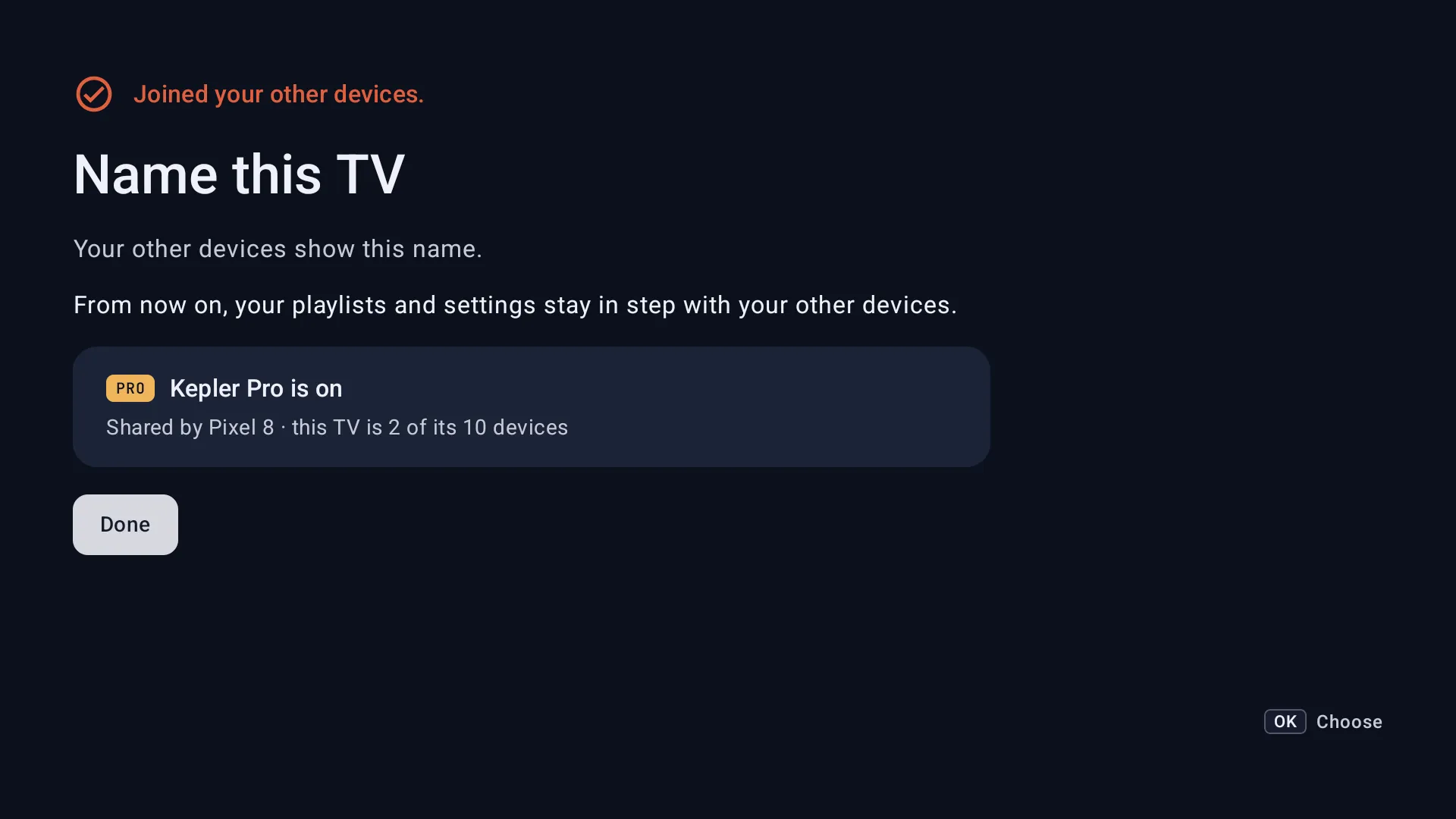
That’s it: everything marked Pro works on the Fire TV now, for as long as your Kepler Pro is paid.
The TV has also joined your phone’s household, so your playlists, favourites and settings stay in step between the two. To keep something on one device only, untick it under What this TV shares in Settings › Sync and backup. See Kepler on several devices.
A Fire TV you’re setting up for the first time
On Kepler’s first screen, choose I’ve used Kepler before, then From a device near you. The TV shows the same code: scan it from your phone as above. Your playlists come over with Kepler Pro, so there is nothing to type with the remote.
Check it worked
-
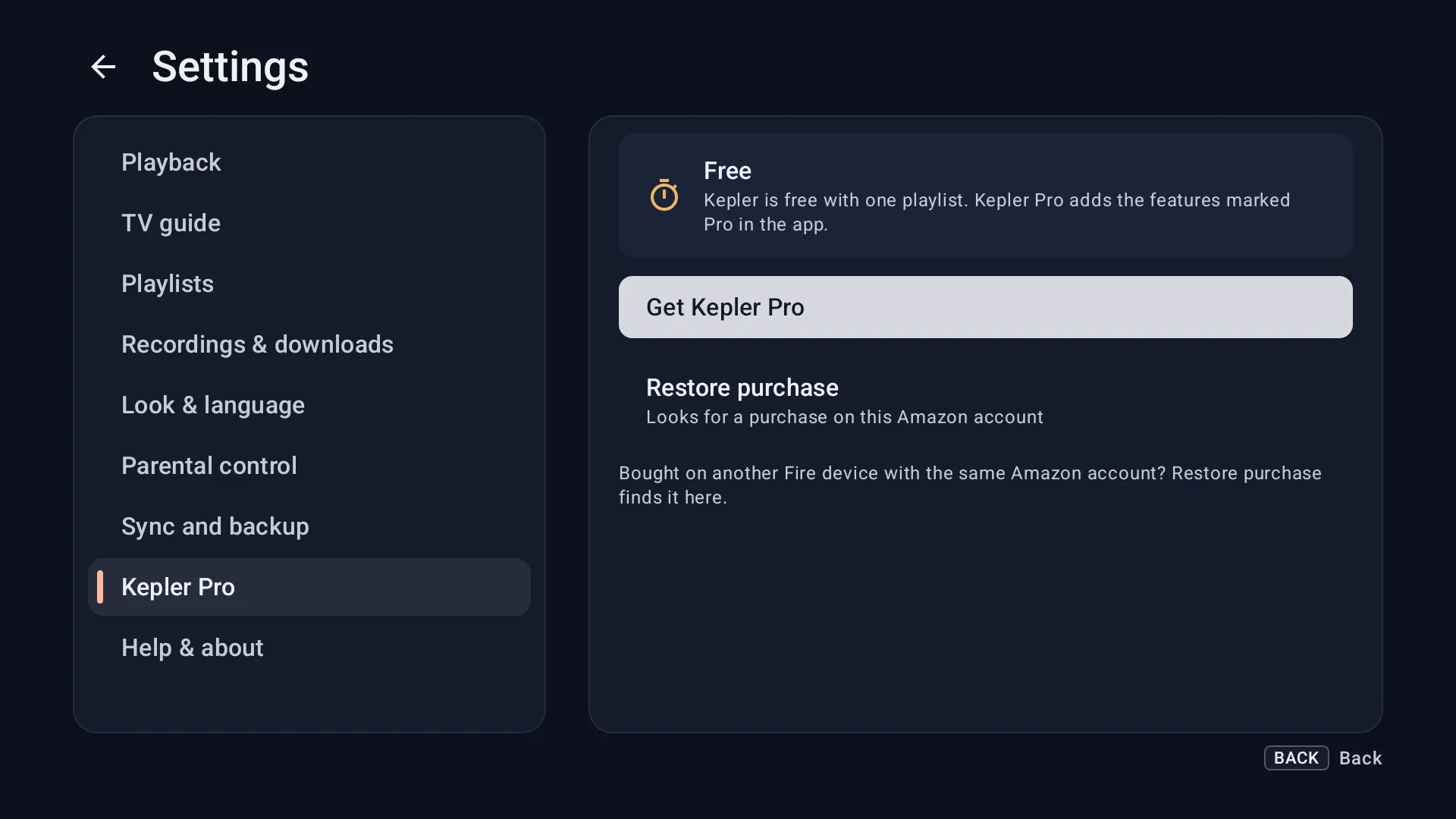
On the Fire TV, Settings › Kepler Pro reads Kepler Pro, shared.
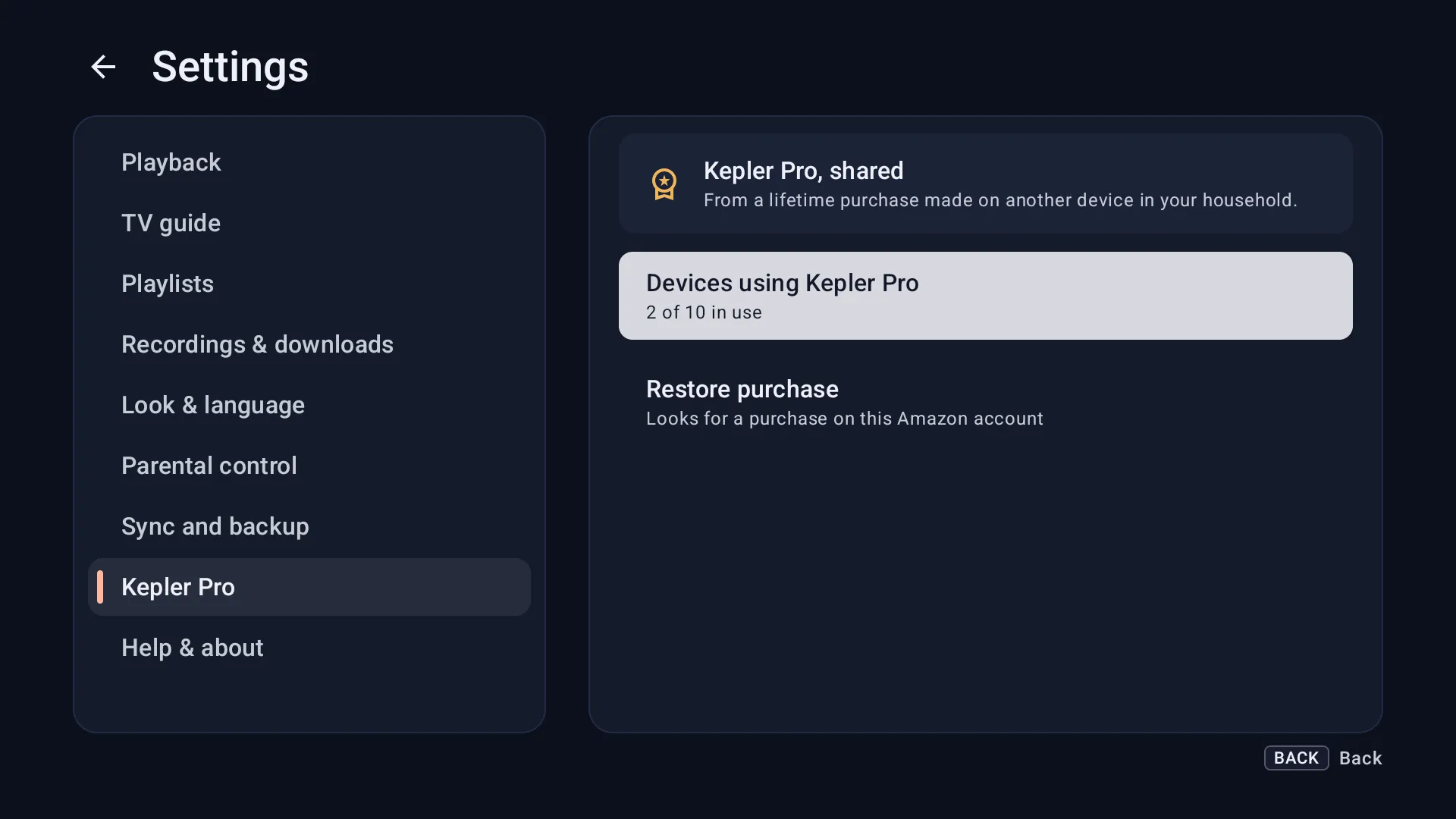
-
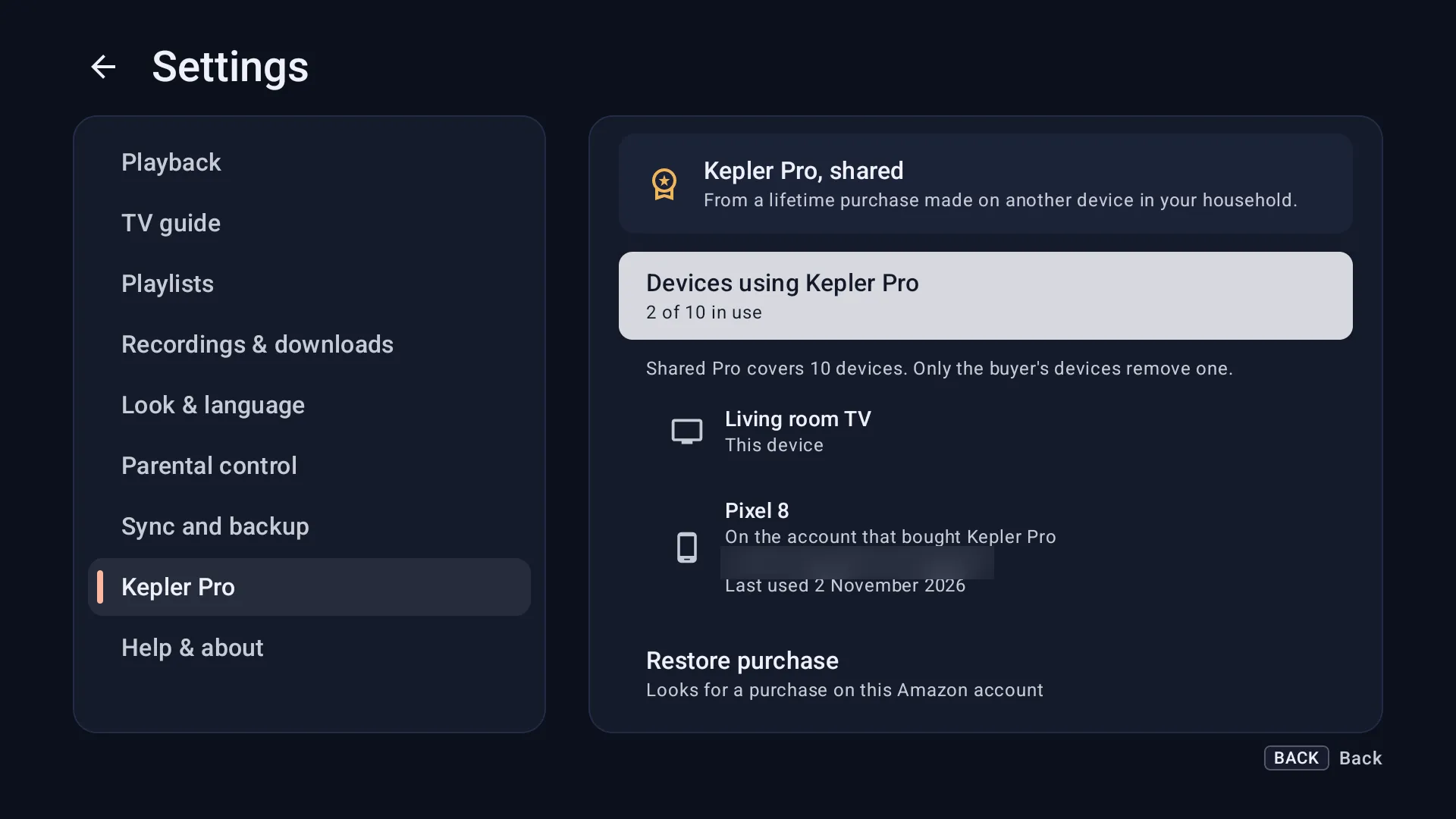
Devices using Kepler Pro lists every device on your purchase. The ones that bought it read On the account that bought Kepler Pro.
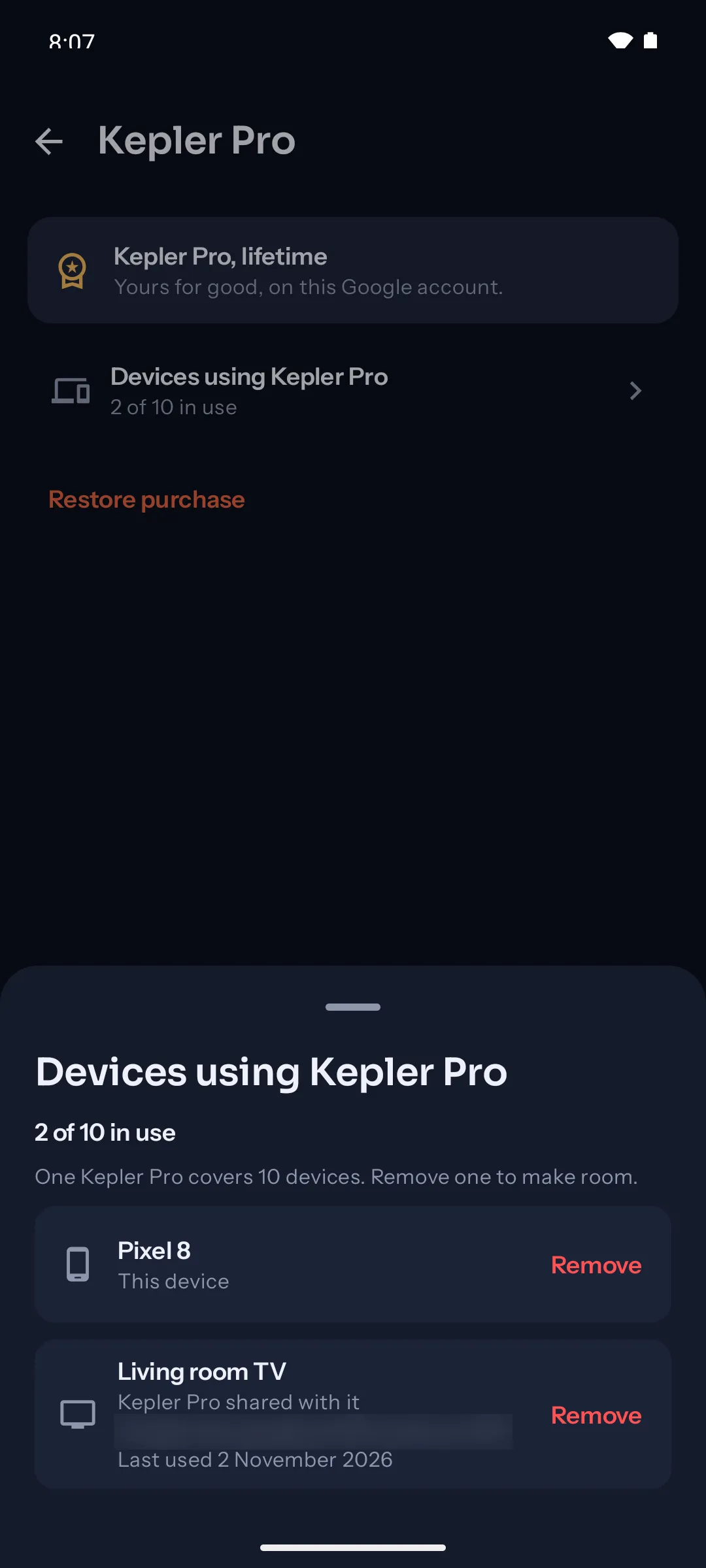
On your phone, the TV shows in the same list as Kepler Pro shared with it. Remove a device there to free its place: only the devices on the account that bought Kepler Pro can remove another one.
Bought Kepler Pro on a Fire TV? Share it with your phone or tablet
A Kepler Pro bought on a Fire TV is paid through Amazon, so Restore purchase on a phone or tablet from Google Play doesn’t find it. The Fire TV shares it instead: it shows a code, and your phone or tablet scans it. The same Before you start applies: the same Wi-Fi, Kepler open on both, a purchase rather than the trial.
-
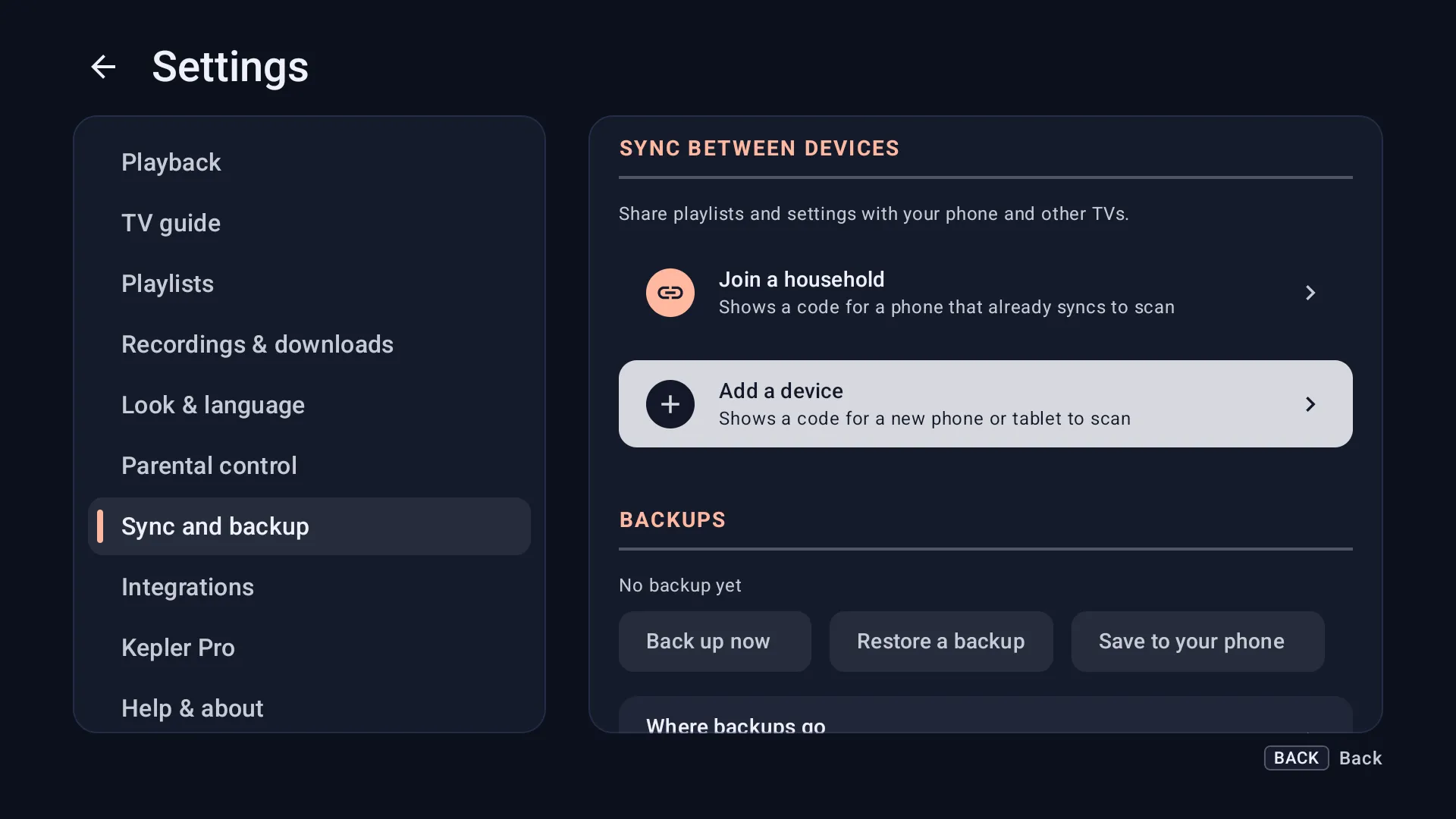
On the Fire TV that bought Kepler Pro, open Settings › Sync and backup and choose Add a device.
-
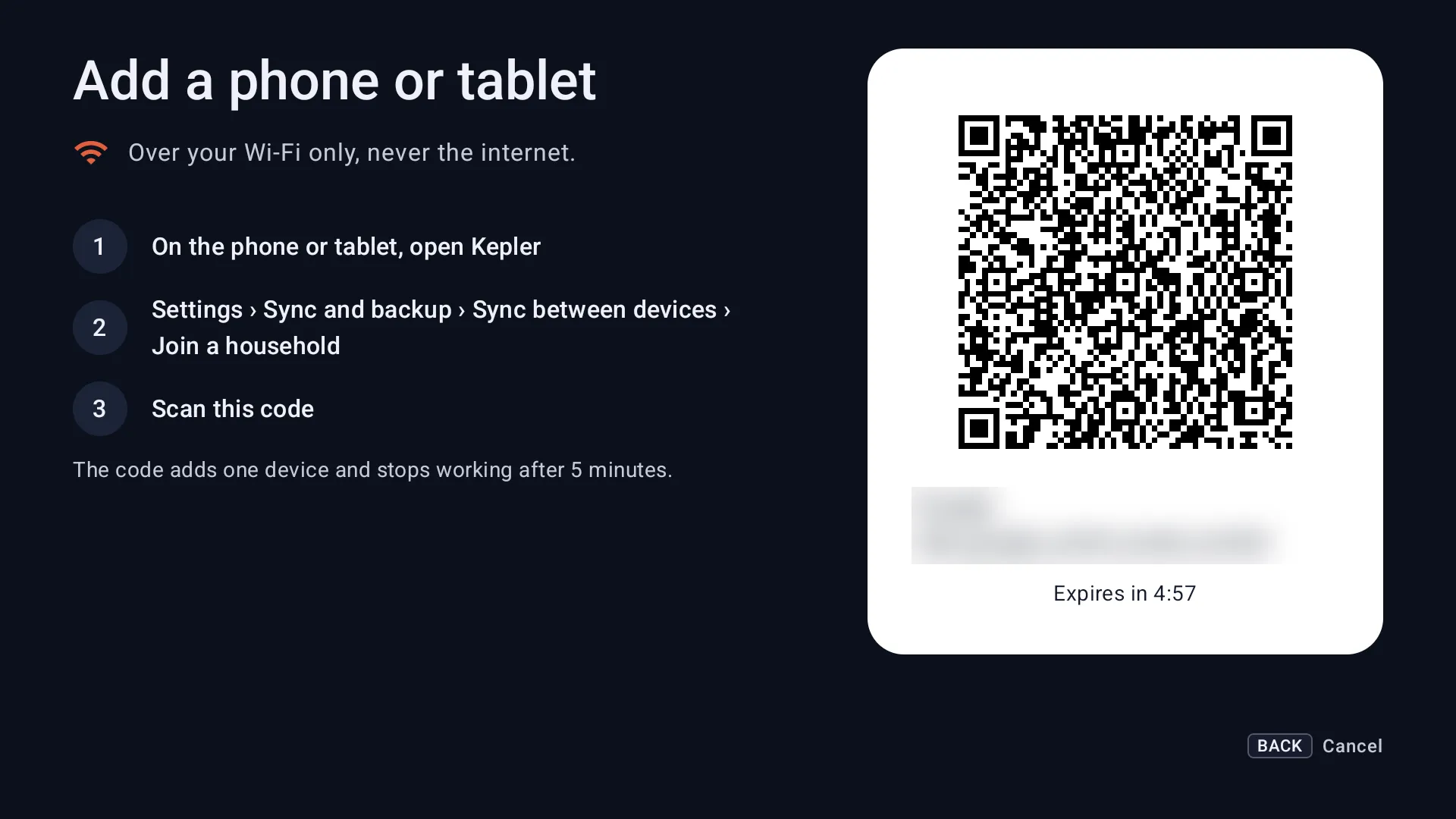
The TV shows Add a phone or tablet and a code, good for 5 minutes.
-
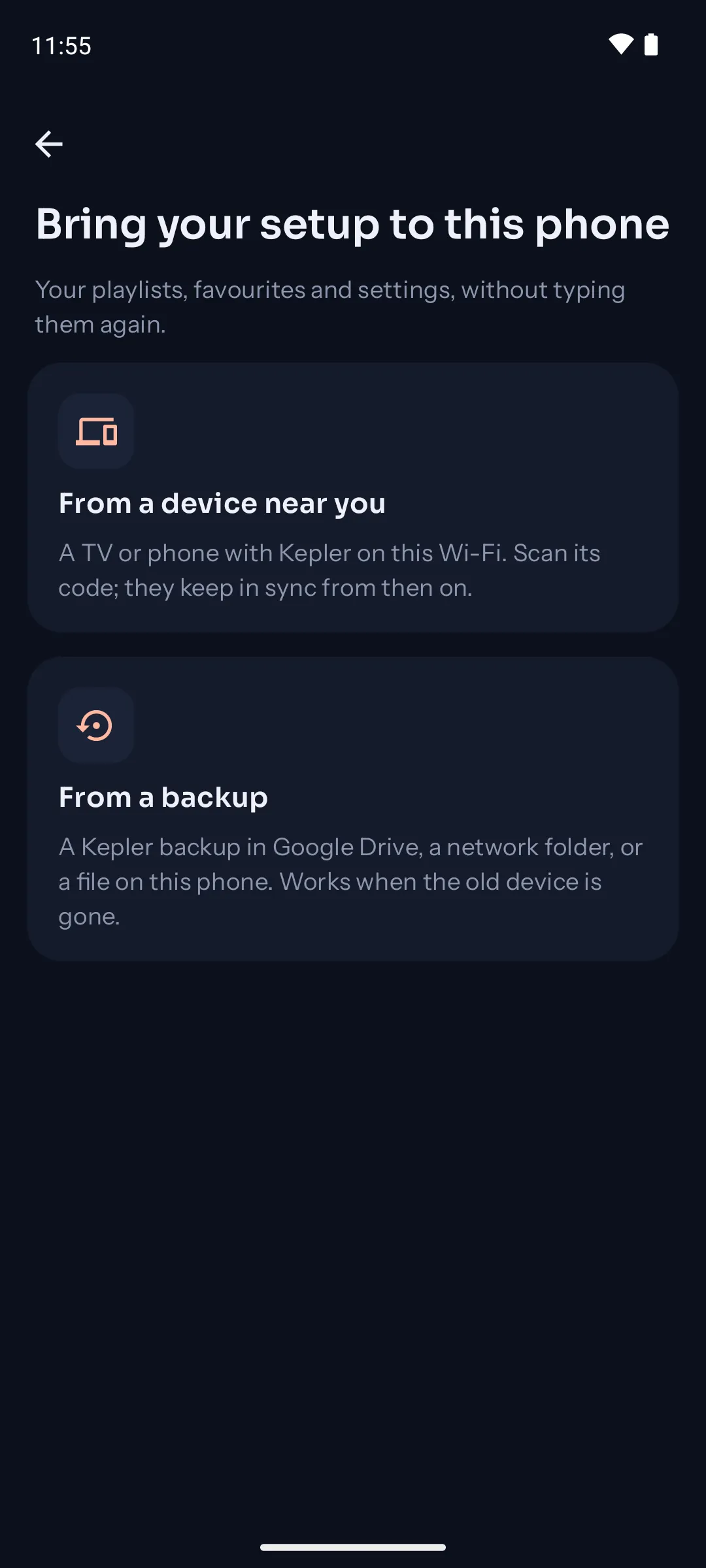
On the phone or tablet, open Kepler. If it is new to Kepler, choose I’ve used Kepler before on its first screen, then From a device near you. If Kepler is already set up there, open Settings › Sync and backup, then Sync between devices and Join a household. Point the camera at the TV’s code.
-
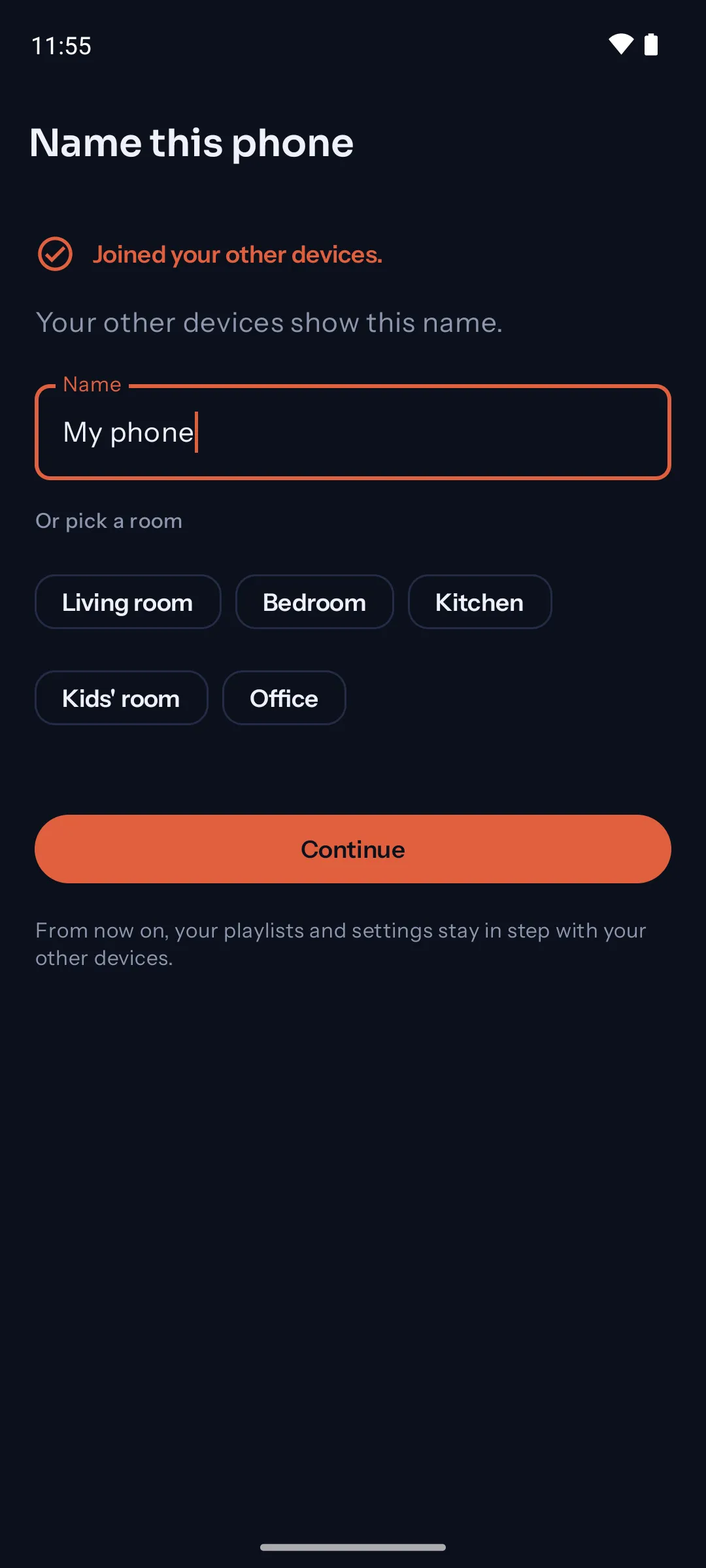
The phone says Joined your other devices. Give it a name and tap Continue.
-
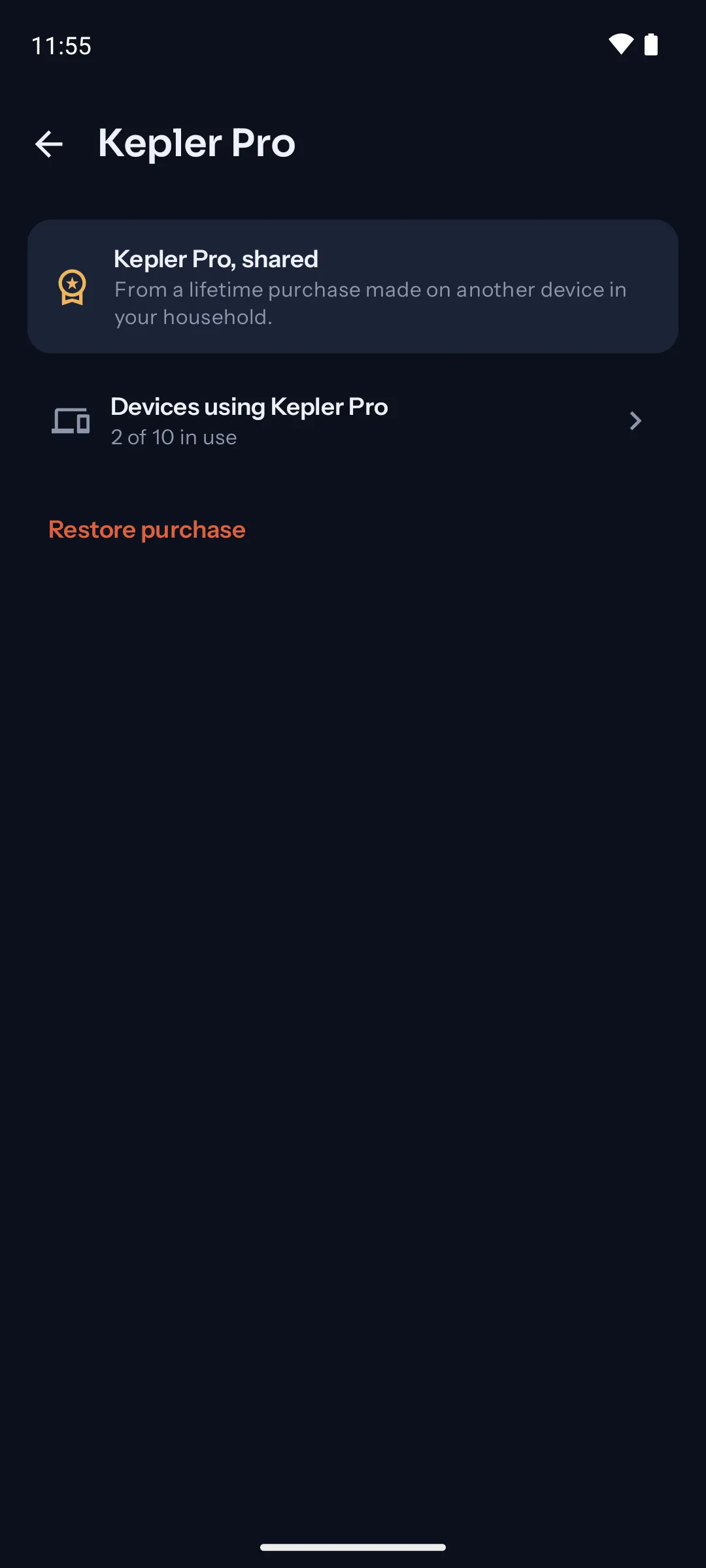
That’s it. On the phone, Settings › Kepler Pro reads Kepler Pro, shared, and everything marked Pro works there now. A phone new to Kepler gets the TV’s playlists too, so there is nothing to type.
-
Devices using Kepler Pro lists the Fire TV as On the account that bought Kepler Pro, and the phone as This device: it took 1 of your 10 places.
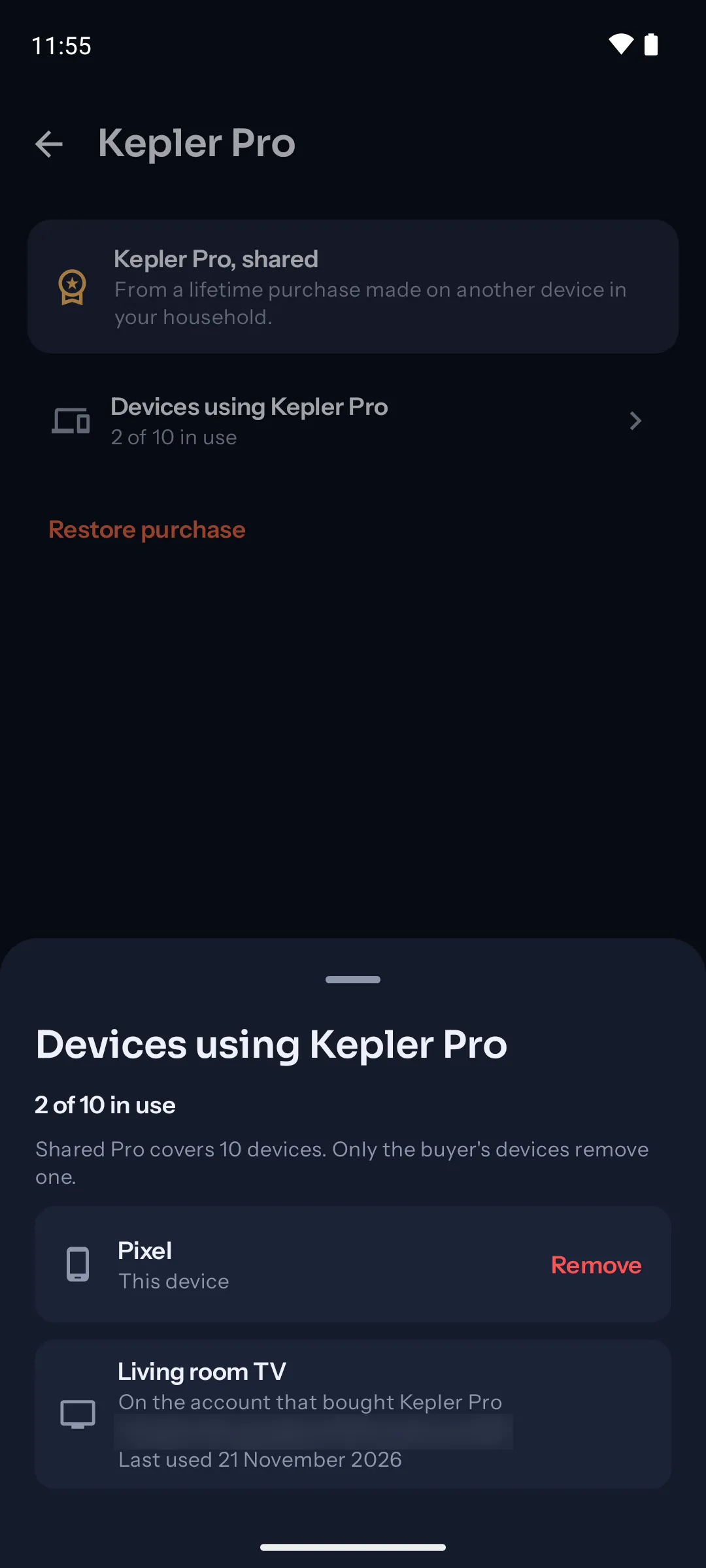
Do the same for each phone or tablet, with a new code each time: a code adds one device. To free a place, remove a device on the Fire TV, under Settings › Kepler Pro › Devices using Kepler Pro. A phone can remove only itself.
If the phone shows a message instead of Kepler Pro, shared, see When it doesn’t work: the messages are the same, with Check again and Join again on the phone.
Where did you buy Kepler Pro?
| You bought it on | To get it on your Fire TV |
|---|---|
| A phone or tablet (Google Play) | Share it from that phone, as above. |
| An Android TV or Google TV (Google Play) | A TV can’t scan a code, so use a phone. First the phone joins that TV: on the TV, Add a device shows a code; on the phone, Join a household scans it. The phone now has your Kepler Pro too, and can share it with the Fire TV as above. |
| Another Fire TV or Fire tablet (Amazon) | On the new Fire TV, open Settings › Kepler Pro and choose Restore purchase. It finds a purchase made on the same Amazon account. |
The other way round works too: a Kepler Pro bought on a Fire TV can be shared with your phone or tablet, step by step in Bought Kepler Pro on a Fire TV?
When it doesn’t work
| What you see | What to do |
|---|---|
| The phone can’t find the TV, or the code no longer works | Put both on the same Wi-Fi, keep Kepler open on the TV, and show a new code: it stops working after 5 minutes. |
| … has no Kepler Pro to share. Its Kepler Pro is a free trial | A trial stays on its device. Share from the device where Kepler Pro was bought. |
| … has no Kepler Pro to share. Only a Kepler Pro purchase can be shared. | That phone has no Kepler Pro. Use the phone that bought it, or restore the purchase on that phone first (Settings › Kepler Pro, Restore purchase). |
| Kepler on … needs updating to share Kepler Pro | Update Kepler on the phone, then on the TV choose Join again and scan the new code. |
| … couldn’t share its Kepler Pro | The phone couldn’t reach Kepler’s server just then. Check its internet connection, then choose Join again on the TV. |
| Kepler Pro waits for a free place | All 10 devices are in use. On the phone that bought Kepler Pro, remove one you no longer use, then choose Check again on the TV. |
| Kepler Pro isn’t shared with this TV | The TV was removed from the list. If a place is free, choose Use Kepler Pro on this TV. |
| The shared Kepler Pro has ended | The purchase is no longer paid, for example a yearly plan that wasn’t renewed. |
- Leaving the household keeps Kepler Pro. If you’d rather the TV didn’t sync, choose Leave this household in Settings › Sync and backup: the TV stays as it is, Kepler Pro included.
- Resetting the Fire TV or clearing Kepler’s data loses the share: join again the same way.
Checked with Kepler 1.8 (version 46) on . Checked with Kepler 1.10 (version 51) on . Screens show Kepler’s fictional demo catalogue.