
Kepler on a Fire TV Stick: set it up from the Amazon Appstore
Kepler is a media player in the Amazon Appstore, so a Fire TV Stick installs it like any other app, with no Downloader, no developer options and no sideloading. It plays the playlist your provider gave you, an Xtream login or an M3U link, and you add it from your phone by scanning a code on the TV.
 1:52 Watch the whole guide on YouTube About 2 minutes, in 3 chapters. Jump to the step you need. Open on YouTube
On this page
Kepler is a media player. It includes no content and sells no subscription: it plays the playlist you already have, with a real TV guide, catch-up and recording, made for the Fire TV remote.
What you need
- A Fire TV device with Fire OS: a Fire TV Stick, Fire TV Stick 4K or 4K Max, a Fire TV Cube, a TV with Fire TV built in, or a Fire tablet.
- Your playlist: the Xtream Codes login (a server address, a username and a password) or the M3U link your provider sent you when you subscribed. Kepler on Fire TV calls the first one an Xtream login.
- A phone on the same Wi-Fi (optional). It saves typing a long password with the remote.
Kepler does not run on the Fire TV Stick 4K Select or other Fire TV devices with Vega OS, Amazon’s newer system, which runs a different kind of app. The oldest Fire TV Sticks, on Fire OS 5, are not offered it either.
Install Kepler from the Amazon Appstore
- On the Fire TV home screen, go to the Search icon at the top and press OK.
-
Type Kepler, or hold the microphone button and say “Kepler”. Kepler is under Apps and games.
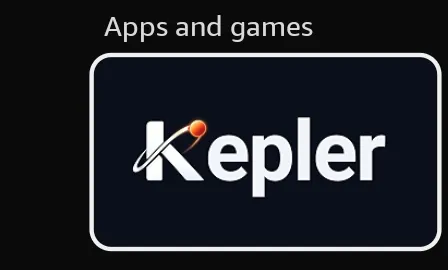
- Select Kepler, then Get (or Download). Open it when the download finishes.
You can also send it to your Fire TV from a computer or a phone: open Kepler in the Amazon Appstore, choose your Fire TV under Deliver to, and select Get app. It appears on the Fire TV’s home screen under Your apps and channels.
Because Kepler comes from the Appstore, it updates itself like your other apps, and you never turn on Apps from Unknown Sources.
Add your playlist
The first time Kepler opens, it walks you through it: choose your language, Get started, and read the terms. Then:
-
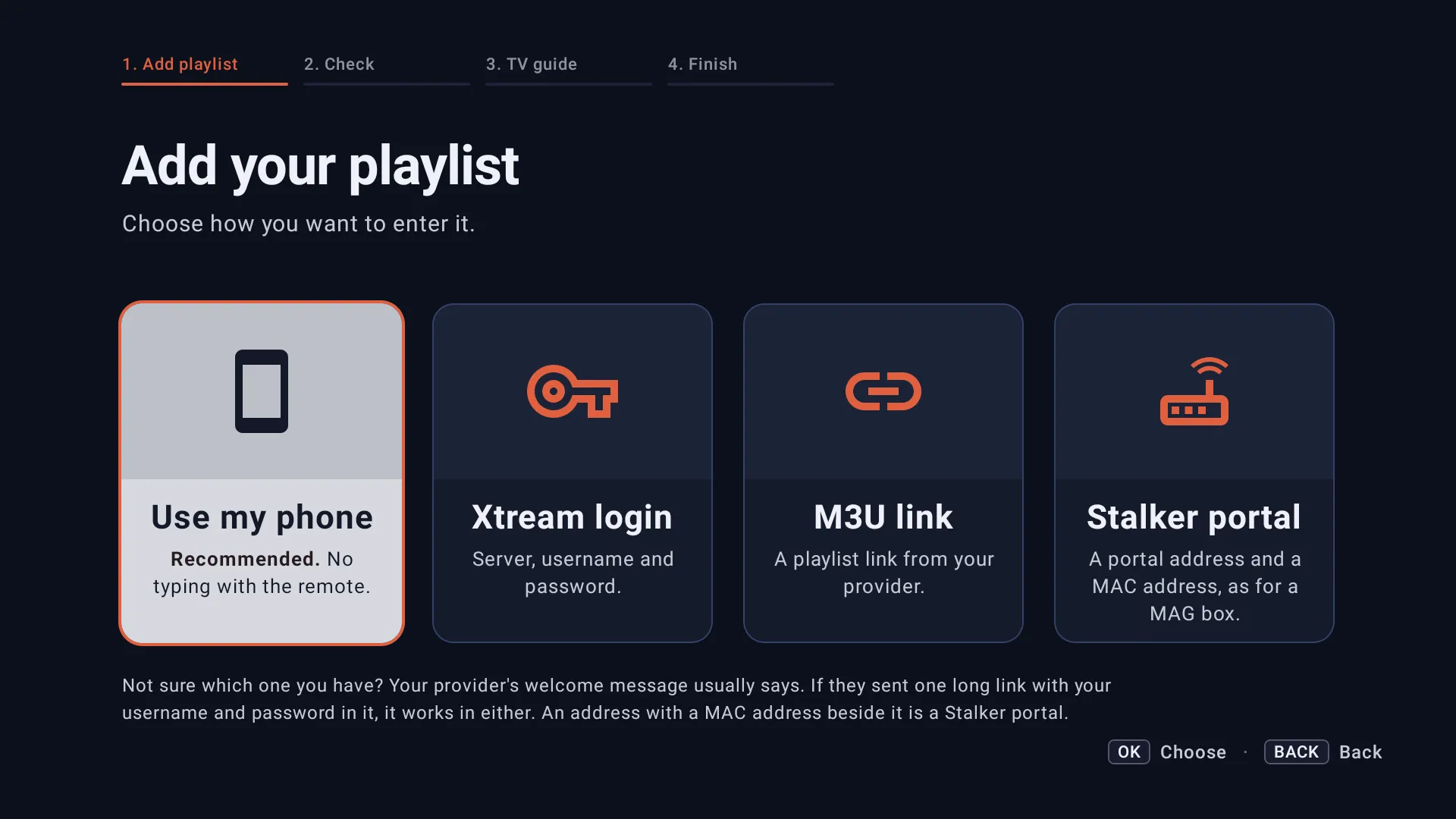
Choose Use my phone. The other three are for typing it with the remote: Xtream login, M3U link, or a Stalker portal if your provider sent a portal address and a MAC address.
-
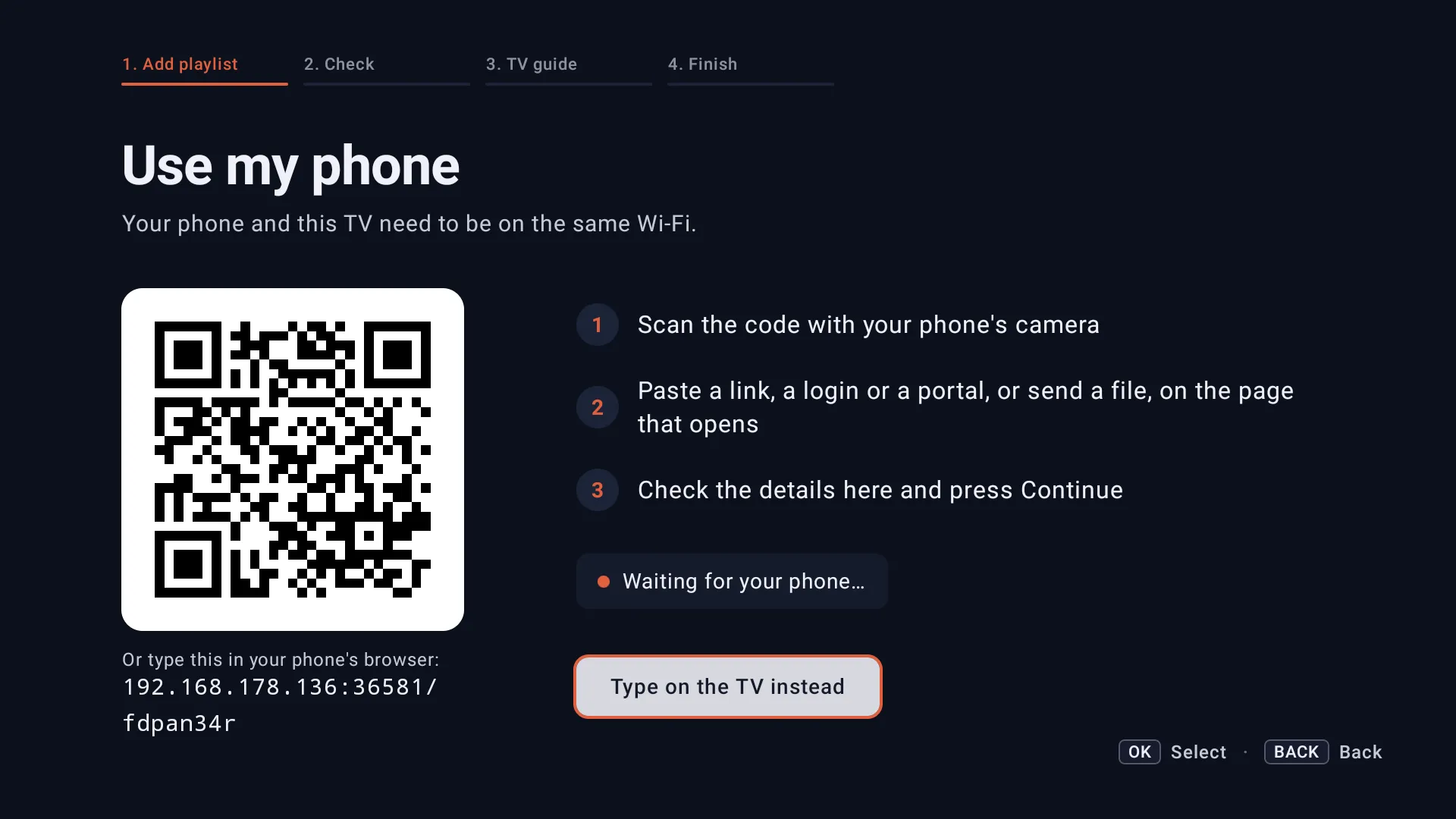
Scan the code with your phone’s camera. A page opens on the phone, served by your Fire TV itself, so nothing goes through anyone else.
-
On the phone, pick Xtream login or M3U link, enter what your provider sent you, and tap Send to TV. The Fire TV shows what arrived: check it, then Continue.
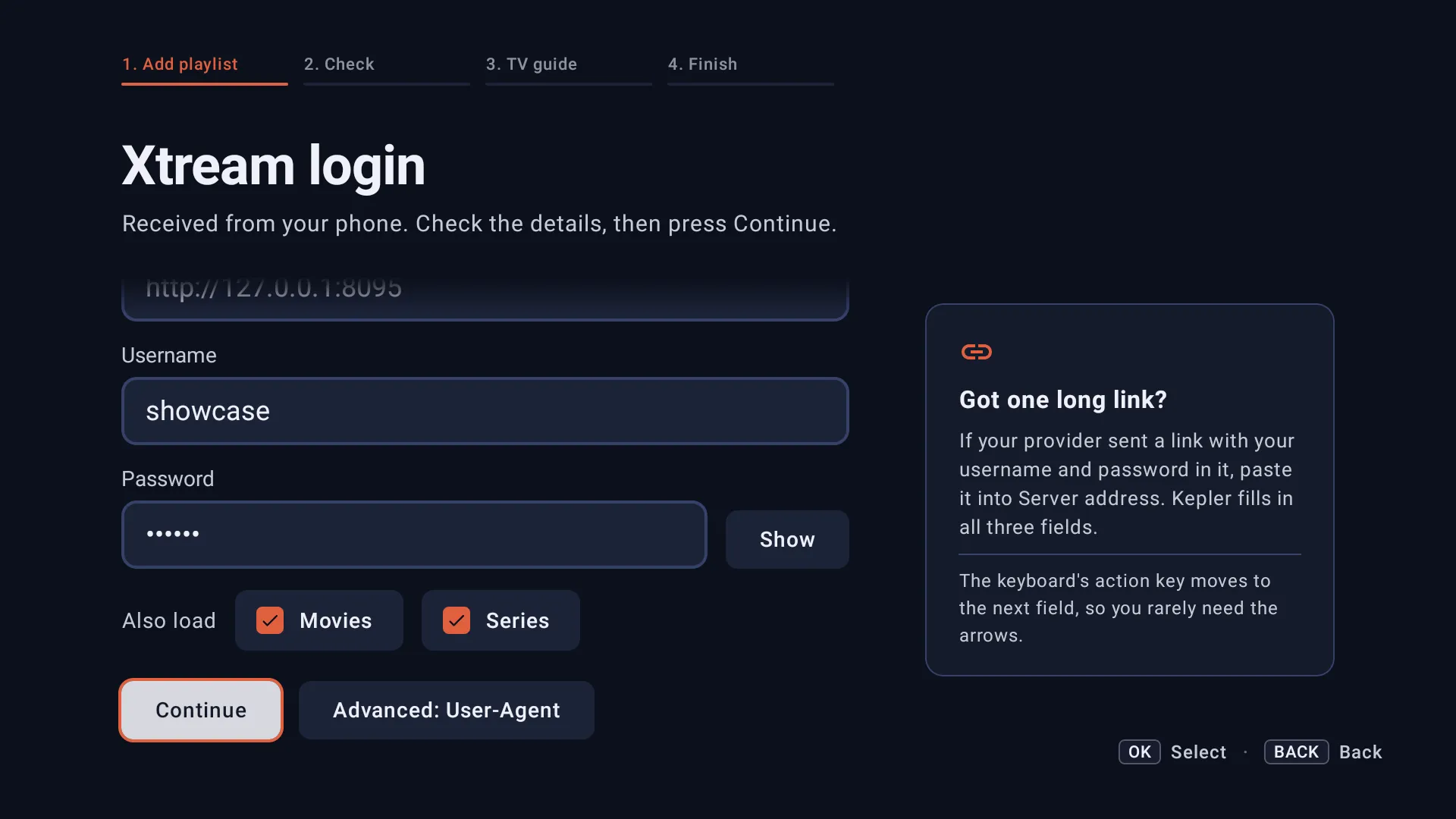
-
Kepler checks the playlist with your provider before it saves anything: the server, your account and its expiry date, and how many channels, films and series it has.
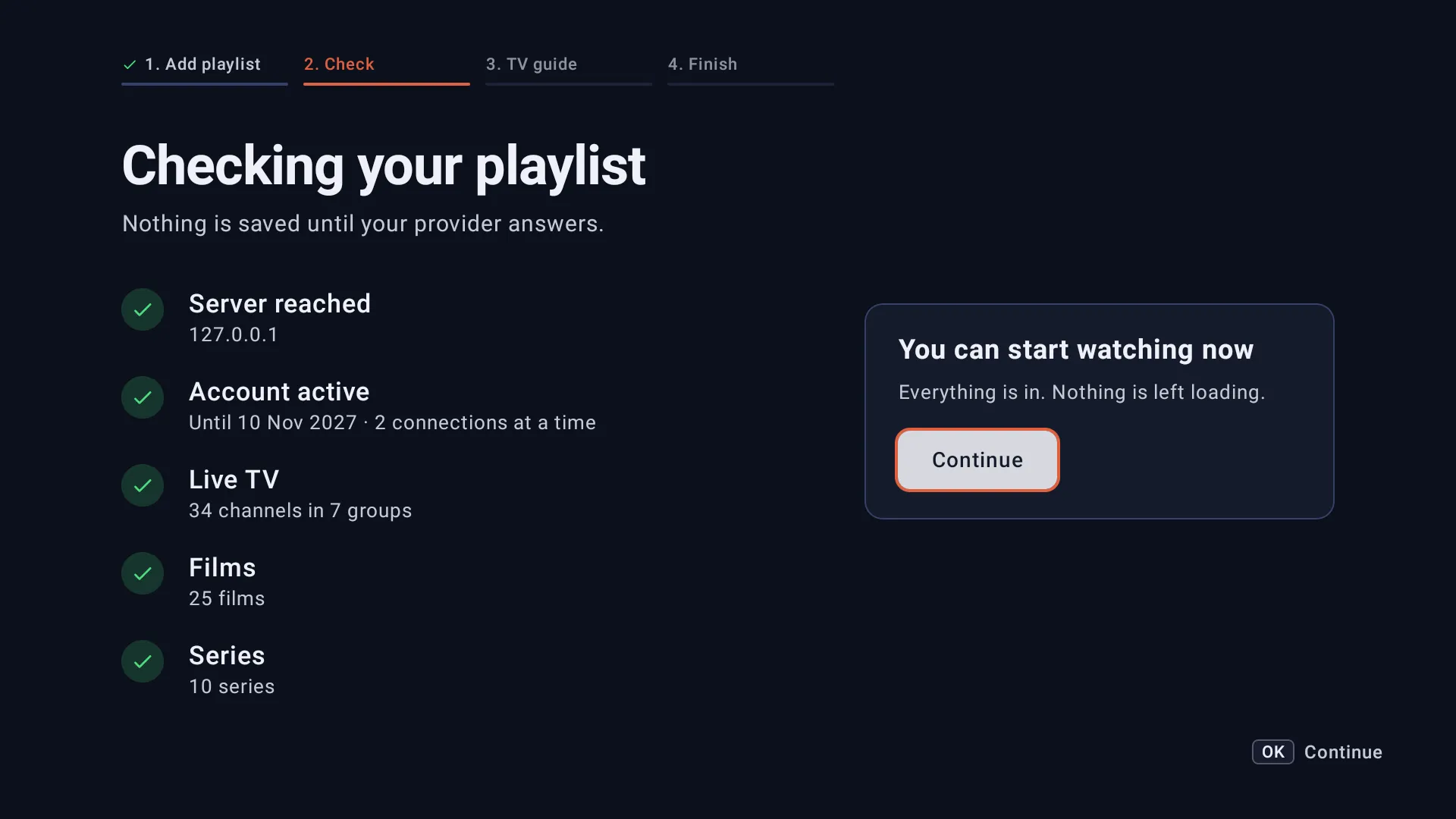
-
Keep Use your provider’s guide on, choose how the playlist stays up to date, then Start watching.
Every option, the M3U file and several playlists are in Add your Xtream Codes or M3U playlist to Kepler.
Apps blocked on a Firestick? Why Kepler keeps working
Since late 2025 Amazon has been blocking apps on Fire TV that it considers piracy apps, first in the US and since early 2026 in the UK, and its newest sticks run only apps from the Appstore. People who find an app blocked on their Firestick have usually lost one they installed with Downloader: it stopped opening, or would not install again.
Kepler is published in the Amazon Appstore and reviewed by Amazon like any other app there. It is a player with no content of its own, and what it plays is the playlist you add. So on a Fire TV:
- No sideloading: nothing to download from a website, no Downloader code to type.
- No developer options: the settings that sideloading guides ask you to change stay as they are.
- Updates from Amazon, through the Appstore, like your other apps.
If a channel stops working, that is your provider’s server, not the Fire TV: Playlist not working explains every message Kepler shows.
What Kepler does on a Fire TV Stick 4K
Kepler on Fire TV is the same app as on Android TV and Google TV, made for the remote.
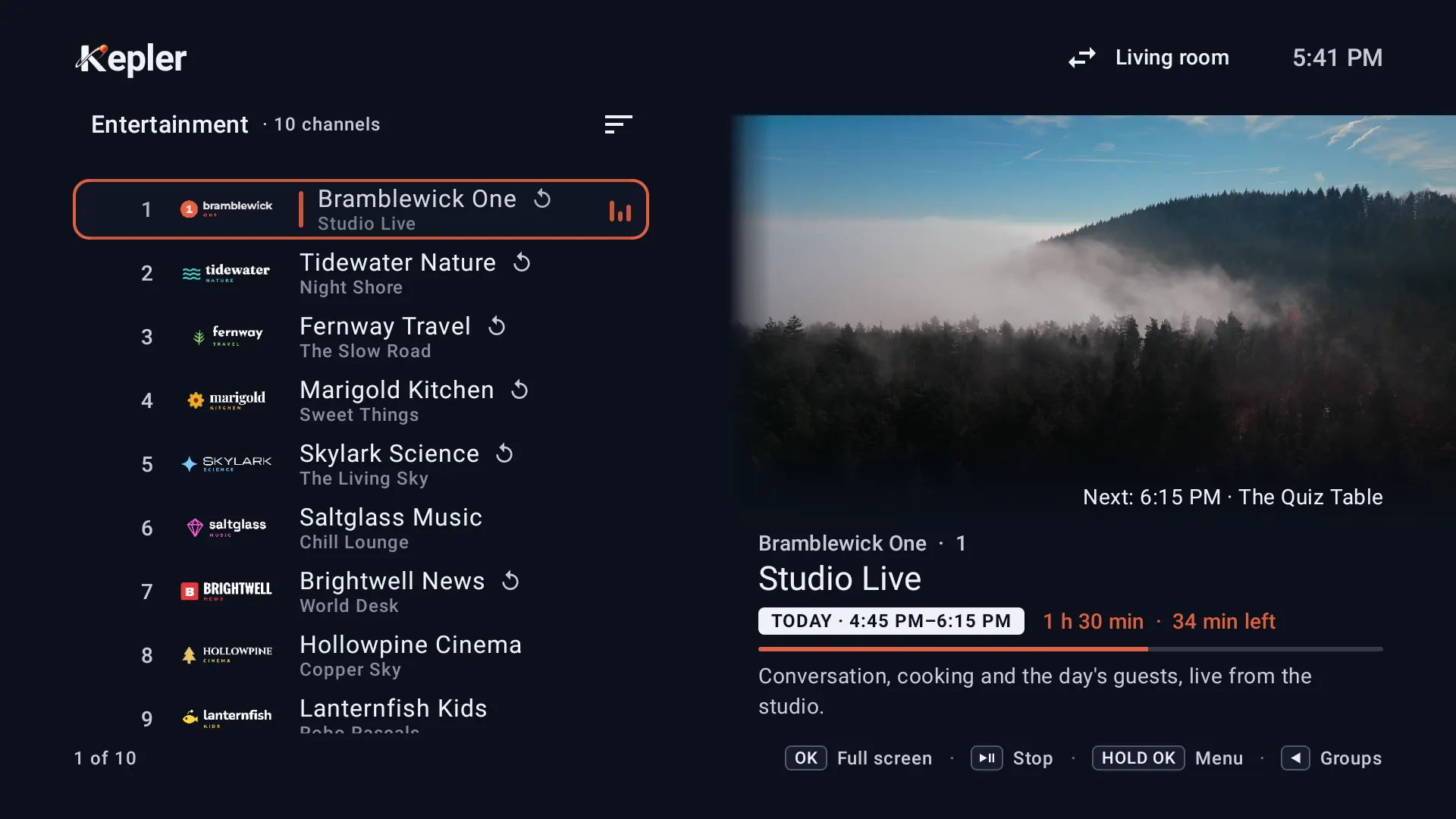
- Live TV: your channels by group, with what is on now and next. The channel you choose plays beside the list, and OK takes it full screen.
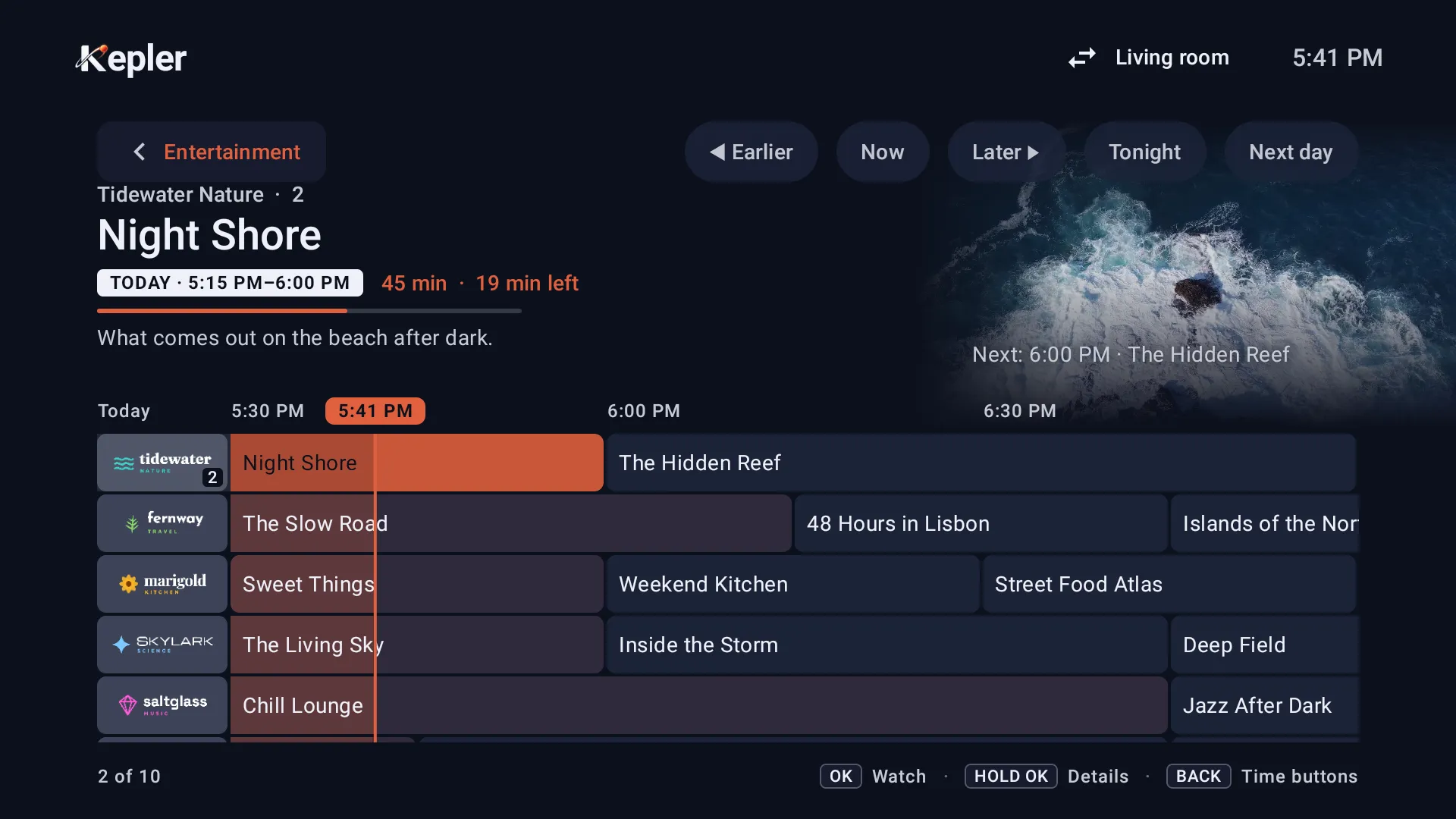
- A real TV guide: the grid for every group, the channel still playing above it, and the guide your provider supplies or one you add (TV guide (EPG)).
- Catch-up: earlier programmes, where your provider keeps an archive (catch-up TV).
- Recording: what is on now, or booked from the guide (record live TV).
- Films and series with their artwork, seasons and where you left off.
- Subtitles and audio tracks, with surround sound passed to your sound system (subtitles and audio).
- Several playlists, favourites, hidden groups and a parental PIN.
Free, and Kepler Pro on Fire TV
Kepler is free to install, with live TV and the guide from one playlist. Kepler Pro, bought in the Appstore with your Amazon account, adds more playlists, films and series, favourites, recording and the rest, and one purchase covers your Fire devices and the other devices you add. On Fire TV there is no free trial of Pro, and no casting. See what Kepler Pro includes.
Choosing a player for a Firestick: what to look for
Whichever player you choose, these are what matter on a stick:
- From the Appstore, so it installs, updates and keeps working.
- The login or link your provider gives you, and several playlists side by side. Kepler takes an Xtream login, an M3U link or file, and a Stalker portal.
- A real guide that stays quick to scroll on a stick’s small processor.
- Easy setup: sending the login from a phone beats typing a password with the remote.
- Your language: Kepler is in English, Spanish, French, German, Italian, Dutch, Portuguese, Turkish, Arabic, Russian and Finnish.
Fire TV Stick buffering
A stick on a weak Wi-Fi signal is the usual cause. Move the router closer or use Amazon’s Ethernet adapter, restart the stick now and then, and close apps running in the background. Fix buffering and freezing covers Kepler’s buffer setting and its stream diagnostics.
Questions
Can a Firestick still play my playlist?
Yes. A player from the Appstore, such as Kepler, installs and plays your playlist as before. What Amazon blocks are apps it considers piracy apps, most of them sideloaded.
Is Kepler legal?
Yes. Kepler is a media player with no content of its own. Whether what you watch with it is legal depends on whether your provider holds the rights to what it streams, so choose a provider you trust.
Is Kepler free on Fire TV?
Yes, to install and to watch live TV from one playlist. Kepler Pro is a paid upgrade in the Appstore.
Does Kepler work on Fire tablets?
Yes, on Fire tablets with Fire OS, with the tablet layout.
Checked with Kepler 1.9 (version 47) on . Screens show Kepler’s fictional demo catalogue.