
Stalker portal player for Android TV, Fire TV and phones
A Stalker portal, also called a MAC portal, signs in with an address and a MAC address instead of a username and password. Kepler 1.9 plays them on Android TV, Google TV, Fire TV, phones and tablets. Choose Stalker portal when you add a playlist, type the address, and use this device’s MAC address or the one your provider registered. Nothing is saved until your device is let in.
 4:52 Watch the whole guide on YouTube About 5 minutes, in 5 chapters. Jump to the step you need. Open on YouTube
On this page
Kepler plays Stalker portals, the kind of playlist made for MAG set-top boxes, and you add one like any other playlist, with two things from your provider: an address, and a MAC address that your provider has registered or will register. Kepler includes no content and sells no subscription. You bring your own.
What a Stalker portal is
A Stalker portal is how a MAG box signs in to a provider’s service. No username, no password. Your provider knows the box by its MAC address, a code of twelve characters, and lets in only the boxes it has registered. Many providers offer this beside an Xtream Codes login or an M3U link; some offer nothing else. Other names for it: MAC portal, Ministra portal. Kepler says Stalker portal.
Not sure which kind you have? Your welcome message usually says. An address with a MAC address beside it is a portal. A server address with a username and password is an Xtream Codes login: see how to add an Xtream Codes login or M3U link.
A Stalker player for Android TV, Fire TV and phones
Kepler is a media player for Stalker portals that you install from your device’s own store, with no APK to download: Google Play on Android TV, Google TV, phones and tablets, and the Amazon Appstore on a Fire TV Stick. Where an STB emulator imitates a MAG box’s own menus, Kepler shows what the portal sends in its own screens, made for the remote: live TV, the TV guide, catch up, films and series.
On a Fire TV Stick, Kepler on Fire TV shows how to install it. Adding the portal is the same on every device, as below.
What you need from your provider
- The address. Their message names it, often ending in
/c/, likehttp://host:port/c/. You can leave outhttp://orhttps://. Kepler tries both. - A MAC address it knows. Either the one Kepler shows for your device, which you send to your provider to register, or one they registered already, such as your old MAG box’s.
- A login, only if your provider gave you one. Most ask for none.
Find the MAC address for your device
Kepler shows this device’s own MAC address on the form, under This TV’s address on a TV, Fire TV included, and This phone’s address on a phone. Each device has its own. It stays the same if you reinstall Kepler, so your provider registers it once.
Had a MAG box registered before? Its MAC address is on the label underneath. Your provider’s message may list it too. Use that one instead, under One my provider registered.
Add a Stalker portal
The first time, Kepler opens on its setup, which starts as for any other playlist. Already using Kepler? On a TV, press into the top bar, press OK on the playlist’s name and choose Manage playlists, then Add playlist. On a phone, tap the Playlist card on Home, then Add playlist.
On a TV
-
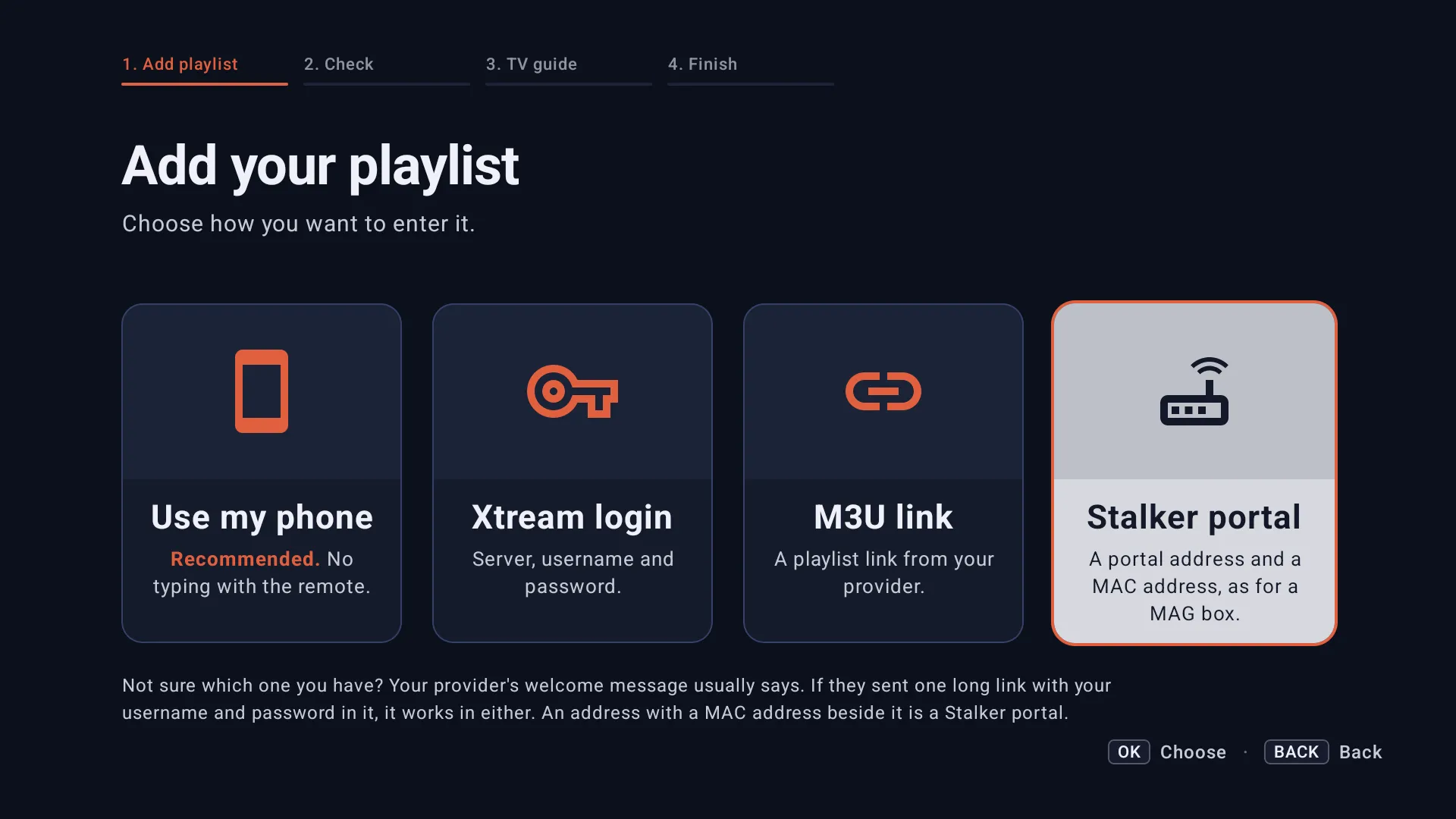
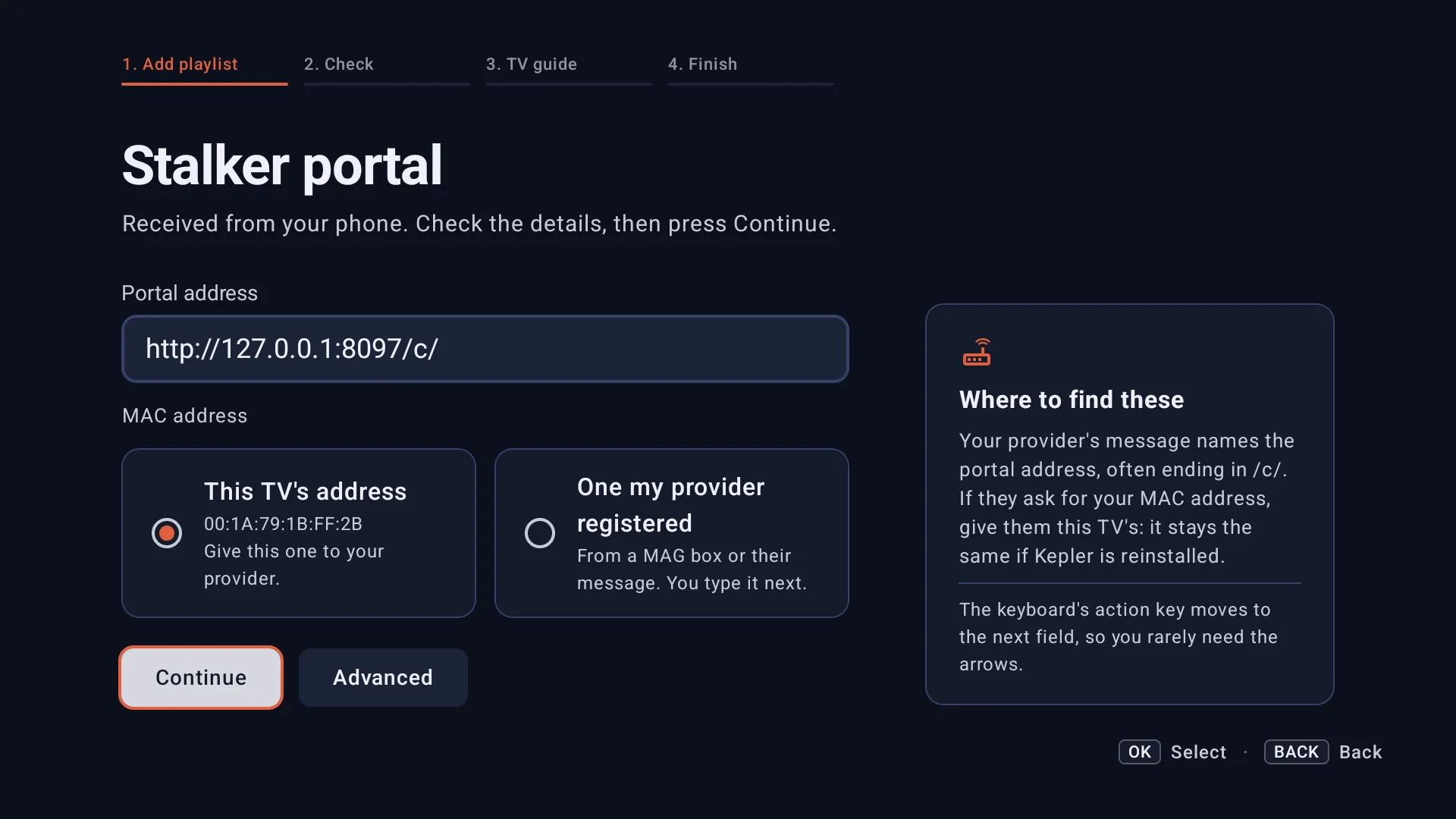
On Add your playlist, choose Stalker portal, the fourth card.
-
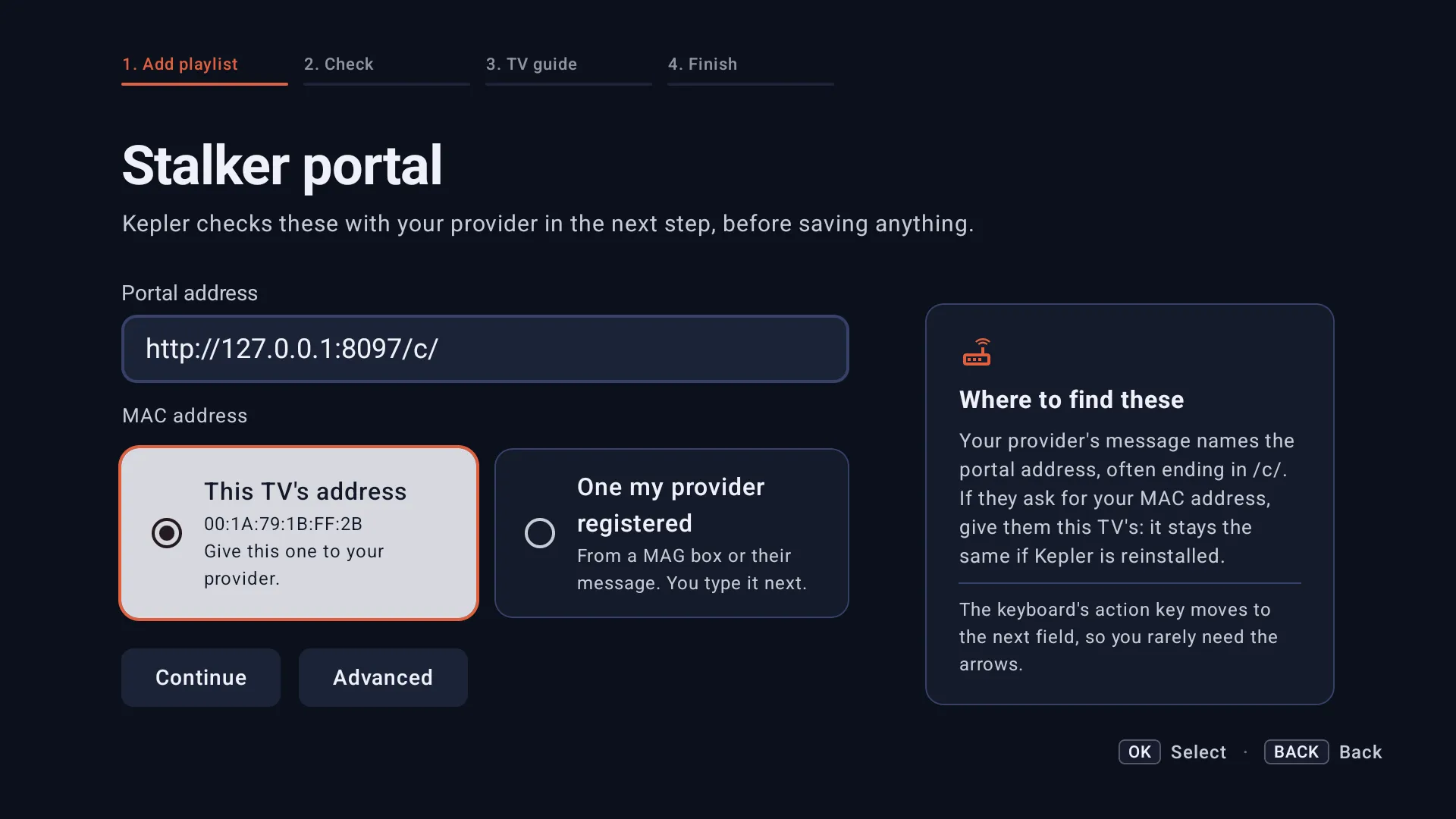
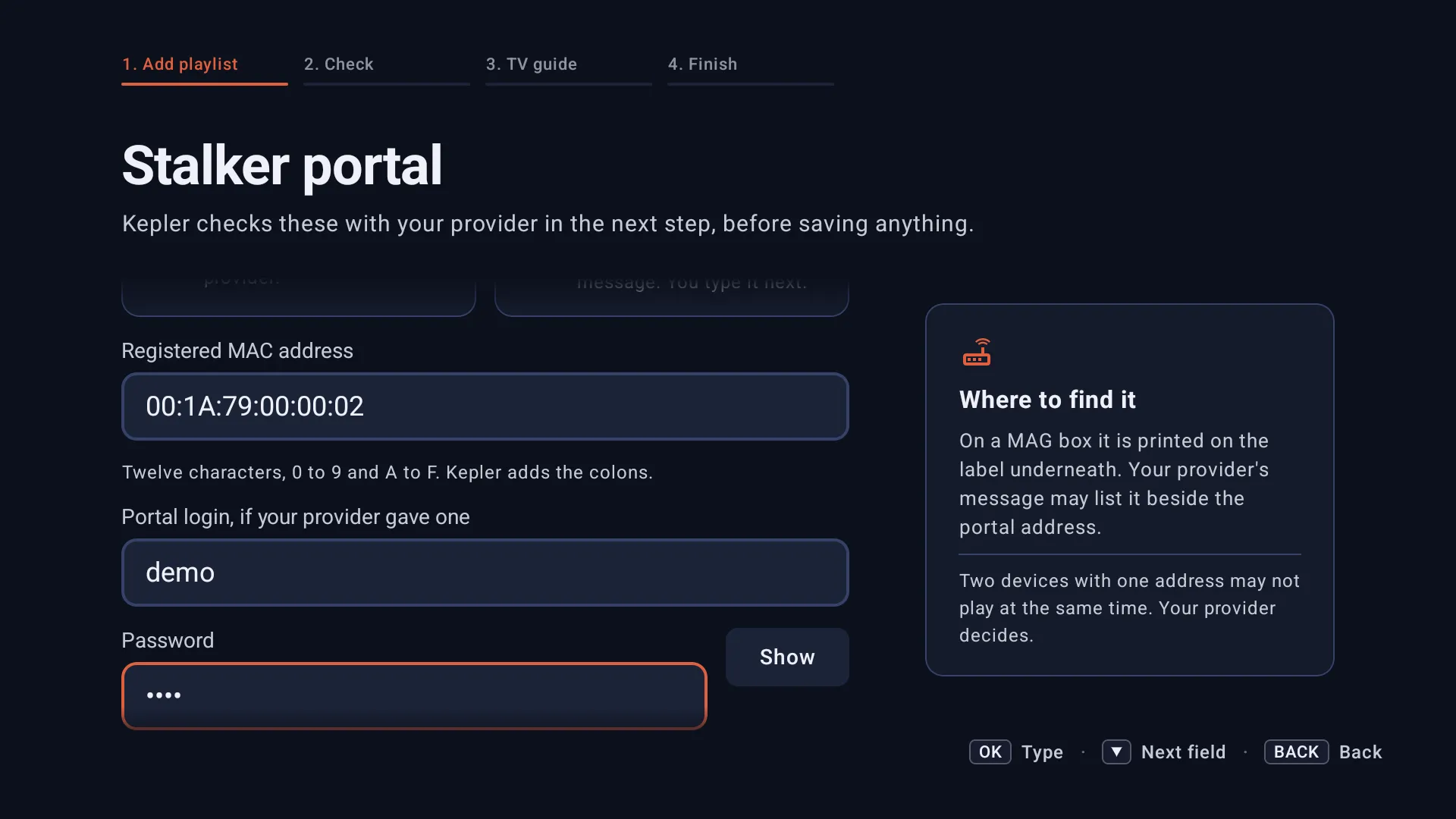
Press OK on Portal address and type the address from your provider’s message. The keyboard’s action key moves to the next field.
-
Under MAC address, choose which one to use:
- This TV’s address shows this TV’s MAC address. Give this one to your provider.
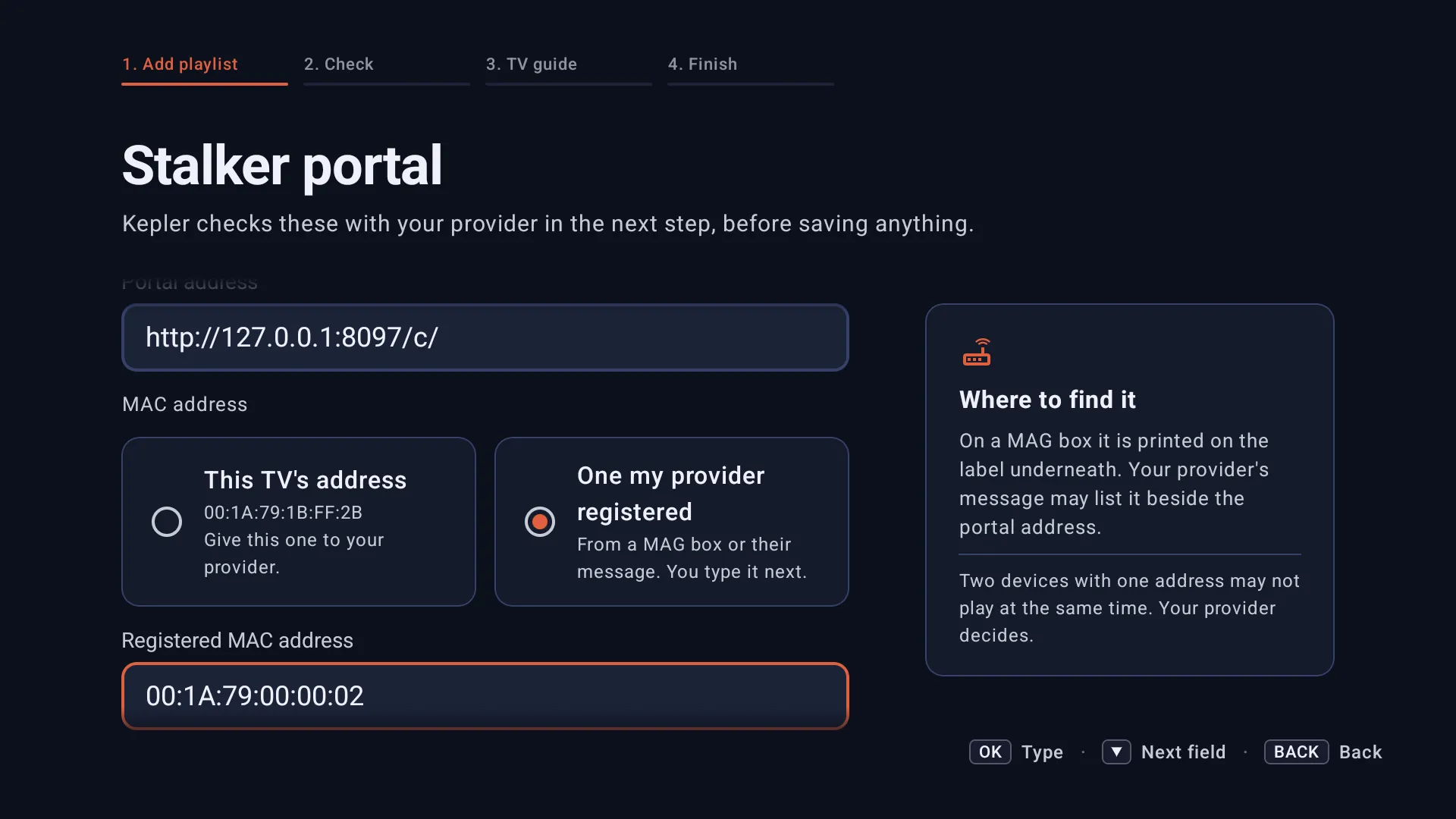
- One my provider registered opens Registered MAC address below it. Type the twelve characters, 0 to 9 and A to F. Kepler adds the colons.
-
Have a login from your provider? Open Advanced and fill in Portal login, if your provider gave one and Password. Leave the other fields empty unless your provider names them (below).
-
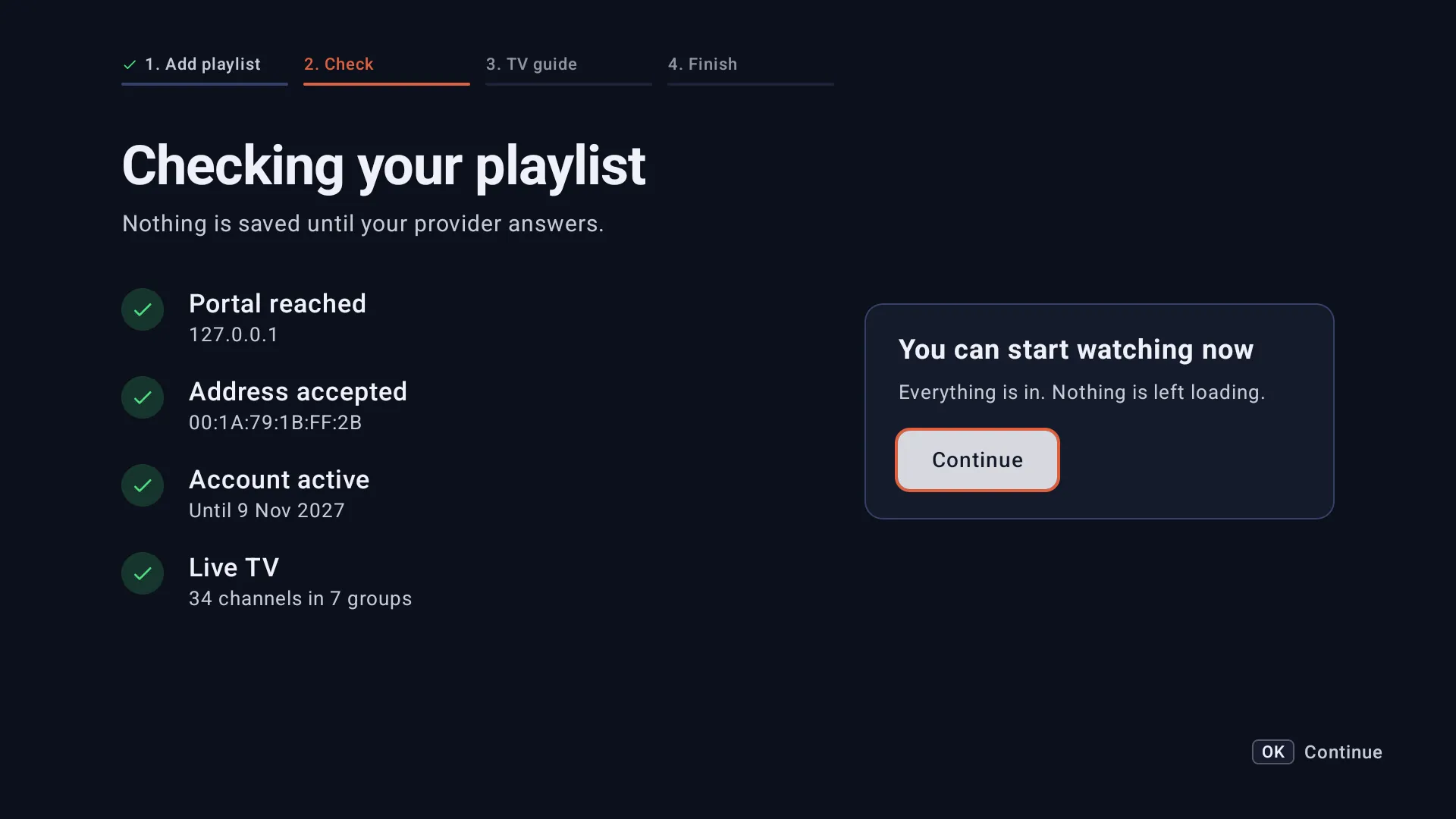
Press OK on Continue. Kepler checks, showing Portal reached, Address accepted and Account active, then counts your live channels as they load. Nothing is saved until your TV is let in.
-
Keep Use your provider’s guide on, so the TV guide shows what is on now and next, and press OK on Continue. On the last step, check the name, choose how it stays current, and press OK on Start watching.
On a phone or tablet
-
On Add playlist, tap Stalker portal. Copied the address already? Paste your link appears under the cards: an address ending in
/c/opens the right form for you.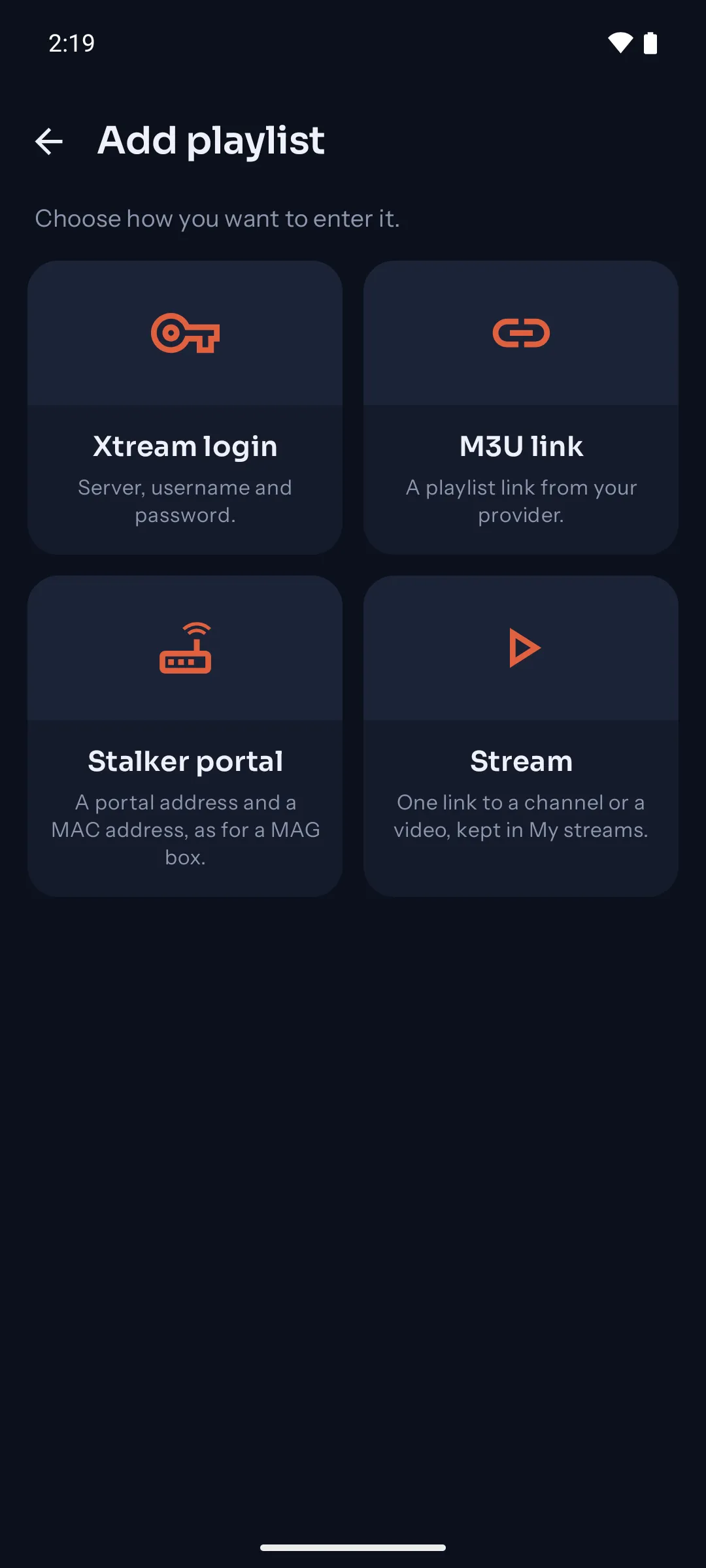
-
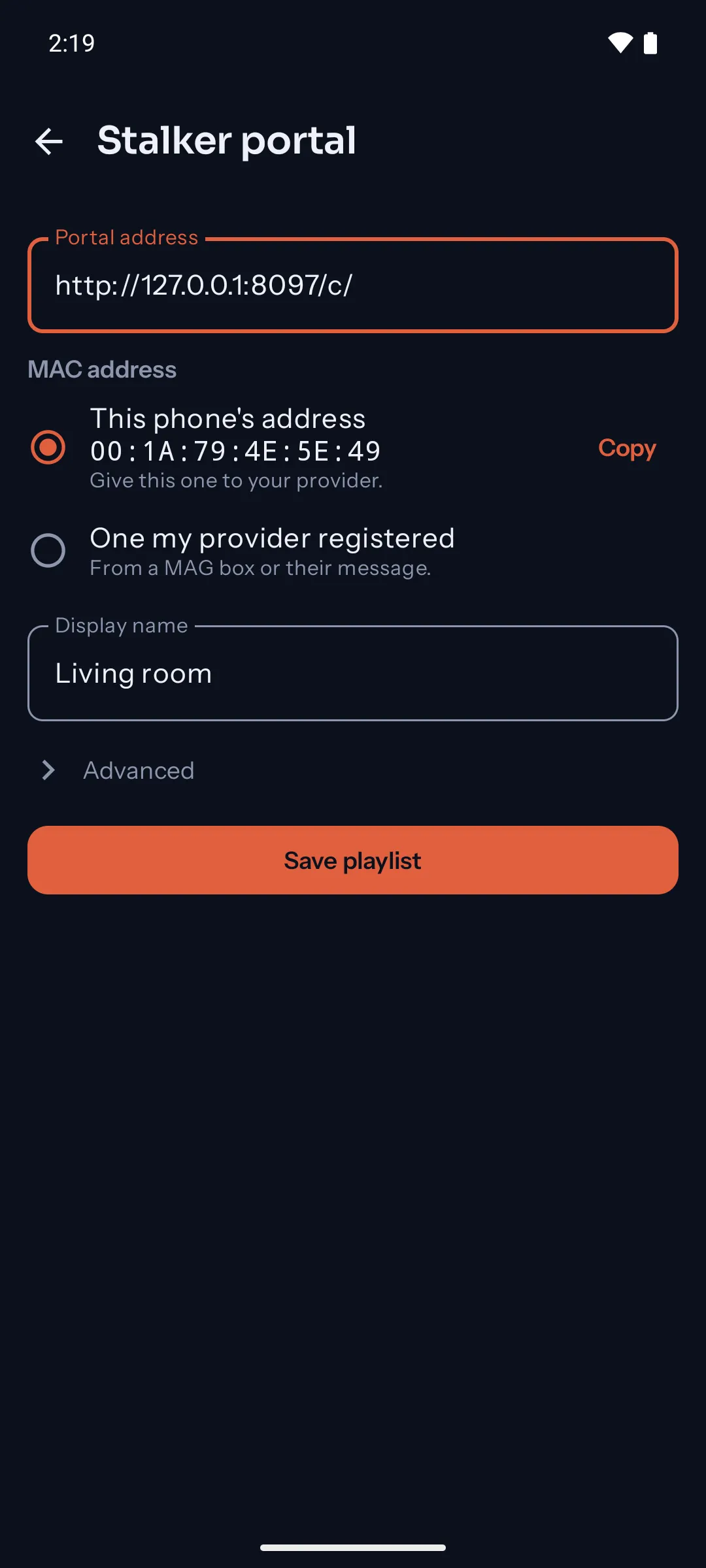
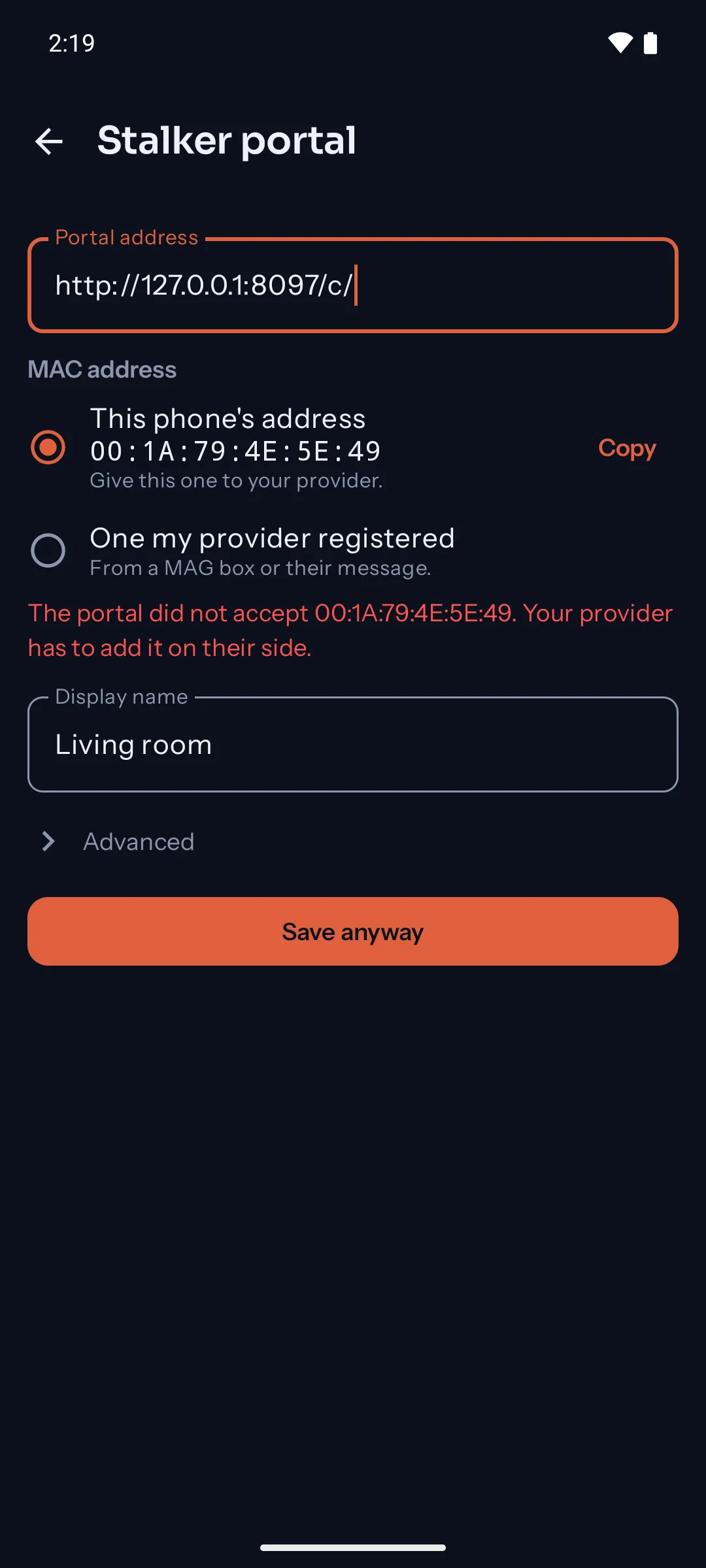
Type or paste the address into Portal address. Under MAC address, choose This phone’s address (tap Copy to send it to your provider), or One my provider registered and type it into Registered MAC address. Kepler adds the colons.
-
Display name, below, is how the playlist is listed.
-
Have a login from your provider? Tap Advanced and fill in Portal login, if your provider gave one and Password.
-
Tap Save playlist. Kepler checks first. If the answer is no, the reason shows under the MAC address and the button reads Save anyway (see when it won’t load).
Advanced: serial number, device IDs and signature
A few strict portals check more than the MAC address. If your provider gives a Serial number, Device ID 1, Device ID 2 or a Signature, type each into its field under Advanced, exactly as given. Otherwise leave them empty.
Set up a TV from your phone
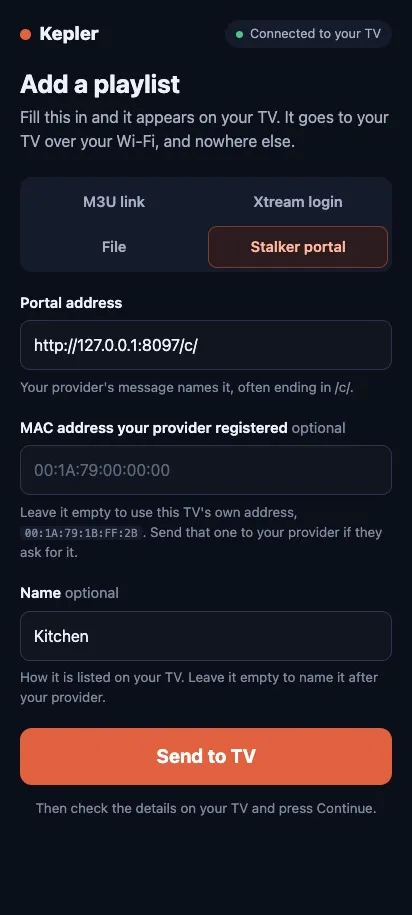
Typing an address with the remote is slow. Your phone is quicker. On the TV’s Add your playlist step, choose Use my phone and scan the code with your phone’s camera. On the page that opens:
- Pick the Stalker portal tab.
-
Paste the address into Portal address. Under MAC address your provider registered, type that address, or leave it empty to use the TV’s own, which the page shows.
-
Tap Send to TV. The TV opens its form with what you sent. Check it and press OK on Continue.
What a portal brings into Kepler
It works like any other playlist, with a few differences.
| What you get | |
|---|---|
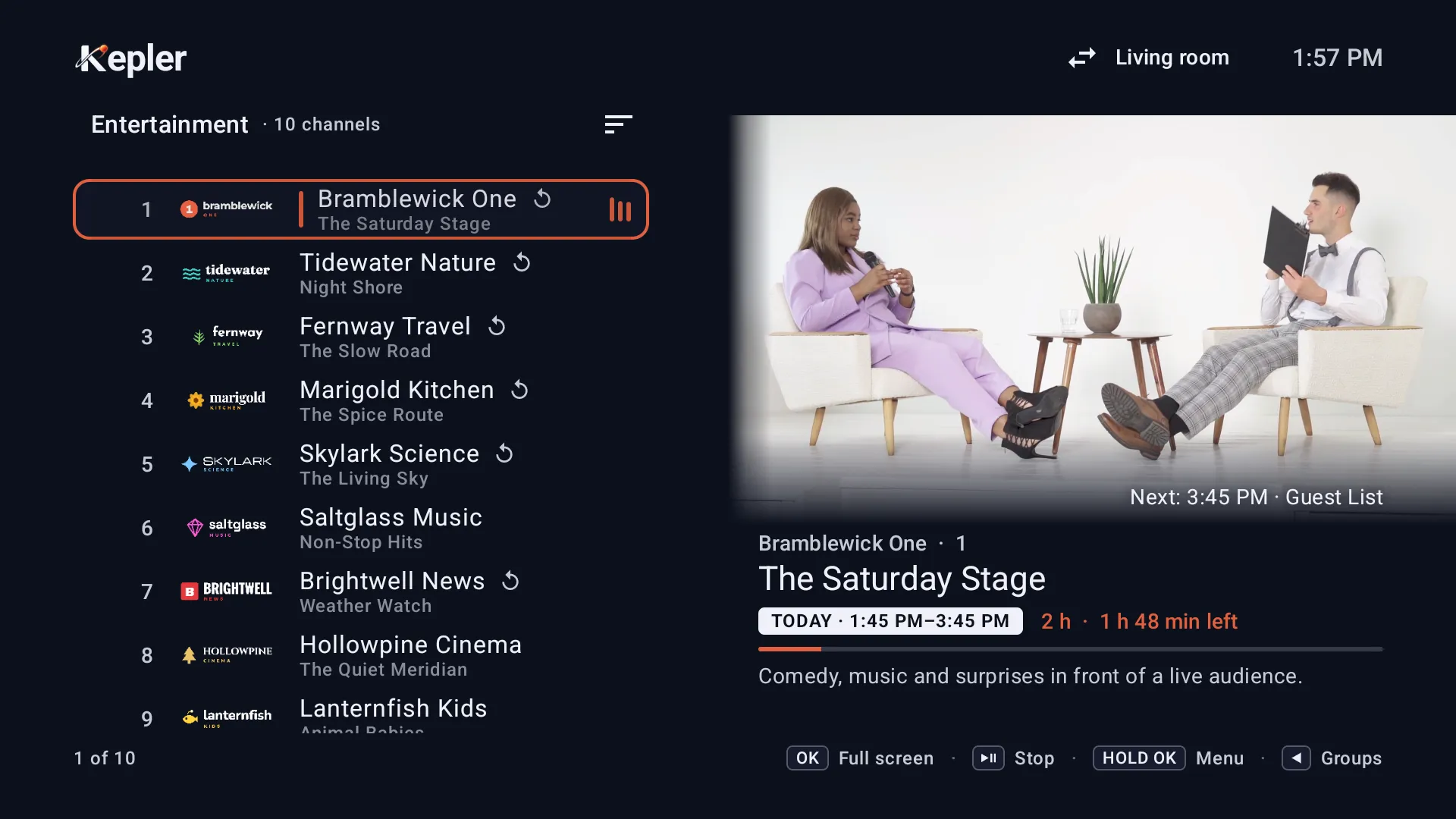
| Live TV | Every channel and group, loaded when you add it. Channels listed in no group go into Uncategorized. |
| TV guide | Its own guide, from Use your provider’s guide. You can add another, as with any playlist. |
| Catch-up | On channels with an archive, with Replay in the TV guide. |
| Films and series | The groups load at once, and a group’s titles the first time you open it, so Movies and Series open on their first group, with no “All movies” or “All series”. |
| Recordings and downloads | Record live channels, now or booked from the TV guide, and download films and episodes. |
| Expiry date | In the playlist’s details, when the portal sends one. |
| Multiview | Stays off, since a MAC address plays one stream at a time (below). So do the TV guide’s live pictures. |
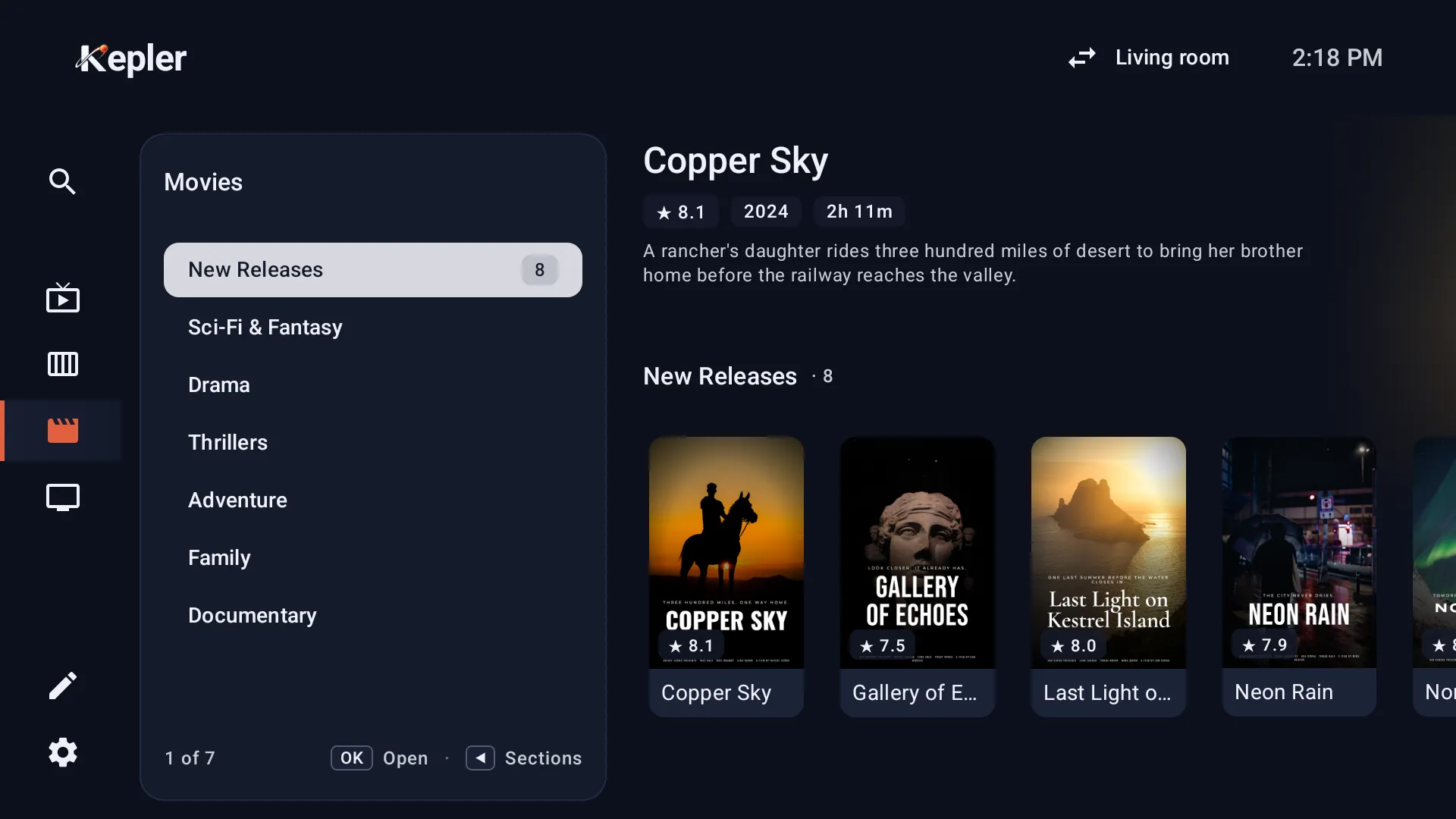
There is no Also load choice: films and series take no space until you open a group, so there is nothing to leave out.
One stream per MAC address
One MAC address, one stream. That is how a MAG box works, and Kepler is held to the same rule: when a second device starts playing with the address the first one uses, the portal usually stops the first. Your provider decides how strict it is.
- Devices that sync share one address. When the devices at home sync, the playlist reaches them with its MAC address, so they all use the same one, and two of them may not play at once (see what syncs between devices).
- A booked recording waits for you. While you watch another channel from the same playlist, a recording due on it waits, so it does not cut what you are watching, and it starts once you stop watching that playlist, which means it may miss the beginning.
- Want two devices watching at once? Ask your provider whether your plan allows it, and what they need from you.
Change the MAC address or the login
Changed boxes? Registered a different address? Edit the playlist, and Kepler checks again with the new details, the same check as when you first added it, with the same answers if something is wrong (see below).
On a TV
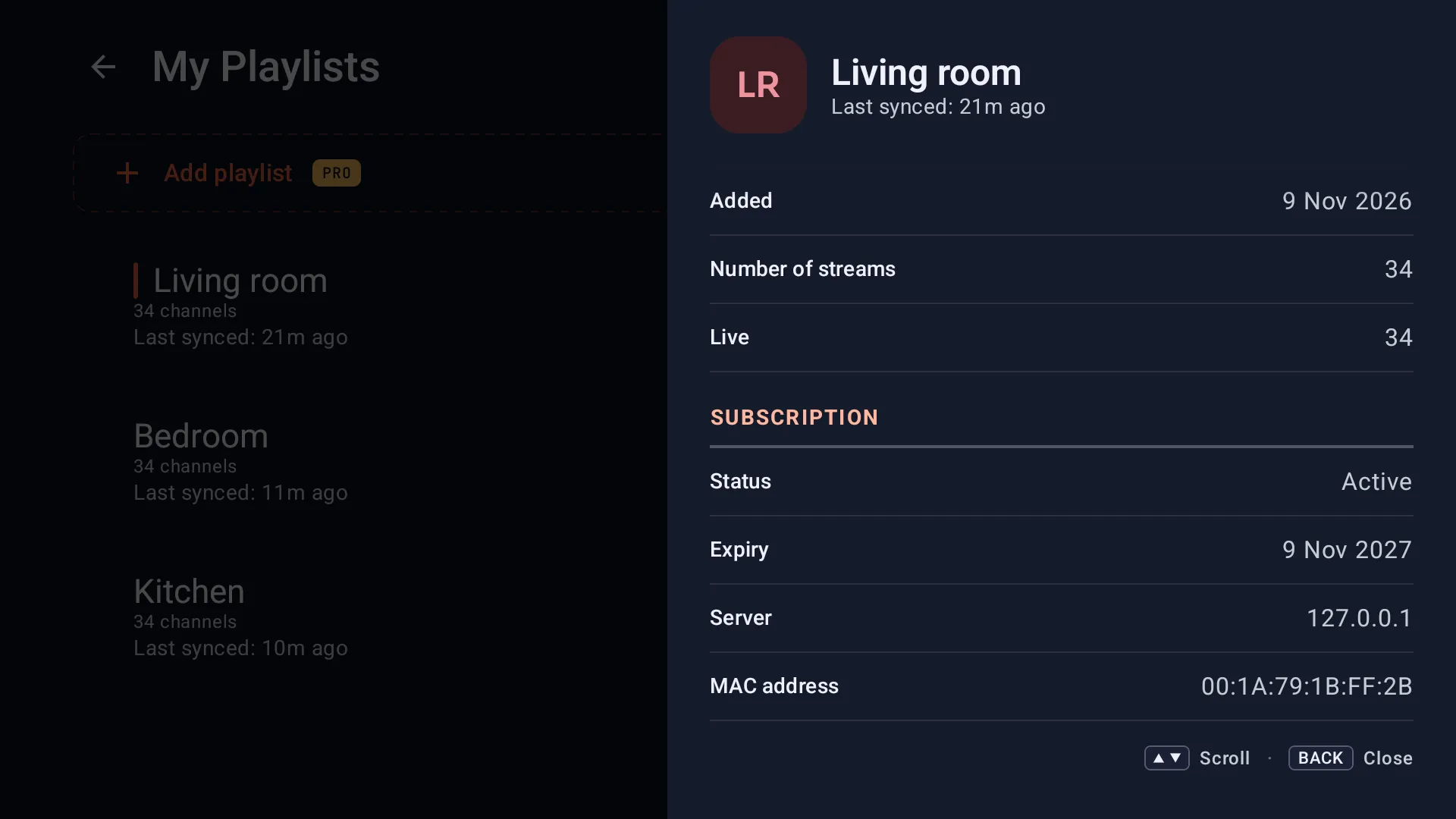
In My Playlists, choose Manage, move right to its Edit button and press OK. Change the MAC address, the login or anything under Advanced, and save. The playlist’s i button shows the MAC address it uses.
On a phone or tablet
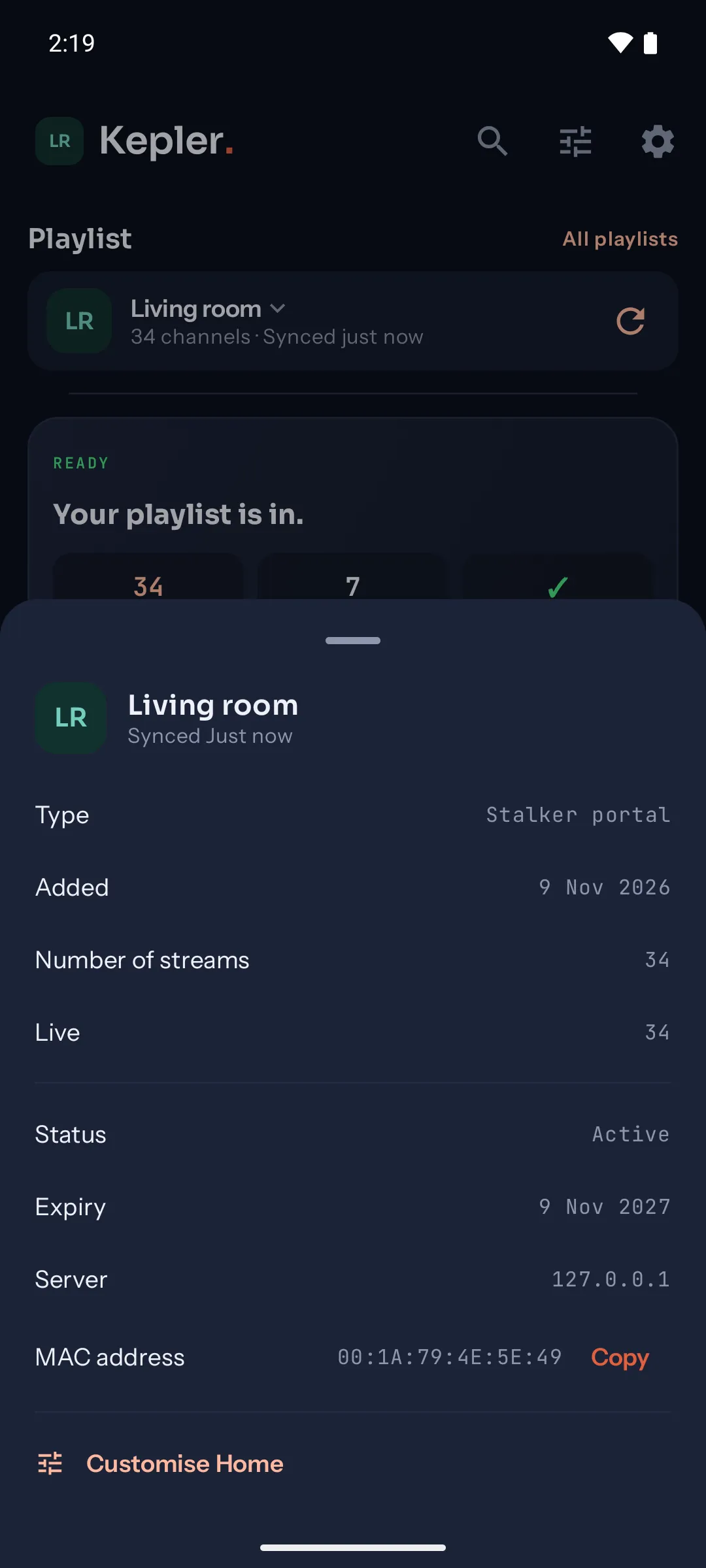
Tap the Playlist card on Home, then Edit. Playlist info shows the address and the MAC address, with Copy to send it to your provider.
Editing a playlist needs Kepler Pro. Deleting the playlist and adding it again is free.
When a portal won’t load
Kepler saves nothing until your device is let in. A refused check costs nothing. Try again. These are the answers you may see.
| Kepler says | What to do |
|---|---|
| Portal not reached | The address is wrong or the server is down. Check it against your provider’s message, including any port number and /c/, then your internet connection. |
| Address not registered: The portal did not accept your MAC address. Your provider has to add it on their side. | Send your provider the address shown. Once they have added it, press Try again on the TV; nothing needs retyping. If they registered a different one, choose Edit details and pick One my provider registered. |
| Login needed: The portal asks for a login as well as the address. | Go Back to the details and fill in the portal login under Advanced. |
| Login not accepted: The portal did not accept the login. | Check the login and password with your provider, letter by letter. |
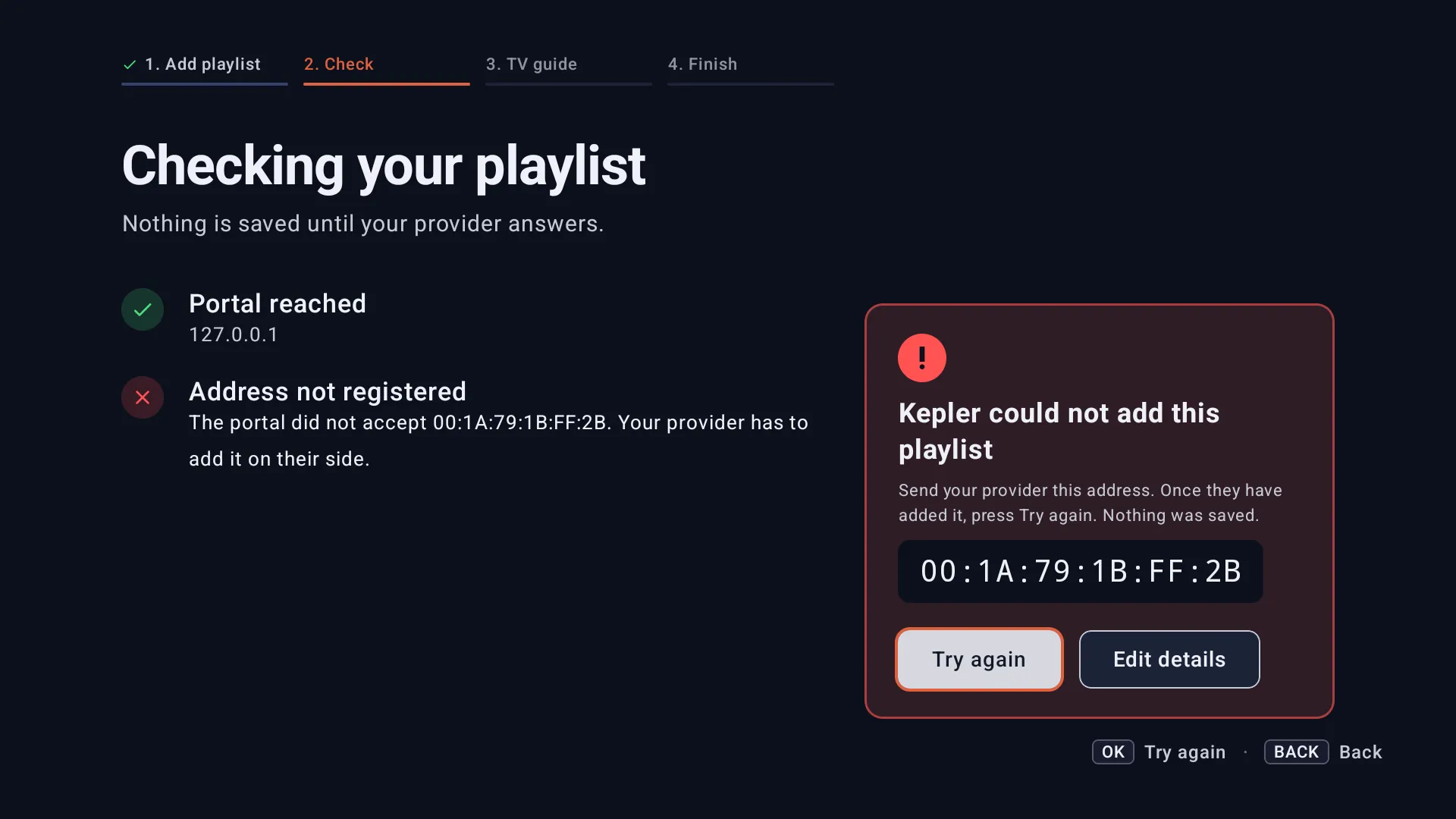
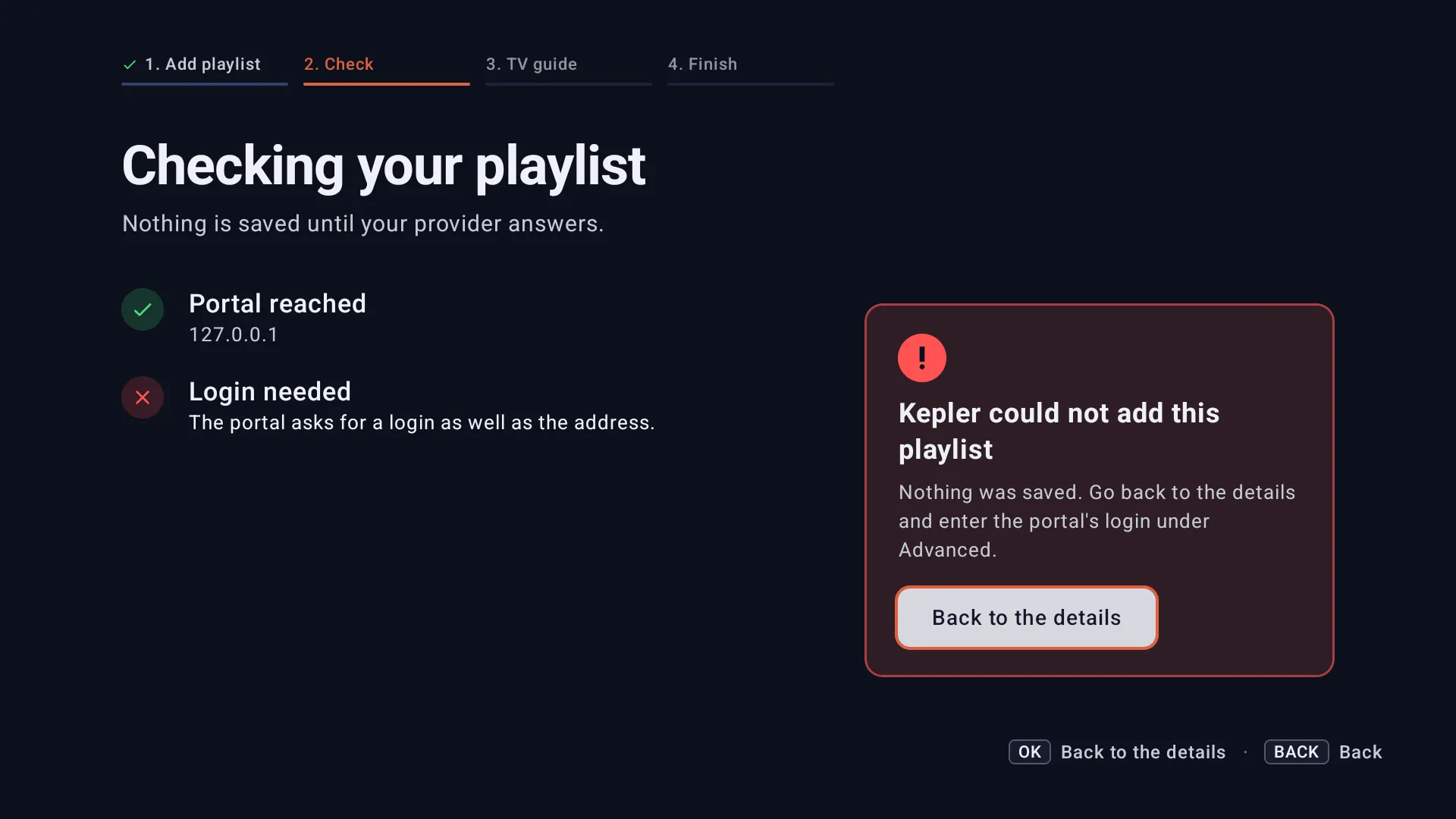
On a phone, the same reasons show under the MAC address, and the button turns into Save anyway. That keeps the playlist while you wait for your provider: once they have registered the address, refresh the playlist from the Playlist card.
Once it is in, the answers in why a playlist is not working apply as to any playlist. Three come up more often here:
- Every channel stops when another device starts. That is one stream per MAC address (above).
- This programme is not in the channel’s archive. The channel is listed with catch-up, but that programme is not kept. Try a more recent one.
- No information on a channel right after you add it. The guide fills in as programmes begin, within minutes, and its earlier programmes over the first hours.
Checked with Kepler 1.9 (version 47) on . Screens show Kepler’s fictional demo catalogue.