
How to add your Xtream Codes or M3U playlist to Kepler
A step-by-step guide to loading your IPTV playlist into the Kepler player on Android TV, phone or tablet, including the phone hand-off that saves you from typing a password with a remote.
· Updated
Kepler plays the playlist you already have from your IPTV provider. Adding it takes about a minute, and the steps depend on the device in your hand.
What you need from your provider
Your provider gave you one of these when you subscribed:
- An Xtream Codes login: a server address, a username and a password. This is the most common format, and the richest one in Kepler, because it also carries the film and series catalogues with artwork, cast and season information.
- An M3U link: a single long URL, usually ending in
.m3uor containingget.php. It works well for live channels; add an XMLTV guide link alongside it if your provider offers one. - An M3U file: the same list saved as a
.m3uor.m3u8file. Kepler takes those too.
Not sure which you have? Check your provider’s welcome message. If they sent one long link with your username and password inside it, it works either way: Kepler splits it into server, username and password for you.
On your phone or tablet
- Open My Playlists and tap Add playlist.
- Pick the tab that matches what you have: M3U / M3U8 or Xtream Codes. (The third tab, Stream, is for a single stream link rather than a whole playlist.)
- Either paste your provider’s full link into Paste your link, or fill in Server URL, Username and Password yourself. Give the playlist a Display name you will recognise.
- Tap Save playlist.
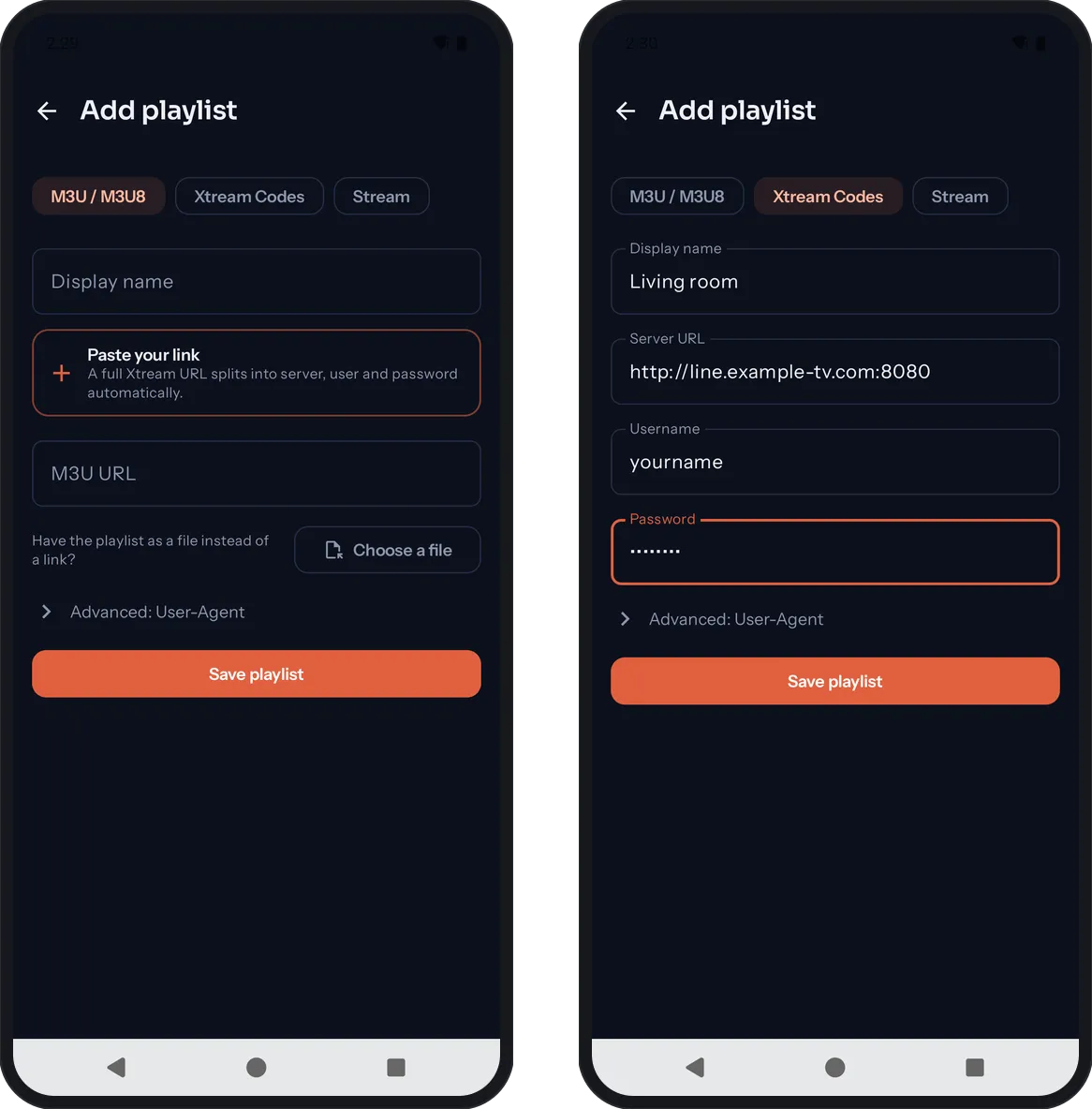 Left: the M3U tab, with Paste your link and Choose a file. Right: an Xtream login, ready to save.
Have the playlist as a file instead? Under the M3U tab, tap Choose a file. You can also open an M3U file with Kepler straight from your file manager, or share it to Kepler from another app.
Kepler then loads your whole catalogue: channels, films, series and the guide. A very large playlist takes a minute or two the first time; after that, updates are quicker.
On your TV: use your phone, not the remote
The first time you open Kepler on a TV, it walks you through four short steps: Add playlist, Check, TV guide and Finish. To add another playlist later, open the playlist switcher at the top right of the screen and choose Manage playlists, then Add playlist.
On the first step you choose how to enter your playlist. Use my phone is the recommended way:
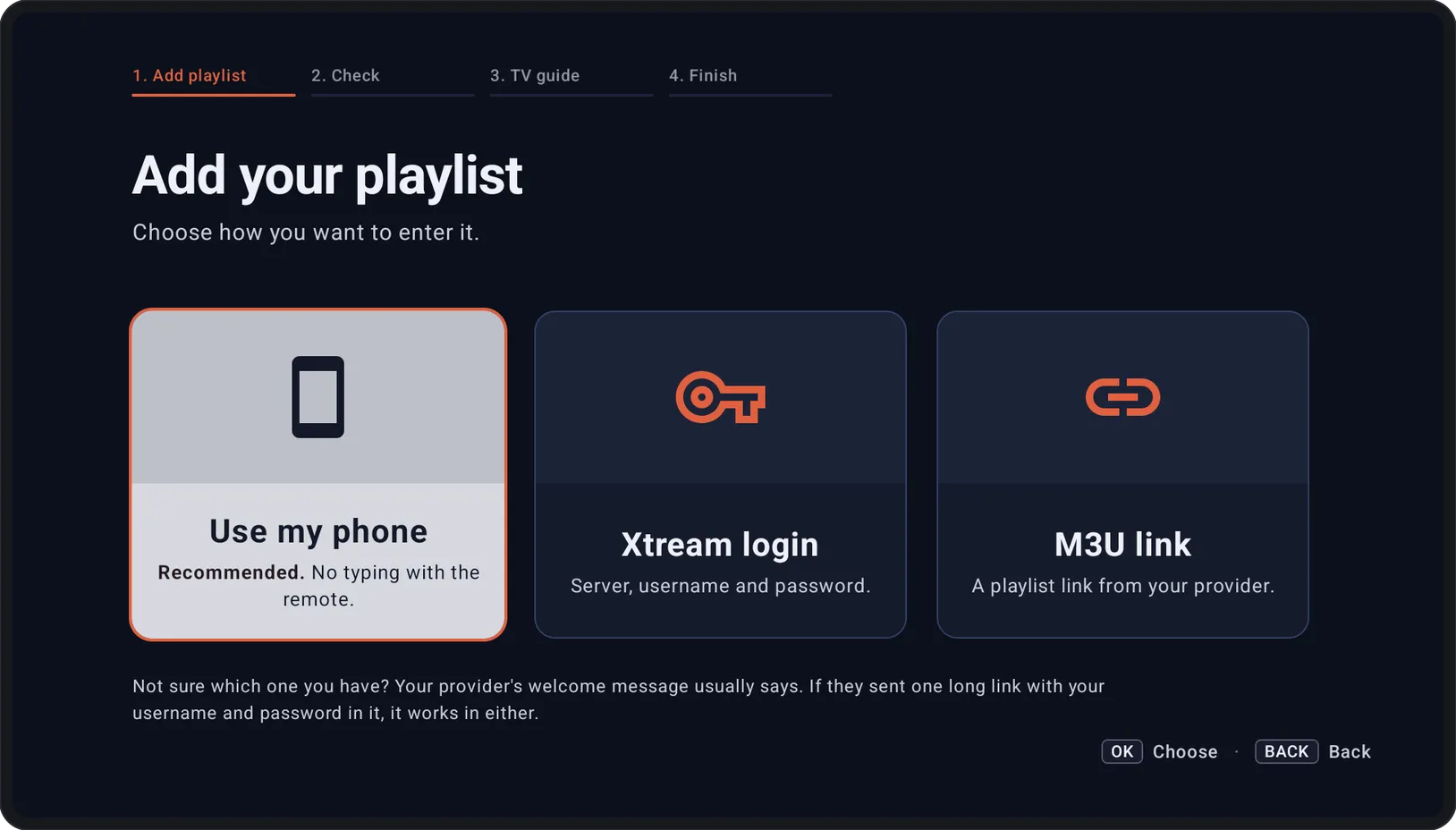 Step 1 on the TV: pick how you want to enter your playlist.
- Make sure your phone and the TV are on the same Wi-Fi.
- Choose Use my phone. The TV shows a code.
- Scan the code with your phone’s camera. A page opens on your phone.
- Pick M3U link, Xtream login or File, fill it in with your phone’s keyboard, and tap Send to TV.
- The details appear on the TV. Check them, and press Continue.
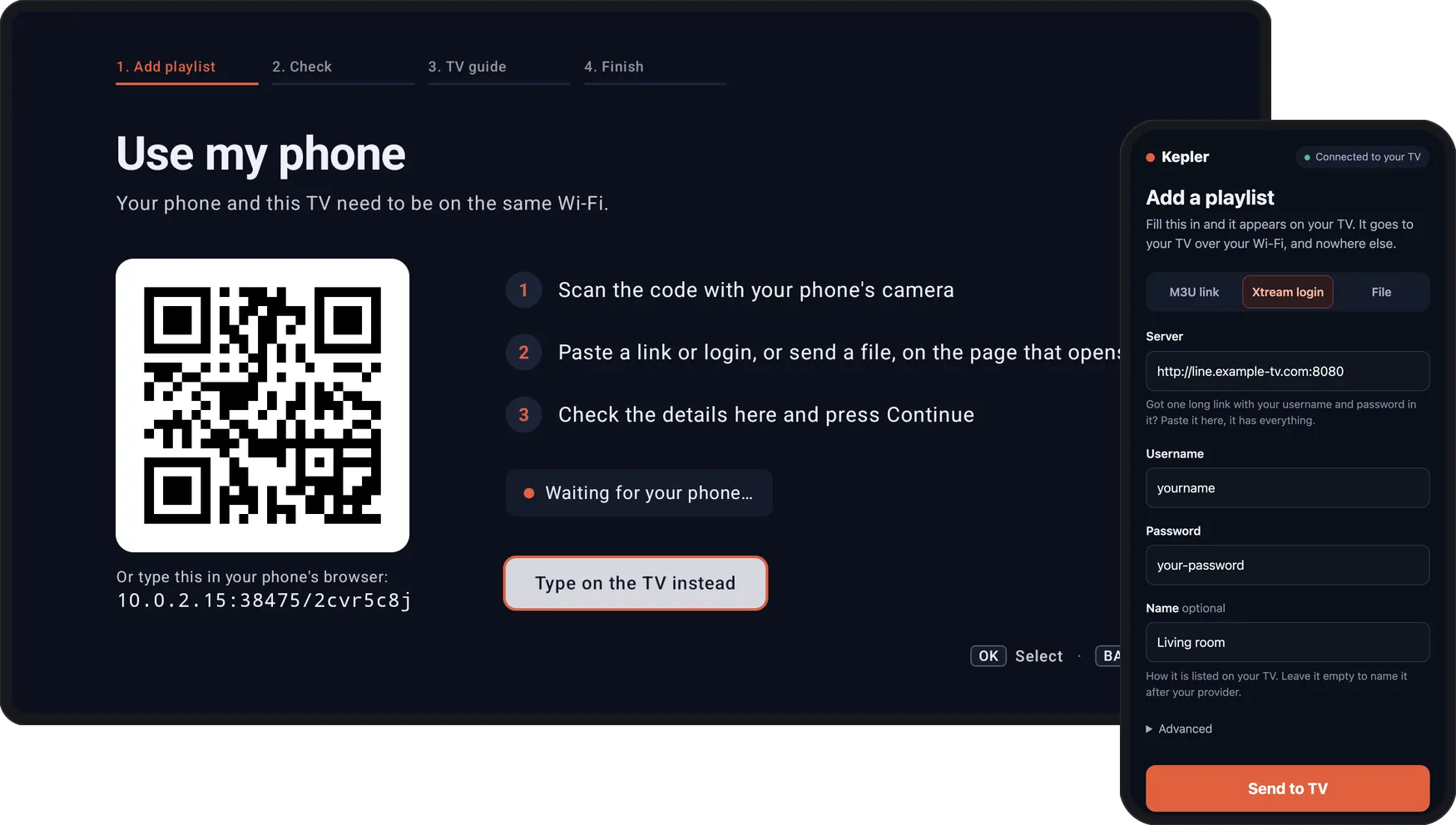 The TV shows a code; the page it opens on your phone sends your login straight to the TV.
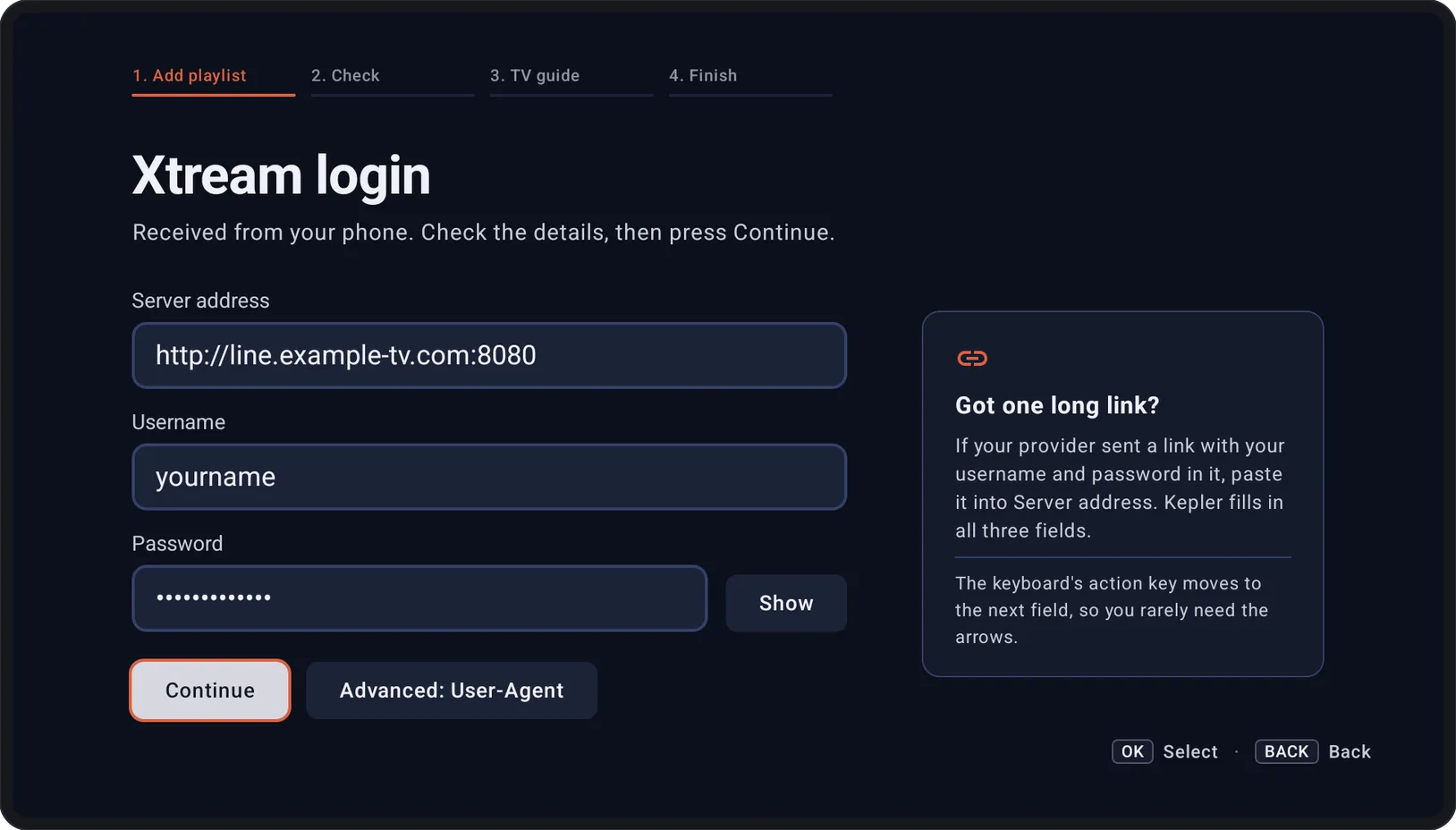 Back on the TV: the details you typed on your phone, ready to check.
The page on your phone is served by the TV itself, so what you type goes straight to the TV over your home network and nowhere else. The connection is not encrypted, so only do this on a network you trust. If you prefer, Xtream login and M3U link let you type everything with the remote instead, and on a TV with a USB port you can open an M3U file from a USB stick with Kepler.
Then Kepler checks the playlist before saving anything: it confirms the server answers, shows whether your account is active and until when, and counts your channels, films and series.
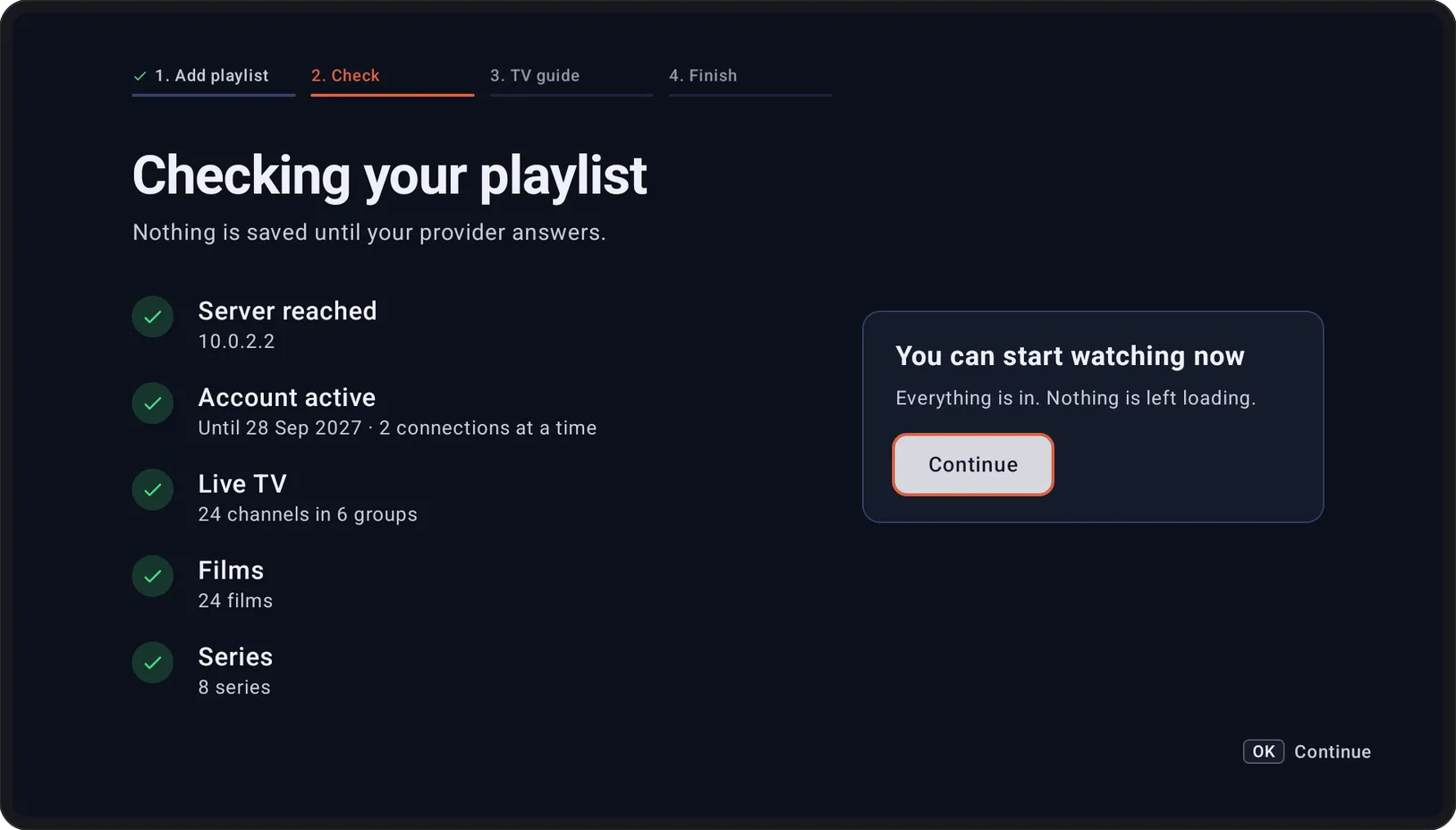 Step 2: nothing is saved until your provider answers.
The programme guide (EPG)
On the TV guide step, Kepler offers your provider’s own guide if it has one, and Xtream playlists usually do. You can also add another guide in XMLTV format for channels your provider does not cover. On a phone, the same options are in the Guide tab, including a way to add a guide to a playlist that came without one.
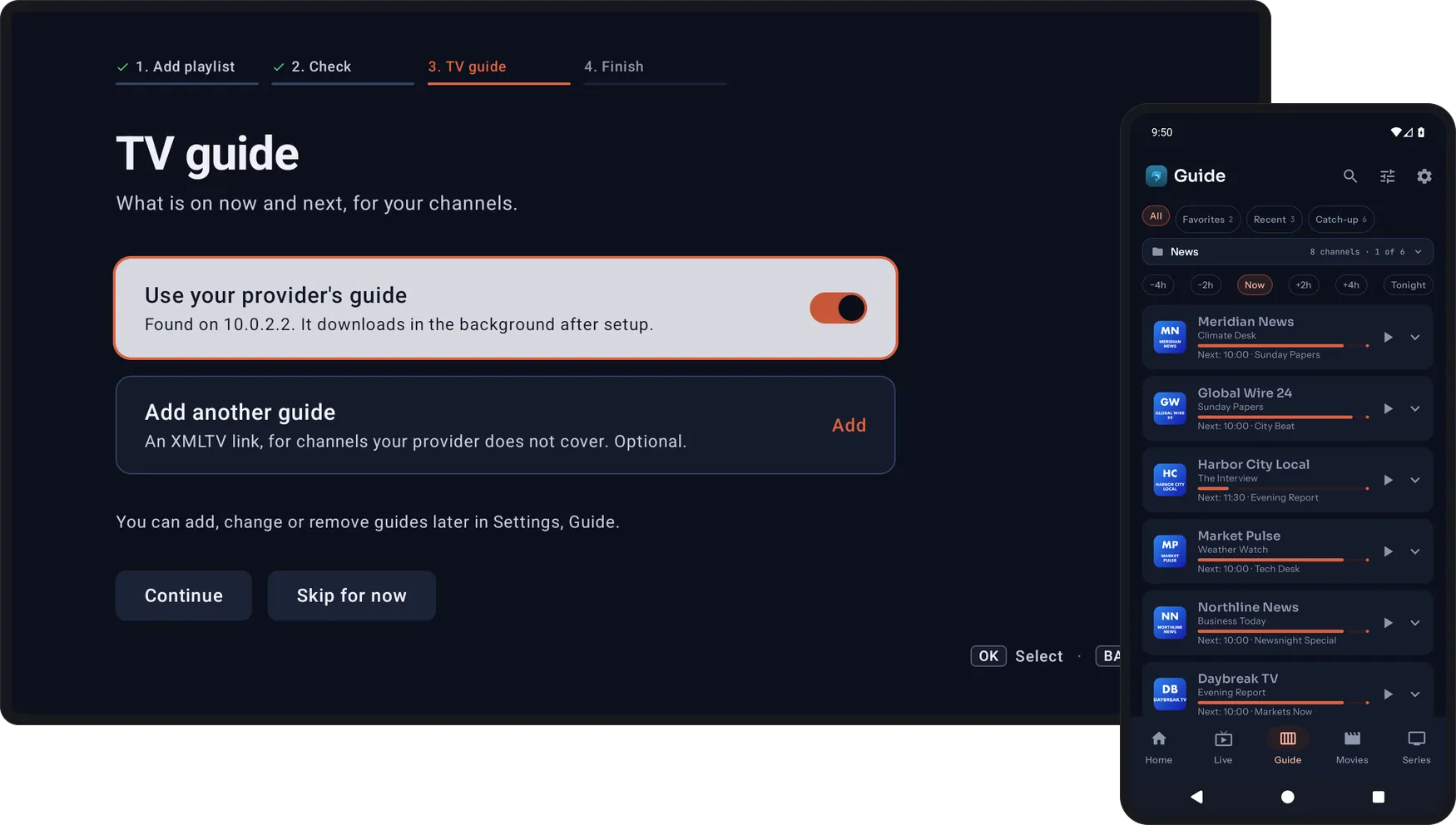 Step 3 on the TV, and the Guide tab on a phone once it has loaded.
Keeping it up to date
On the last step, choose Automatically and Kepler checks for new channels, films and series once a day when it opens, and waits until you stop watching. Choose Only when I ask to refresh it yourself from My Playlists.
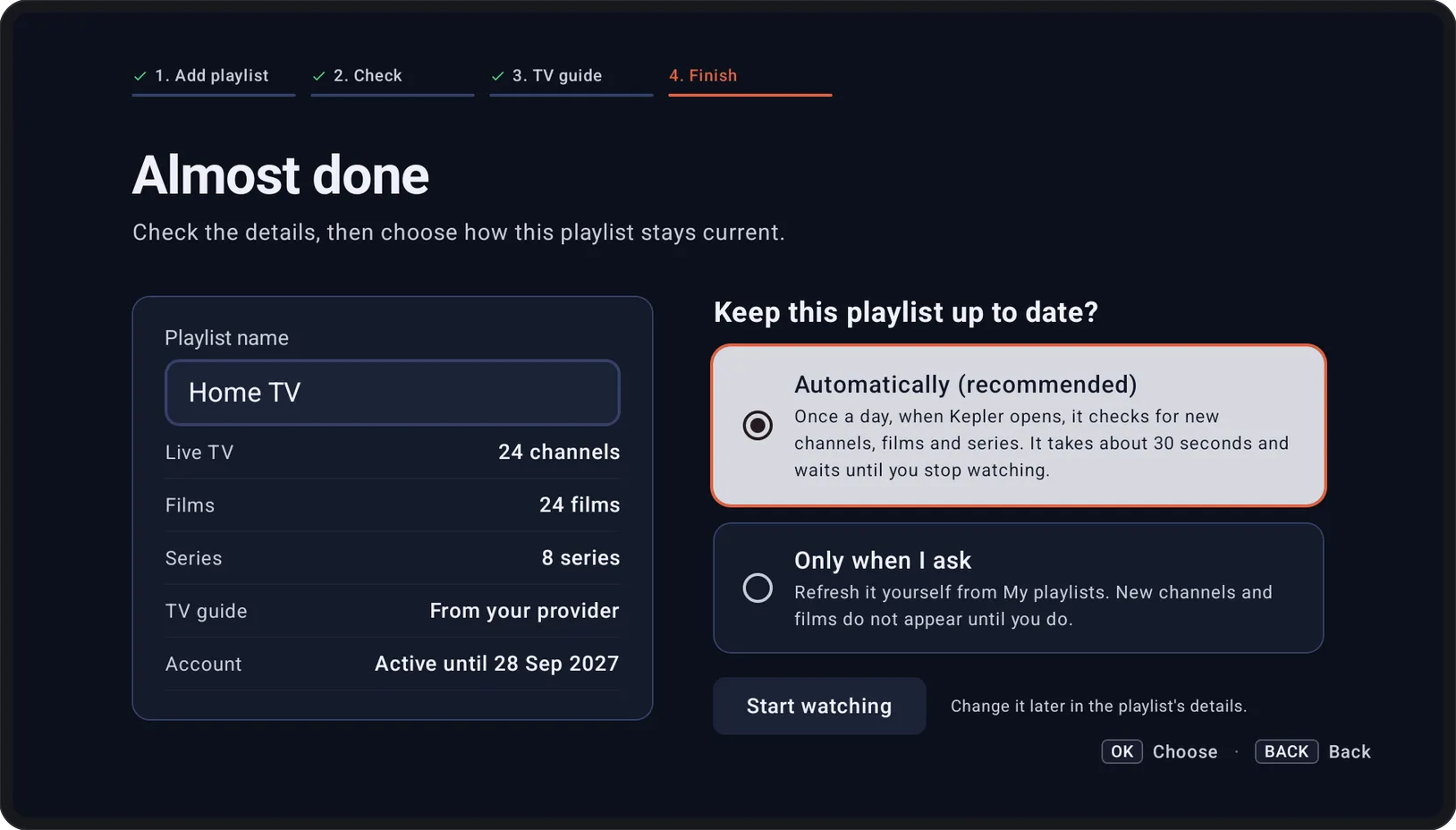 Step 4: name the playlist, choose how it stays current, and start watching.
Troubleshooting
- The import finishes but some groups are missing. Some providers keep groups behind separate packages. Check your subscription includes them, then refresh the playlist.
- Channels load but the guide is empty. Guides cover only the channels your provider maps. Also check the device’s clock and time zone: a wrong clock shifts every programme.
- The player says the connection limit is reached. Many subscriptions allow one stream at a time. Stop playback on your other devices, then try again.
One player for every screen
The same playlist can go on your Android TV, your phone and your tablet. Favourites, groups and parental locks are set per device, so the living room TV and a child’s tablet can be set up differently on purpose.
Kepler is a player and ships with no content. It needs a playlist from a provider you have chosen and are entitled to use.